
- Getting Started
- Time Tracking
- Monitoring & Productivity
- Work Management
- Time Off & Scheduling
- Reports & Finance
- Administration & Settings
- Integrations
- API
- FAQ
The Desktop App Window
Última actualización:
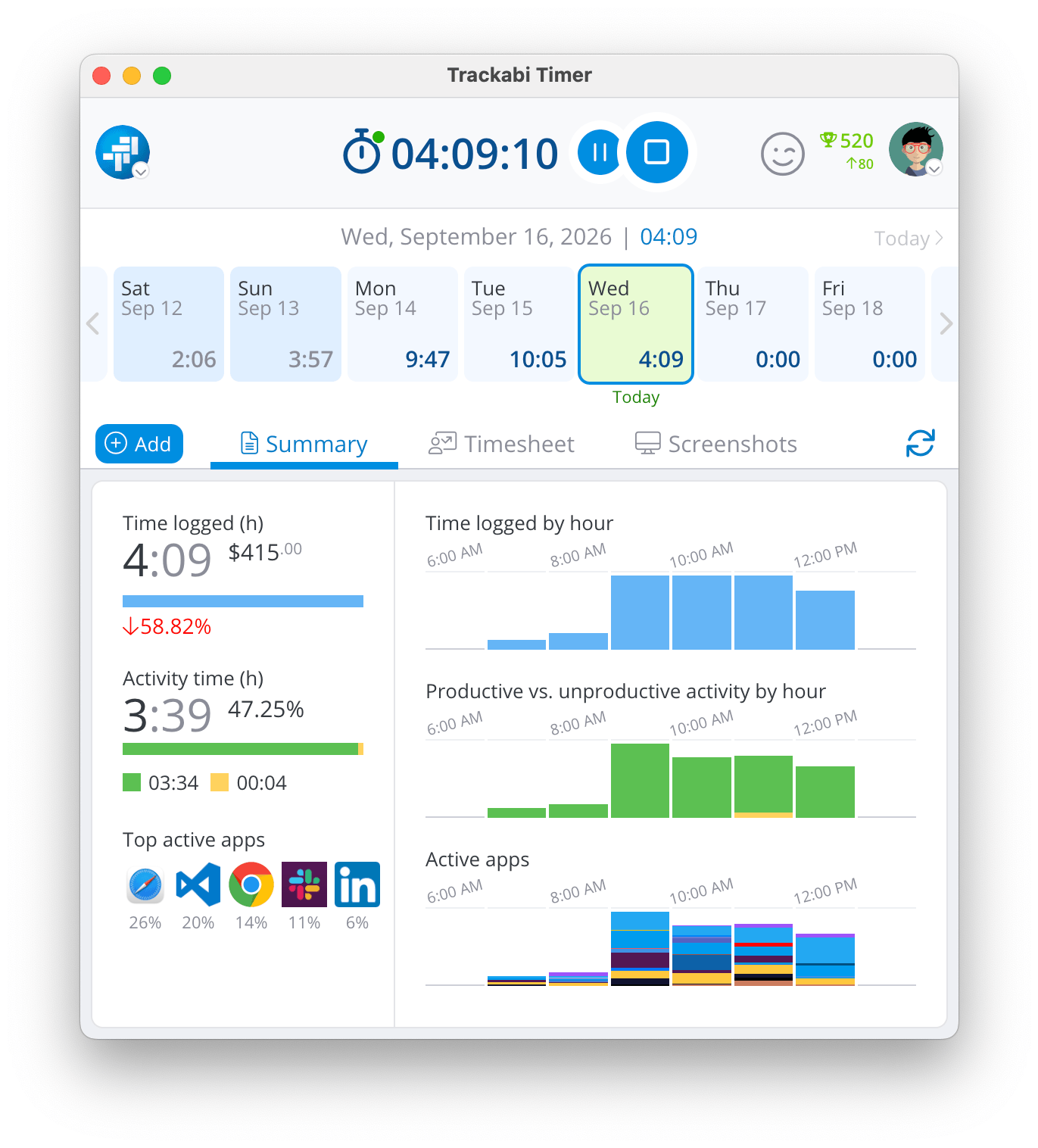
The desktop application window has three fixed parts: a header, a strip of days, and a tab area below them. It shows one member their own day — team, project, and company screens live in the web interface, and the app links out to it.
The header
From left to right the header carries the company logo, the timer with its pause and stop buttons, the mood badge, the karma badge, and your avatar.
The company logo is also the company switcher for members of more than one company. The avatar opens a menu with Edit profile, Settings, Web app, About, Help, Sign out, and Quit. Edit profile and Web app open the browser.
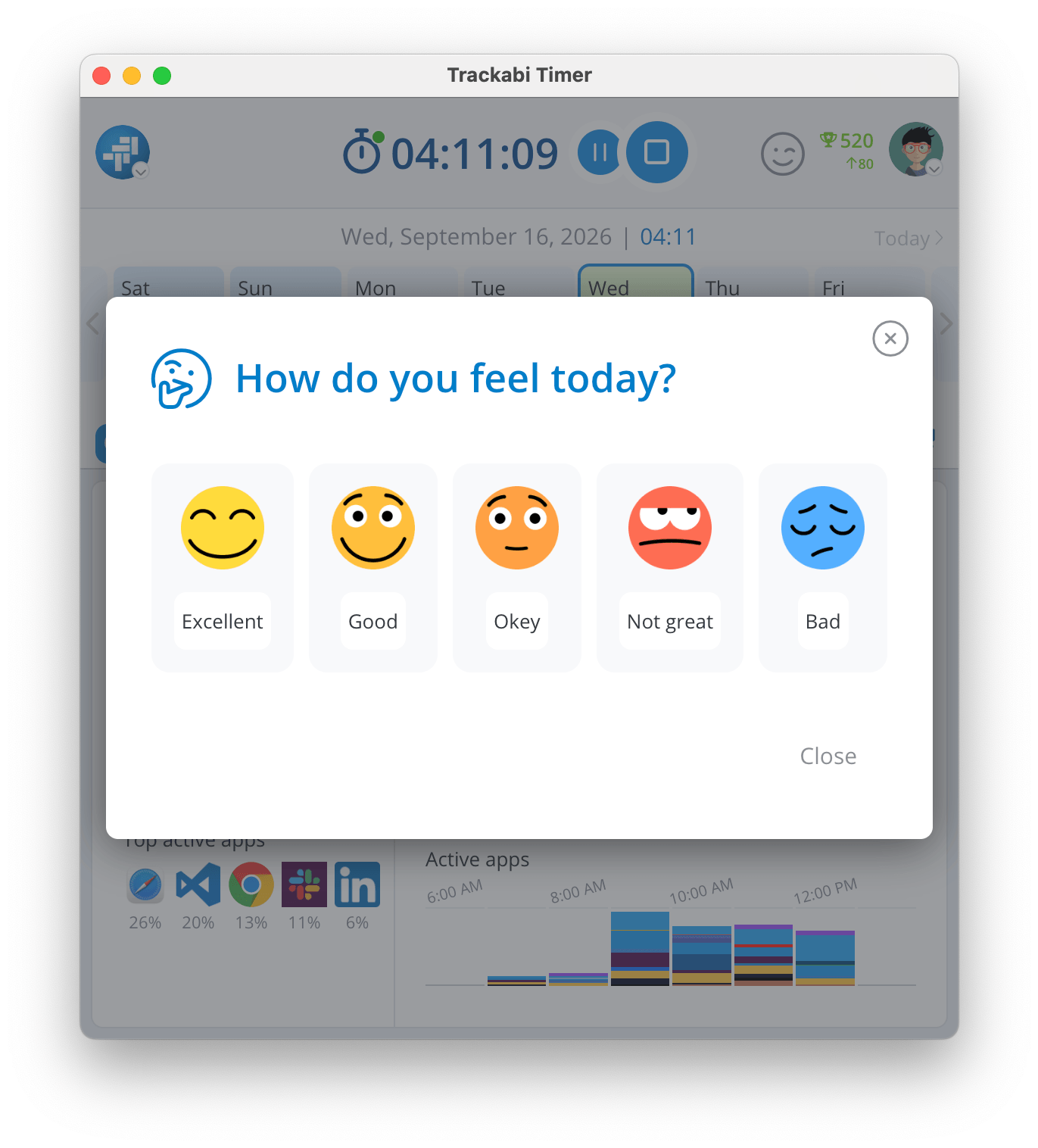
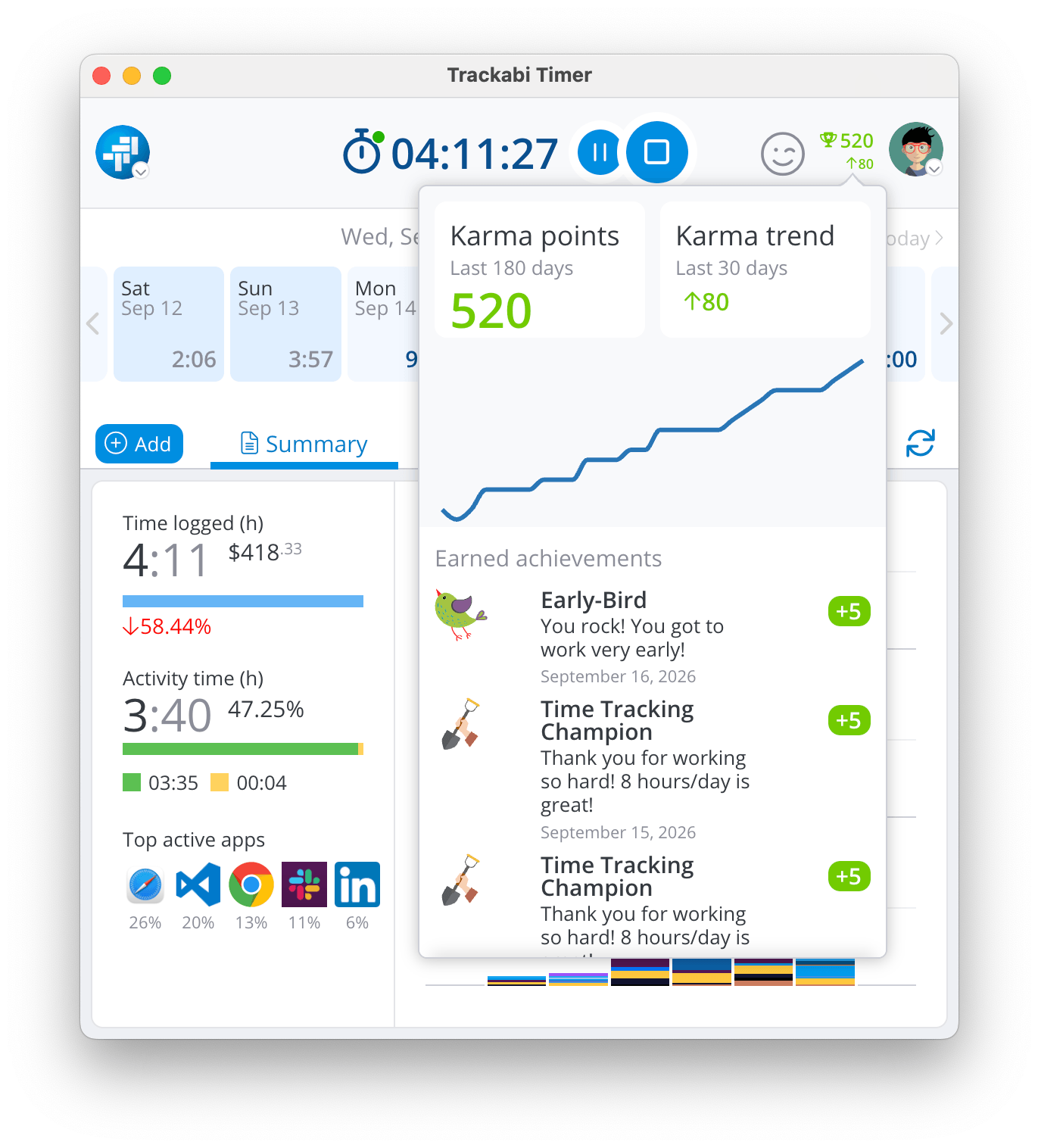
The two badges appear only where the company has those features enabled. The mood badge opens How do you feel today?, which records the day's mood on a five-point scale from Excellent to Bad — see Wellbeing Analysis. The karma badge shows your current points and their trend, and opens a panel with a trend chart and the achievements you earned most recently, with the points each was worth — see Gamification Of Time Tracking.
The day strip
Below the header, one cell per day shows that day's logged total, with the selected date and its running total above the strip and a Today shortcut at the right. Clicking the date itself opens a date picker for jumping further than the strip scrolls.
The cells carry the day's context as well as its total: leaves drawn as a bar across the days they span, public holidays, non-working days, and a marker on a day that is short of its required hours.
Summary
A read-only picture of the selected day, in two columns.
The left column shows Time logged (h) with the amount earned beside it and the change against the previous day, Activity time (h) split into productive and unproductive, and Top active apps — the five applications you used most, with each one's share of the day.
The right column stacks three hourly charts: Time logged by hour, Productive vs. unproductive activity by hour, and Active apps, the last colouring each hour by the applications used within it.
The amount earned appears only where your role may see wages. The activity figures appear only where activity recording is on; with it off, the panel says “Automated activity tracking is disabled” and links to the settings.
Timesheet
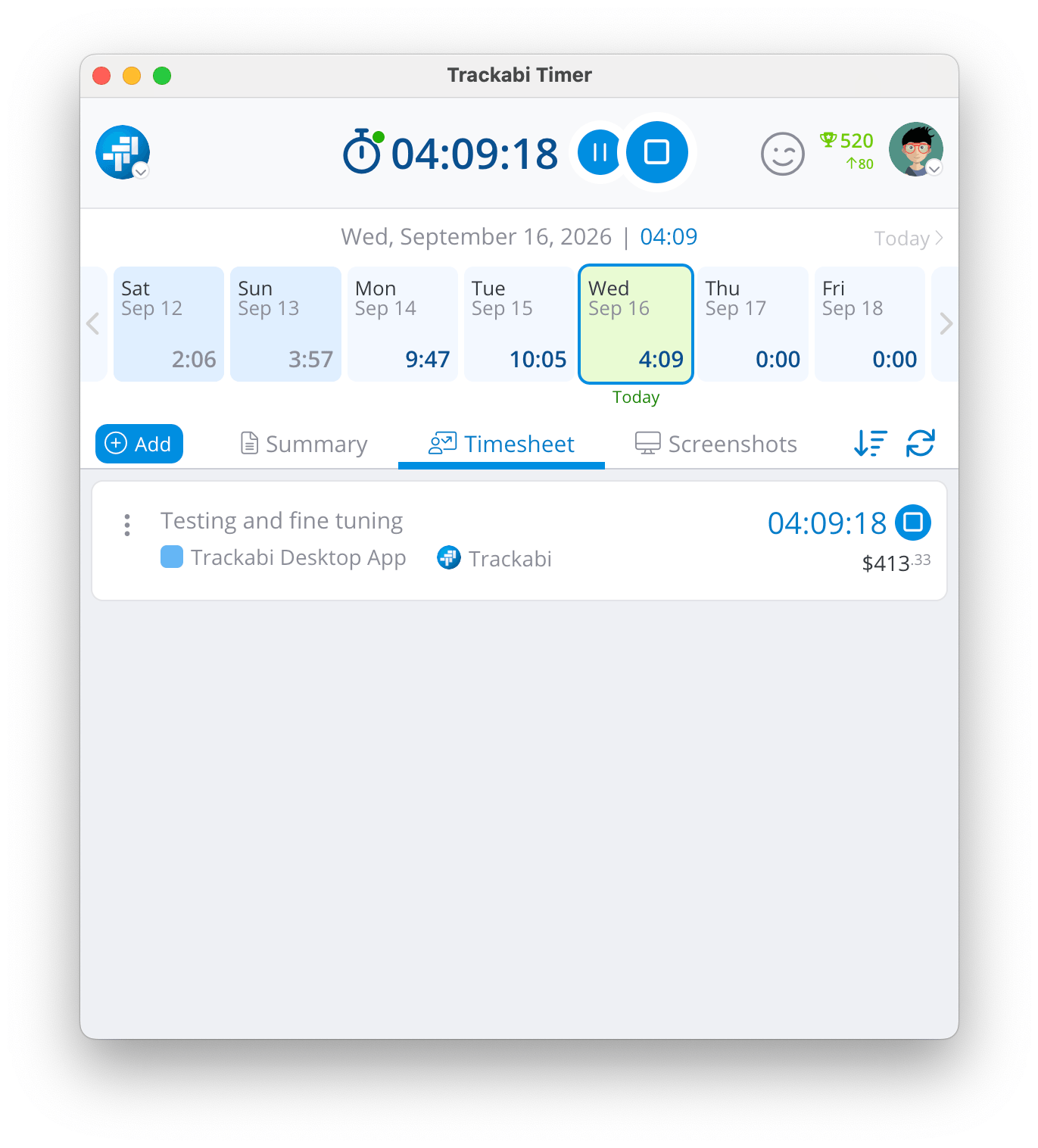
The day's time entries, one card each, showing the task, project, client, logged time, and the amount earned. A running entry shows its live total and a stop button. The sort button beside the tabs flips the list between oldest-first and newest-first.
Above the list the app shows, when they apply, a warning that the day is short of its required hours, a card for a leave covering this day, and a card for a public holiday.
Clicking any entry opens it for editing, and the Add button to the left of the tabs creates a new one. See Logging Time in the Desktop App.
Screenshots
The screenshots captured on the selected day, newest first, with a delete button on each. A deleted screenshot leaves a grey Deleted placeholder in the list rather than disappearing from it. Dates beyond your plan's retention period report that the data is no longer stored.
Both the tab and the delete button are controlled from the web interface. Hide from users removes the Screenshots tab altogether, and Disallow deleting removes the delete button. See Screenshot Capturing.
The tab you were last on is remembered, and the refresh button at the right of the tab row reloads the day from the server.