

- Getting Started
- Time Tracking
- Monitoring & Productivity
- Desktop Timer Application
- Work Management
- Time Off & Scheduling
- Reports & Finance
- Administration & Settings
- API
- FAQ
Import Time Entries from Toggl and Harvest
Última actualización:
If part of your team still tracks time in Toggl or Harvest, or you are moving to Trackabi from one of them, you can pull those time entries into your Trackabi timesheet instead of retyping them. You connect the account once under Personal > Integrations, tell Trackabi which Toggl or Harvest project corresponds to which Trackabi project, and then import any date range from the Import button on your timesheet, reviewing the entries before they are saved.
Availability
- Connections are personal. Each person connects their own Toggl or Harvest account and imports into their own timesheet; nothing is imported on someone else's behalf.
- Your role needs the personal timesheet enabled (the Enable personal timesheet permission). Without it neither the Integrations menu nor the Import button is shown.
- You can only import into active projects you are allowed to log time to. See Projects for how project access is granted.
Connect Toggl
Toggl connects with an API token.
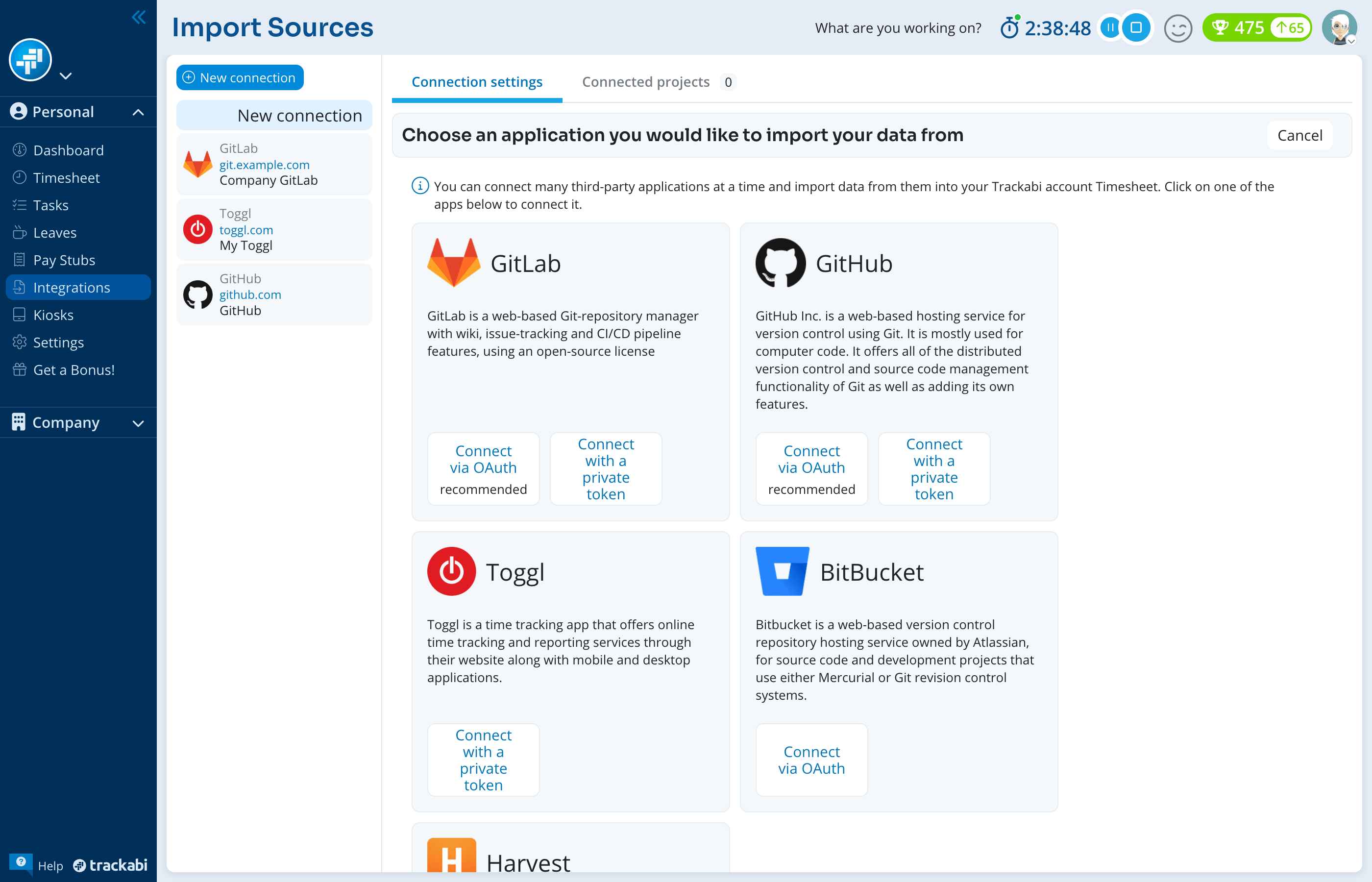
To connect Toggl:
- Open Personal > Integrations and click New connection.
- Under Toggl, click Connect with a private token.
- In Toggl, open your profile settings, scroll to the API token field and copy the token.
- Back in Trackabi, paste it into Private Token, type a Connection name, and click Save.
Trackabi checks the token against Toggl before saving, so a wrong or revoked token is rejected with Access denied per this token.
Connect Harvest
Harvest connects either through OAuth, which is the recommended way, or with a personal access token.
To connect Harvest via OAuth:
- Open Personal > Integrations and click New connection.
- Under Harvest, click Connect via OAuth.
- Click Get Authorization. A new tab opens on Harvest; choose the Harvest account Trackabi should read and confirm the access. The tab closes on its own and the button changes to Connected.
- Type a Connection name and click Save.
To connect Harvest with a token, choose Connect with a private token instead, create a personal access token on Harvest's Developer Tools page, and paste both the Account ID and the token into the form before saving.
If Harvest later stops accepting the connection, open it and click Reconnect to authorize again.
Link the projects
A connection imports nothing until you have said which remote project feeds which Trackabi project.
To link projects:
- Open the connection and switch to the Connected projects tab.
- Click Update remote projects from Toggl (or Harvest) to fetch the current project list from the service.
- For each Trackabi project in the Local project column, choose the matching remote project in the column next to it. Harvest projects are grouped by client.
- Click Save.
Only active projects you can log time to are listed. Use the plus button on a row to feed one Trackabi project from several remote projects. A remote project can be linked to one Trackabi project only; choosing it on another row moves the link. The tab counter shows how many projects are linked.
Import the entries
To import from your timesheet:
- Open Personal > Timesheet and click Import.
- Choose Today's data, Yesterday's data, This week's data, or Data from custom date range. The first three fetch immediately; the last opens a two-step dialog where you pick the date range and untick any linked projects you do not want, then click Fetch data.
- In Preview, adjust & save, tick the entries you want and click Save selected.
Nothing reaches your timesheet before Save selected. The preview lists the fetched entries grouped by date, with the source, project, task, description, and duration. Filter it by project or keyword to find entries; Select all and Unselect all act on the filtered rows only.
Three buttons reshape the selected entries before saving: Group selected merges them into one entry, joining the descriptions line by line and adding the durations; Group by date merges the selected entries that share a day, project, and task; Ungroup selected splits merged entries apart again. Start over returns to the date and project step.
What an imported entry contains
- The date and the description are taken from the remote entry.
- The duration is taken to the whole minute. A Toggl timer that is still running arrives with no time; Harvest entries that are still running are not fetched.
- The project is the Trackabi project you linked, and the client is that project's client.
- The task is matched by name against the project's tasks, ignoring case. A task that does not exist yet is created, unless Allow reporting into the tasks listed below only is on for the project, in which case the entry is saved without a task.
- The time type is your company's default time type.
If your role limits the time you may log per day, an entry that would push you over the limit is cut down to what remains; a notice icon on its duration tells you by how much.
Trackabi does not remember what has already been imported. Fetching the same date range twice lists the same entries again, so untick the ones you have saved before.