

- Getting Started
- Monitoring & Productivity
- Desktop Timer Application
- Work Management
- Time Off & Scheduling
- Reports & Finance
- Administration & Settings
- Integrations
- API
- FAQ
Wellbeing Analysis
Última actualización:
The Wellbeing functionality is an important part of productivity analysis. It allows tracking users’ moods, identifying what impacts their mood, and collecting their daily comments about how they feel, providing actionable insights into employee experience and team health. This helps organizations identify early warning signs of disengagement or stress, understand the overall team situation, prevent burnout, and improve engagement.
Turning wellbeing on for the company
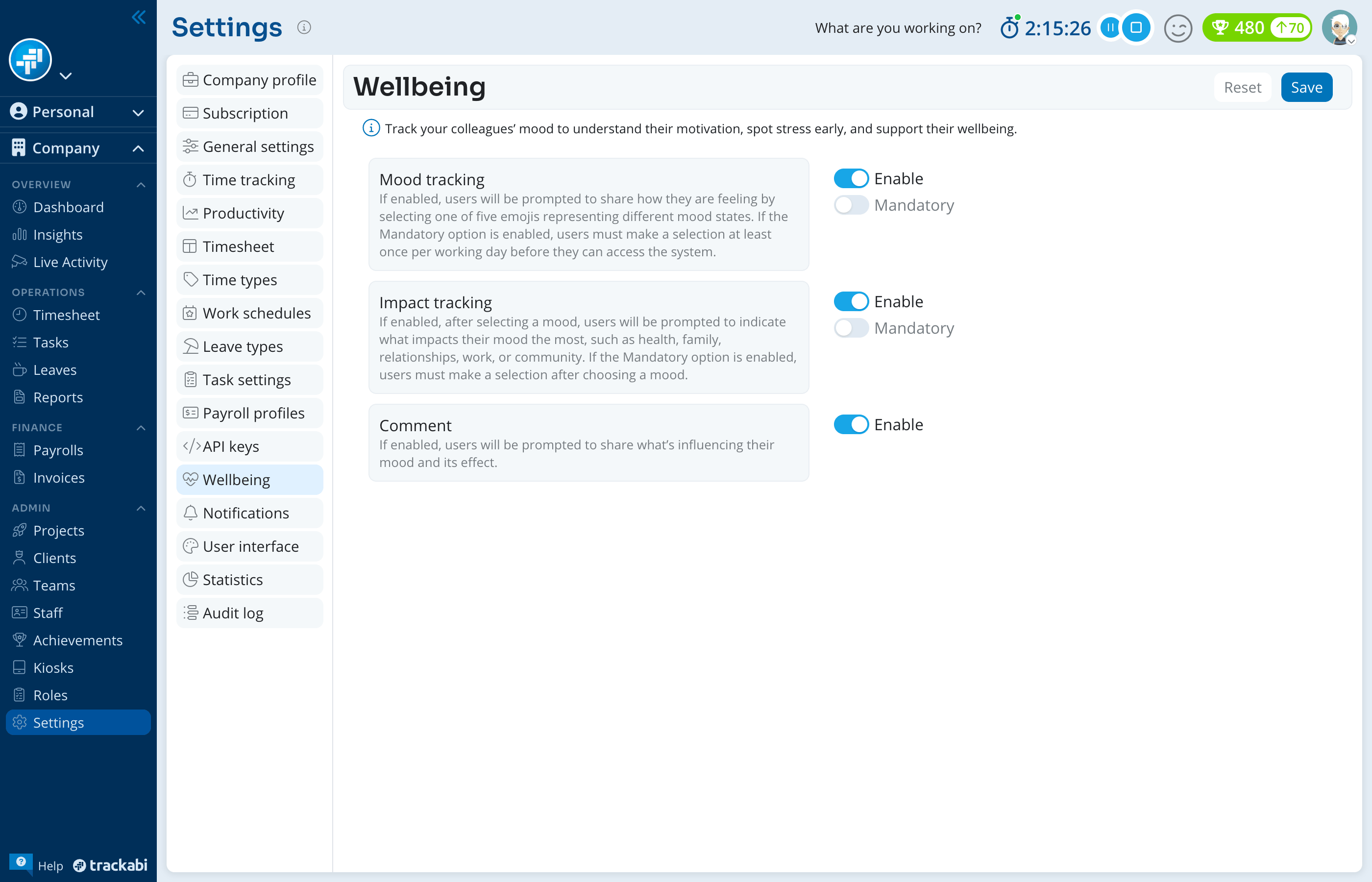
Settings > Engagement > Wellbeing has three blocks, each with its own Enable checkbox:
- Mood tracking — Enable — Asks every user, once per working day, to pick one of five moods. This is the master switch: turning it off also turns off impact tracking and comments.
- Mood tracking — Mandatory — Blocks access to the web app until the user has answered. Without it, the prompt can be closed and comes back the next day.
- Impact tracking — Enable — Adds a second step asking what has the biggest impact on the mood: Health, Family, Relationship, Work, or Community.
- Impact tracking — Mandatory — Requires an answer at the second step once a mood has been chosen.
- Comment — Enable — Adds a final free-text step, up to 255 characters. It is always optional.
When enabled, the system prompts users every working day to share how they feel and select one of five moods: Excellent, Good, Okay, Not Great, or Bad. In the next step, users are asked to select what impacts their mood, followed by an optional comments step. You can configure whether the first two steps are mandatory or optional. If the first step (mood) is not mandatory and a user chooses not to respond, the subsequent steps will also be skipped.
When mood tracking is not mandatory and a user closes the prompt without answering, it stays hidden until the next day. Skipping the mood step skips the impact and comment steps too.
Overriding the setup per role
Each role can depart from the company setup. Open Settings > Roles, pick the role, switch to its Settings tab and scroll to Wellbeing. The same five settings appear as dropdowns:
- As global (Enabled) or As global (Disabled) — follows the company setting; the value in brackets shows what that currently is.
- Enabled (or Mandatory for the two Mandatory settings) — turns the option on for this role even when it is off for the company.
- Disabled (or Not mandatory) — turns it off for this role even when it is on for the company.
The dependencies are enforced in the role form the same way as at company level: setting Mood tracking to Disabled disables impact tracking, comments and both Mandatory options for the role, and setting any of those to Enabled or Mandatory switches its parent to Enabled.
On the desktop application the question is asked from the mood badge in the header, which opens How do you feel today? with the five moods. Members who work through the desktop app answer it there rather than in the web interface.
Viewing wellbeing data
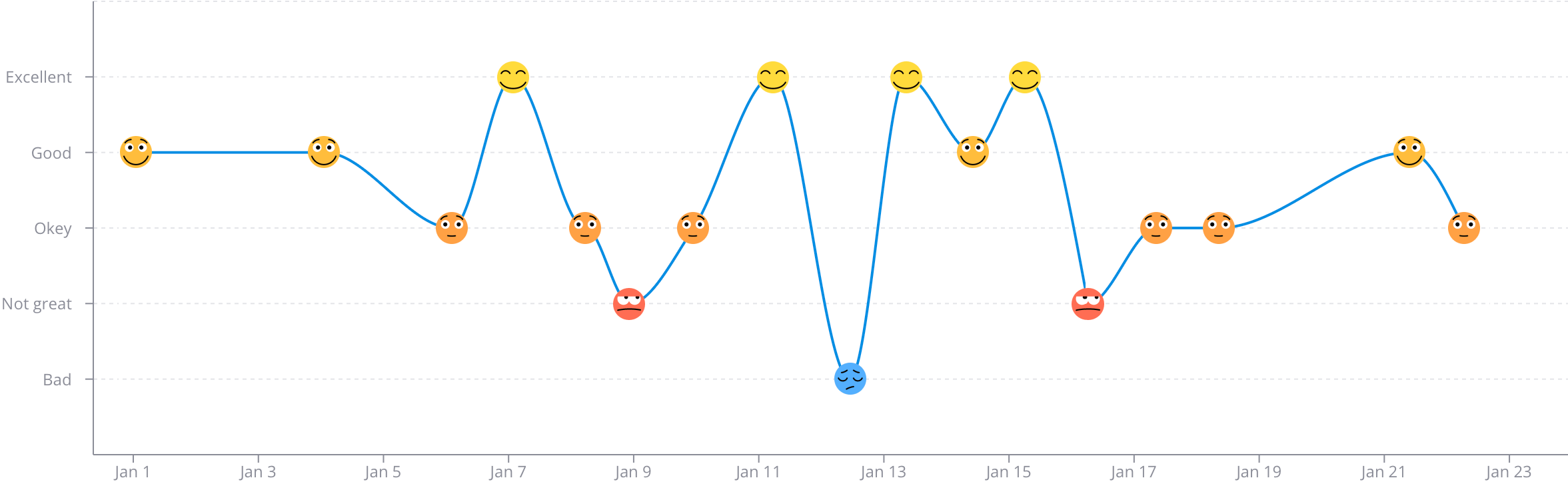
Wellbeing data can be viewed in the Insights section, under the Wellbeing tab. This includes a summary radar chart for the entire company and individual line charts for each user.
To view wellbeing data, a user must have the “View wellbeing data” permission enabled for their role.