

- Getting Started
- Time Tracking
- Monitoring & Productivity
- Desktop Timer Application
- Time Off & Scheduling
- Reports & Finance
- Administration & Settings
- Integrations
- API
- FAQ
Timesheet Locking
Última actualización:
You can lock a specific period in timesheets to disallow your employees to add, modify, or delete their time entries at locked dates. For example, this ability can be helpful to protect data already used to generate reports or prepare payrolls from unwanted modifications.
If a date is locked, the system shows the lock icon next to it.
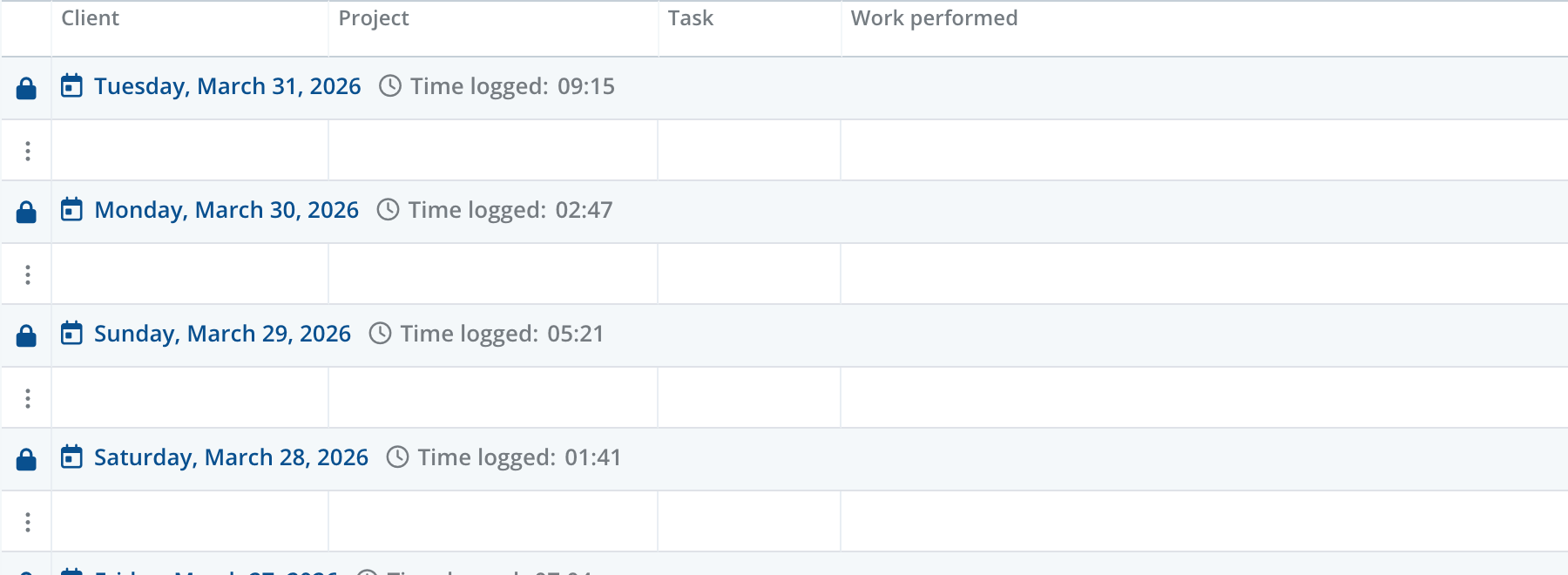
Managers can edit any locked dates in company timesheets. The lock icon only indicates that the date is locked for employees in the Personal area.

A manager should be assigned a role with the "Manage timesheets" permission enabled. Otherwise, he will not be able to edit locked dates.
How to lock timesheets
To enable locking timesheets, go to the Settings > General settings section and check "Enable" next to the Lock time entries option in the Time tracking block.

You can decide to lock all timesheets up to a selected date or automatically lock timesheets older than a specified number of days.
If you disable locking timesheets in the settings, all previously locked timesheets will become editable for all users.