

- Getting Started
- Time Tracking
- Monitoring & Productivity
- Desktop Timer Application
- Work Management
- Time Off & Scheduling
- Administration & Settings
- Integrations
- API
- FAQ
Company Dashboard
Dernière mise à jour :
Overview
The company dashboard is where a manager checks a day, week, fortnight, or month at a glance: hours logged, their cost and billable value, who worked and who fell short, where the time went by client and project, and who is away. Open it from Company > Dashboard. The simpler personal dashboard under Personal > Dashboard is described at the end.
Availability
- Requires View company dashboard. Through the company role it covers the whole organization; through a team or project role it covers only that team's or project's members, whose time on other projects appears as Restricted project or Restricted client.
- Wage figures require View wages and Billable amount figures require View billable amounts; otherwise the tile reads N/A.
- Mood badges require View wellbeing data; the Insights and Full timesheet links need View insights and Review timesheets.
Choosing the period
Switch between Daily, Weekly, Fortnightly, and Monthly and step through periods with the arrows; every block follows the same period. Weeks start on the first day of the week set in Settings > General, and a fortnight is the selected week plus the next one. Your last period, tabs, and toggles are remembered in the browser.
The four totals
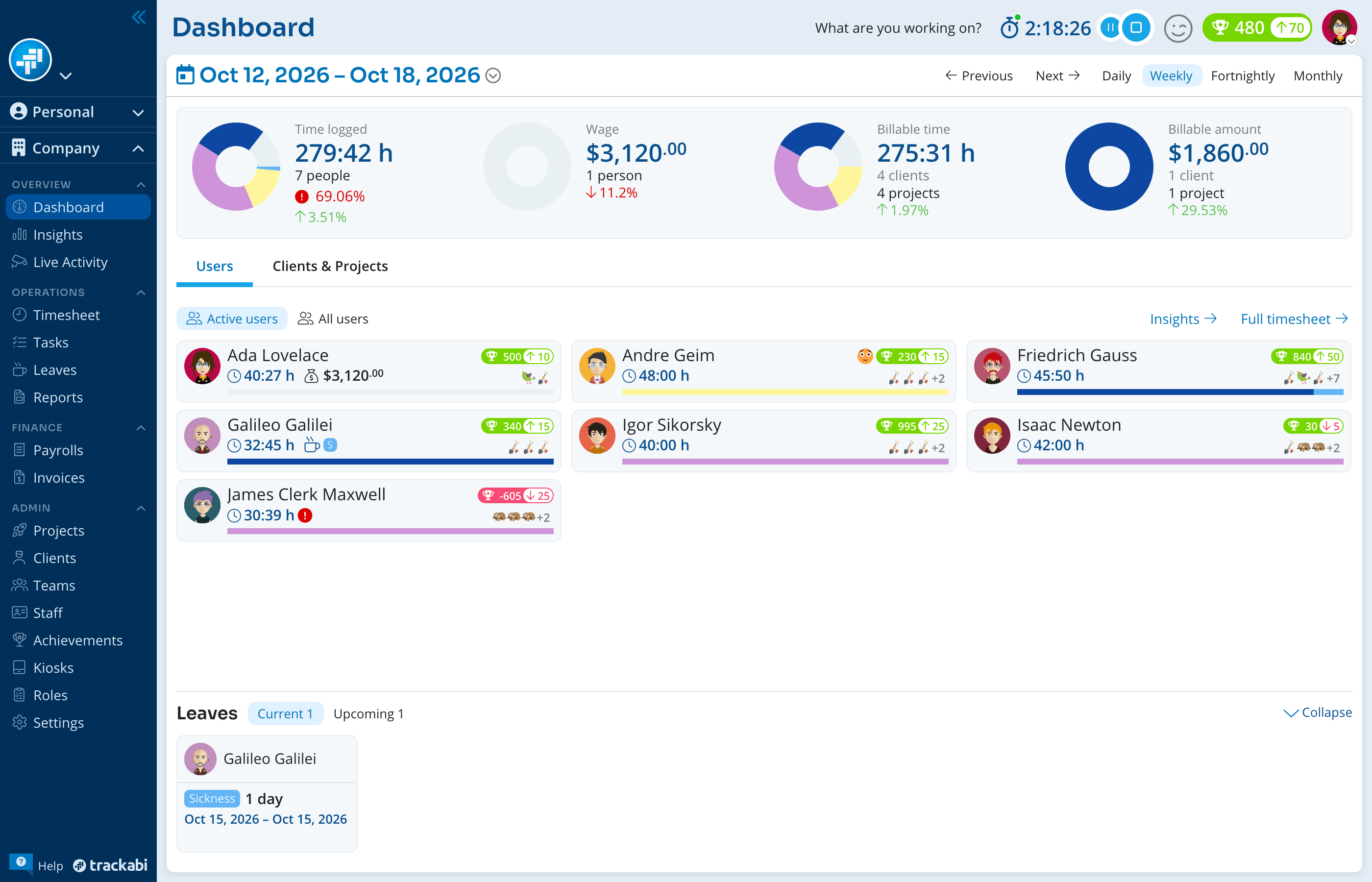
Time logged, Wage, Billable time, and Billable amount each show a donut by project and an arrow with the change against the previous period of the same length. The names are the timesheet column names from Settings > Time tracking > Timesheet fields. Two things are not obvious at a glance:
- Billable time and Billable amount can be split by client instead: click N clients or N projects under the figure. Time with no client or project forms its own slice and counts as one.
- The percentage under Time logged compares hours logged with the hours required from the team for the period; hover it for the shortage or overtime.
The arrow is hidden for future periods and when the previous period has no data. Money is never converted between currencies; with several, the arrow shows the average change and hovering it lists each currency.
Users
One card per user. Active users lists those with at least one accepted time entry in the period; All users adds everyone employed during the period (joined by its last day, not removed before its first) whom you are allowed to see.
A card shows the time logged with a bar per non-default time type, the wage, a leaves icon for approved leave, the split by project, a mood badge, and a karma badge with the achievements earned in the period. A red warning marks a user below the required minimum; a rejected marker means some entries were rejected, and hovering the time shows how many hours. Clicking the time or wage opens the user in Insights.
Clients & Projects
Summary Chart shows hours per day stacked by client and, beside it, by project; in the Daily view each client or project gets one bar. Clients and Projects switch to a table sorted by time, with the billable amount per row (with permission) and a per-day bar strip, omitted in the Daily view. Clicking a row opens the company Timesheet filtered to that client or project and period.
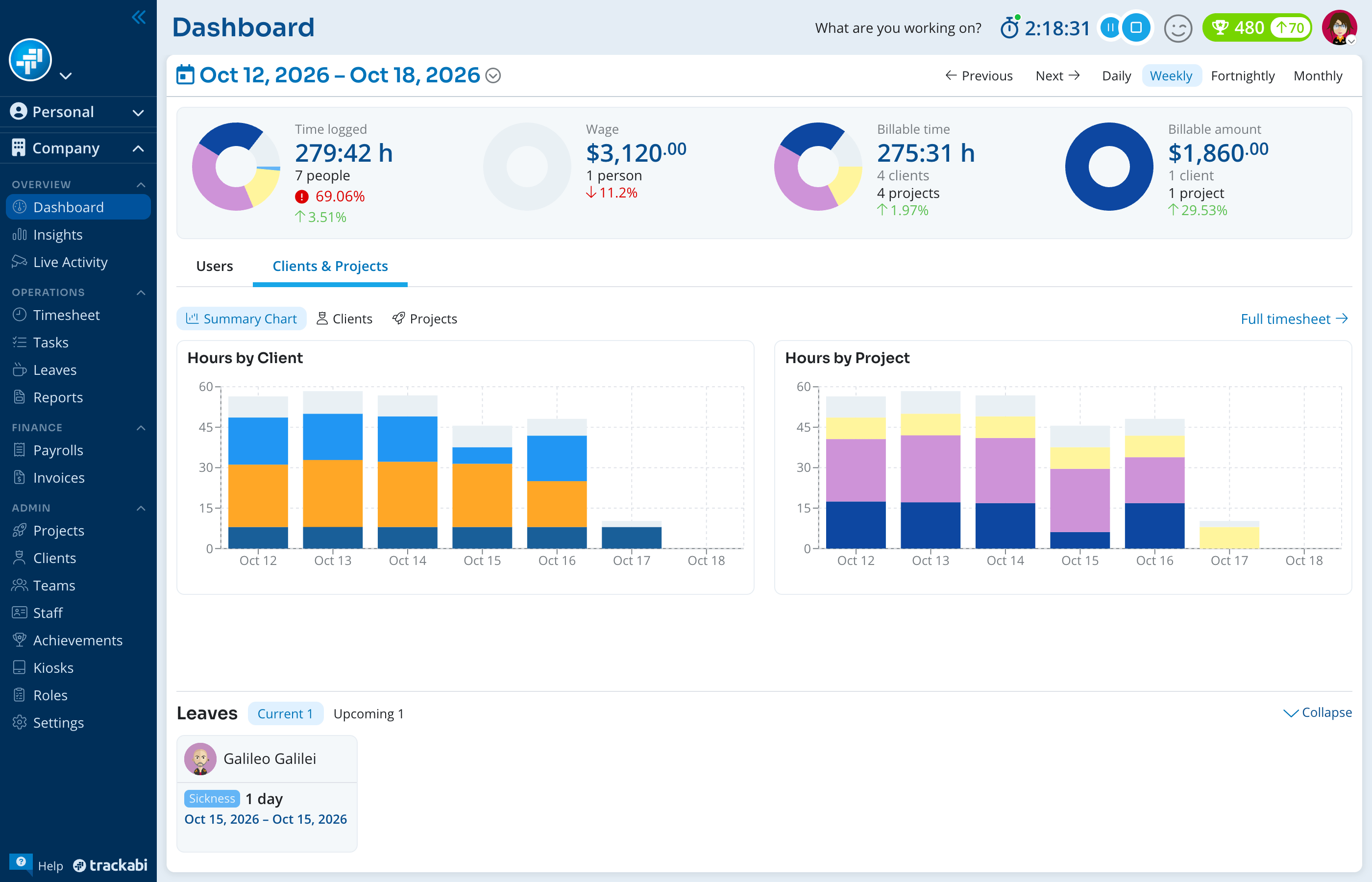
This block counts billable time, not time logged, so its totals differ from the user cards whenever billable hours were corrected or a project is non-billable. Unlinked time is listed as Client not set or Project not set; if no time is linked at all, the block shows the total and says so.
When the window is not tall enough for both blocks, Users and Clients & Projects become tabs above the content.
Leaves
Approved and pending leaves that overlap the period, plus public holidays, in date order. Pending requests are grey with a question mark; approved ones take their leave type's color. Hover a leave label for the actions your role allows. While you view the current period, an Upcoming tab lists the next period's leaves. With several work schedules, each holiday names its schedule and how many people it covers.
How the figures are calculated
Every total counts time entries by the calendar date they were logged on, in the user's own time zone; nothing shifts when the viewer is elsewhere. Rejected entries are left out of every total and appear only as the rejected marker on user cards (see Timesheet Entry Rejection).
- Time logged — entry durations in whole minutes; seconds are dropped except for a running timer.
- Billable time — the corrected billable value if a manager set one, otherwise the time logged; zero when the project, task, or time type is non-billable.
- Wage — minutes logged × the pay rate effective on the entry date × the time type's pay coefficient; rates resolve from the user to the project, client, and organization as described in Pay & Billable Rates.
- Billable amount — billable minutes × the billable rate resolved the same way × the time type's billable coefficient.
- Required time — each user's minimum daily hours over their working days in the period, excluding leaves and public holidays; users whose role disables the minimum add nothing (see Time Tracking Settings).
- Change vs. previous period — (current − previous) ÷ previous; the previous period has the same length and ends the day before the current one starts.
- Karma and mood — karma is the points of achievements earned during the period and the 180 days before it (see Gamification); mood is the rounded average of the user's wellbeing entries in the period, taken in your time zone in the Daily view (see Wellbeing Analysis).
The personal dashboard
Every user also has Personal > Dashboard with their own time logged, computer activity, earnings, work hours and screenshots for a day, week or month. See Personal Dashboard.