

- Getting Started
- Time Tracking
- Monitoring & Productivity
- Desktop Timer Application
- Work Management
- Time Off & Scheduling
- Reports & Finance
- Integrations
- API
- FAQ
Role Permissions
Dernière mise à jour :
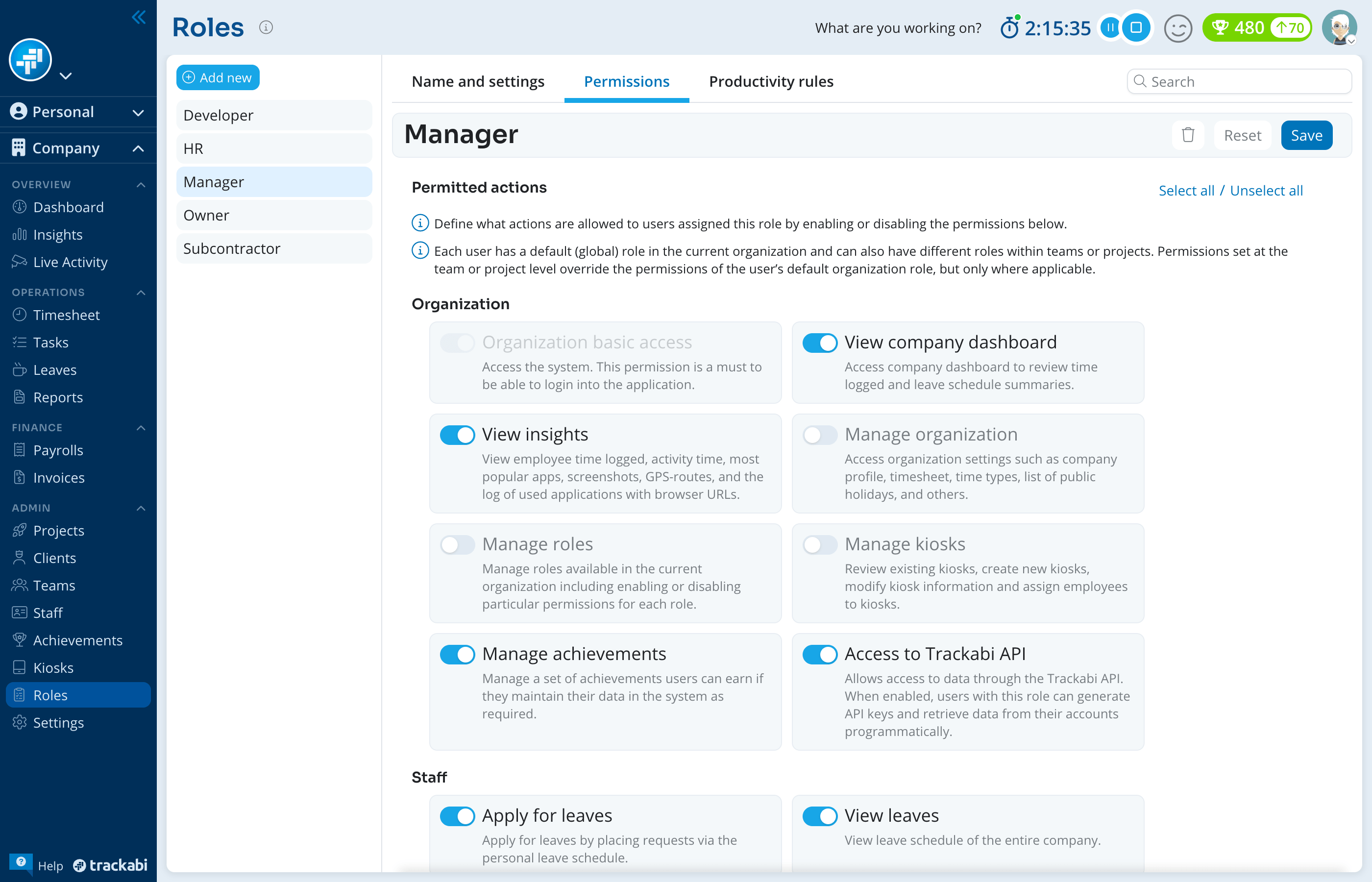
A role is a named set of permissions, and every user has one. The Permissions tab of a role lists every action users with that role may perform, grouped the way they appear on screen. This article is the reference for that tab: what each permission allows, and what else it needs.
For how roles work — account, team, and project roles, how they combine, and how to limit a manager to their own team — see User Access Roles & Permissions.
Availability
- Editing permissions requires the Manage roles permission. Only the account owner can grant or revoke Manage roles itself, and only the owner can see and edit the Owner role.
- Roles are available on every plan. The number of roles you can create depends on the plan (see Subscription & Billing).
- The Payroll group is shown only when payrolls are enabled for your account, and Manage kiosks only when kiosks are.
How the Permissions tab works
Tick the permissions the role should have and click Save. Select all and Unselect all act on the permissions currently shown and skip any that are locked. The search box above the list filters permissions by name or description once you have typed at least four characters.
Organization basic access is always enabled: without it a user cannot sign in, so it cannot be cleared. On the Owner role, Manage roles is locked as well.
Some permissions switch others on or off for you, and the dependent permission stays locked for as long as the first one keeps that state:
- Enabling Manage pay rates, View payrolls, or Manage payrolls also enables View pay rates and wages. Manage payrolls enables View payrolls too.
- Enabling Manage billable rates also enables View billable rates and amounts.
- Enabling Manage clients also enables Global client access.
- Disabling Enable personal timesheet also disables Enable web timer, Enable mobile timer, and Allow adding/editing time manually.
Several permissions only show something if the role can also reach the section it appears in. Those prerequisites are written into the entry for each permission below.
Not every permission has an effect when the role is assigned at the team or project level rather than the account level. Manage organization, for example, does nothing in a project role, while View insights in a project role shows Insights for that project's members only. See User Access Roles & Permissions.
Organization
- Organization basic access — Access the system. Required to log in, so it is always enabled and cannot be cleared.
- View company dashboard — Access the company dashboard to review time logged and leave schedule summaries.
- View insights — View employee time logged, activity time, most popular apps, screenshots, GPS routes, and the log of used applications with browser URLs. Also required to receive summary emails.
- Manage organization — Access organization settings such as the company profile, timesheet, time types, and the list of public holidays. Has no effect when assigned at the project level.
- Manage roles — Manage the roles in the organization, including enabling or disabling permissions for each role. Only the account owner can grant or revoke it.
- Manage kiosks — Review existing kiosks, create new ones, modify kiosk information, and assign employees to kiosks. Shown only when kiosks are enabled for the account.
- Manage achievements — Manage the set of achievements users can earn for maintaining their data as required (see Gamification).
- Access to Trackabi API — Generate API keys and retrieve account data programmatically (see API Overview). Cannot be enabled on a plan that does not include API access.
Staff
- Apply for leaves — Place leave requests from the personal leave schedule.
- View leaves — View the leave schedule of the entire company.
- Manage leaves — Review the full leave schedule, approve or decline leave requests, and cancel scheduled leaves.
- Manage teams — Review and edit teams, create new teams, and assign or unassign users.
- Edit assigned team — Modify the details of particular teams and assign or unassign users to those teams.
- Manage staff — Access the employee directory, edit employee details such as email, phone number, and role, and invite new or remove existing employees.
- Manage invitations — Invite new employees to join the company.
- View wellbeing data — View member wellbeing data on the dashboard and the Insights page.
Time Tracking & Reports
- Enable personal timesheet — Log time worked into a personal timesheet. Disabling it also disables the web timer, the mobile timer, and manual editing, so the user cannot track time at all.
- Allow adding/editing time manually — Add new or edit existing time entries in the timesheet or the desktop timer application. If disabled, users can track time with the timer only. Also needed by Manage timesheets to change time logged, start, and end time.
- Enable mobile timer — Use the timer in the mobile application. If disabled, users can still view their timesheet in the mobile app but cannot use the timer.
- Enable web timer — Use the timer in the web interface. Disable it to have users track time with the desktop application, which captures activity data and screenshots.
- Track GPS coordinates — Record the user's GPS coordinates while the mobile app timer is running. Needs Enable mobile timer to have any effect.
- Manage timesheets — Review and modify time entries of all employees, including locked entries. Allow adding/editing time manually must also be enabled to edit time logged, start, and end time.
- Review timesheets — Review the timesheets of all employees.
- Manage user activity data — Capture screenshots and edit user activity data, including deleting any user's screenshots from Insights even when deleting is disallowed for users.
- Manage reports — Create, review, and delete time worked reports. Includes access to the full company timesheet.
- View reports — View saved reports.
Clients & Projects
- Global client access — View all clients in the account and assign any of them to time entries. Without it, users see only the clients linked to the projects they are assigned to. Enabled automatically by Manage clients.
- Manage clients — Review existing clients, create new ones, modify client information, and invite client employees who may review reports created for that client.
- Global project access — View all projects in the account and assign any of them to time entries. Without it, users see only the projects they are assigned to.
- Manage projects — Review existing projects, modify their details, add new projects, and assign employees and teams to projects.
- Edit assigned project — Modify the details of particular projects, assign or unassign users and teams to those projects, and modify their tasks.
- Assign project members — Assign and unassign employees or teams to particular projects.
- Manage tasks — Access the tasks of each project and edit them.
- Manage assigned tasks — Access the tasks assigned to the user and edit a restricted subset of fields. A parent task listed only because one of its subtasks is assigned stays read-only.
Wages & Billable Amounts
- View pay rates and wages — View pay rates and wages in Insights, the company Timesheet, and project plans. Also requires access to the Staff, Insights, Timesheet, and Projects sections. Enabled automatically by Manage pay rates, View payrolls, and Manage payrolls.
- Manage pay rates — Manage the pay rates of the organization, clients, projects, and individual team members. Also requires access to organization settings, clients, and projects.
- View billable rates and amounts — View billable rates and billable totals in Insights, the company Timesheet, and project plans. Also requires access to the Insights, Timesheet, and Projects sections. Enabled automatically by Manage billable rates.
- Manage billable rates — Manage the billable rates of the organization, clients, and projects. Also requires access to organization settings, clients, and projects.
Rates themselves are explained in Pay & Billable Rates.
Invoices
- Manage invoices — Create, review, and delete invoices.
- View invoices — View saved invoices.
Payroll
- View own pay stubs — View own pay stubs in the personal Pay Stubs section.
- View payrolls — View payrolls and pay stubs across the organization. Enables View pay rates and wages automatically.
- Manage payrolls — Create, edit, run, and delete payrolls, and manage pay stubs. Enables View payrolls and View pay rates and wages automatically.
The payroll workflow is covered in Payrolls.