

- Getting Started
- Time Tracking
- Desktop Timer Application
- Work Management
- Time Off & Scheduling
- Reports & Finance
- Administration & Settings
- Integrations
- API
- FAQ
GPS Tracking
Dernière mise à jour :
When someone runs the timer in the Trackabi mobile app, the app can record the route they travel and send it to Trackabi. Managers then see the route drawn on a map for that day. The feature is meant for people who work away from a desk, such as field technicians, couriers, and sales representatives; see Mobile Timer.
Recording is switched on or off per role, and routes are viewed in Insights.
Availability
- Recording needs the Trackabi mobile app. The web timer and the desktop app do not record location.
- Recording is controlled by the role permission Track GPS coordinates. It is granted by default to the stock Manager and Employee roles, so it is on for most companies until someone turns it off.
- Viewing routes needs the View insights permission, whose description lists GPS-routes among the data it unlocks. There is no plan requirement for either recording or viewing.
Turning recording on or off
Open Roles, select the role, and on the Permissions tab find Track GPS coordinates in the Time Tracking & Reports group. The permission text reads: Track GPS coordinates while using the mobile app timer. If enabled, the application records user GPS coordinates while the timer is running.
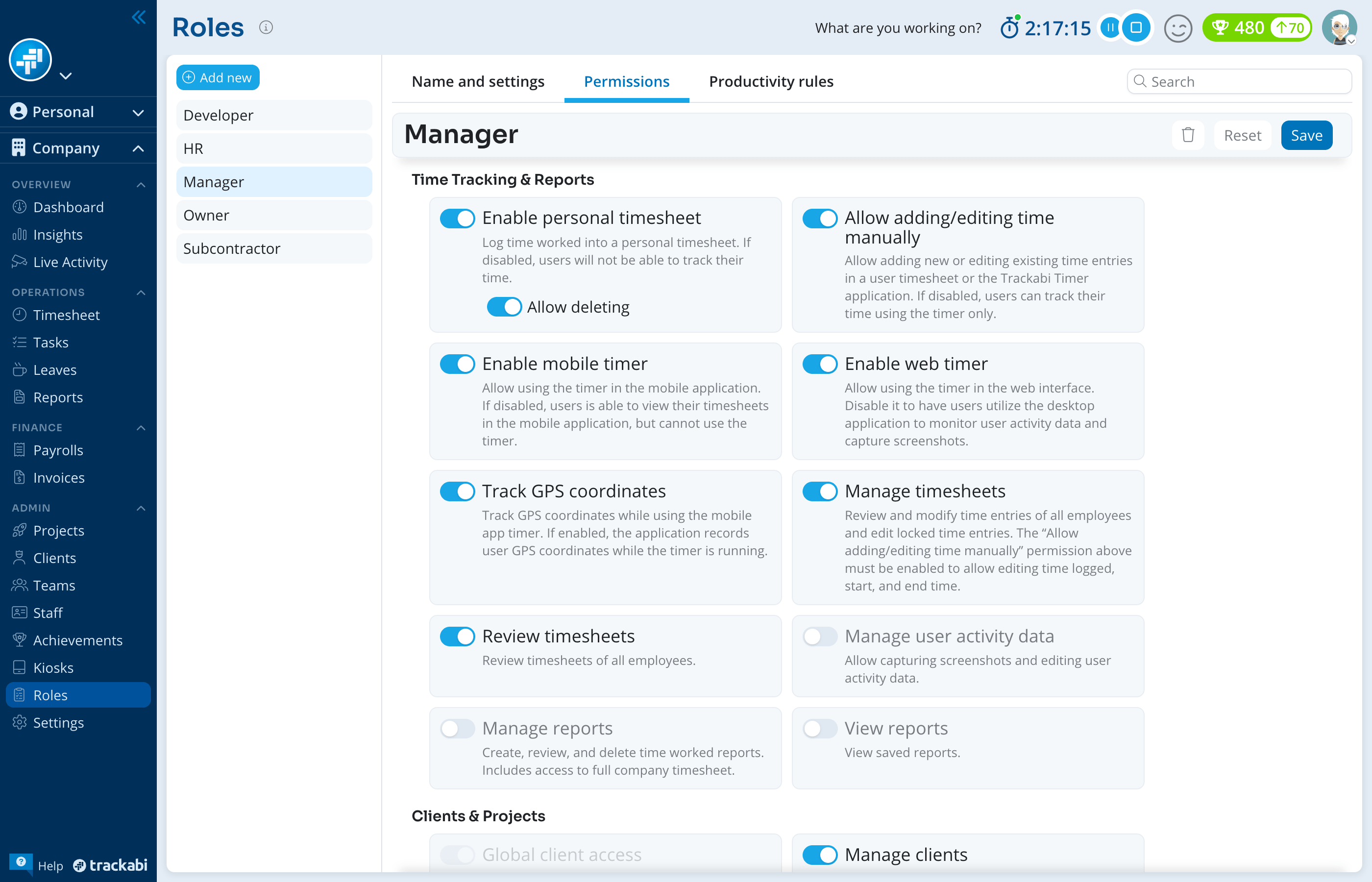
Clearing it stops the mobile app recording for everyone with that role. The app records only while a timer is running, so someone who logs time manually in the app, without starting the timer, leaves no route.
Viewing routes
Open Insights, choose the person in the list on the left, and below the daily chart switch from Desktop activity to the Locations tab. The tab shows a map with each timer session drawn as a line, a flag at the start and at the end, and direction arrows once you zoom in far enough. A session with a single recorded point is drawn as a dot.
Routes are shown for one day at a time. With a week, fortnight, or month selected, the tab reads Locations are available in the daily view only; a day with nothing recorded reads No data found. When the selected day is today, the map refreshes on its own while it is open. Distance, speed, and timestamps are not shown; the map shows only where the person went.
If there is no GPS data for the day and your plan includes location by IP address, the map instead marks the places the person's time entries were logged from, based on their internet address, with the notice Location data is estimated based on IP addresses and may not be precise.
Routes are not shown on time entries, in reports, on the dashboard, or in Live Activity. A person cannot view their own route in the web app.
What is stored and for how long
Each recorded point is a position and a time, grouped into one session per timer start. A session belongs to the person, not to the time entry: editing or deleting the time entry does not remove the route.
Routes are kept for as long as the person's account exists. They are not removed by any retention period, and dismissing a person keeps their routes; only deleting the user account removes them. Routes are included in the company data export.
Trackabi shows no notice to the person being recorded inside the web app. The permission text above is the only description of the behavior in the product, so tell your team when recording is on.