
- Getting Started
- Time Tracking
- Monitoring & Productivity
- Desktop Timer Application
- Work Management
- Time Off & Scheduling
- Reports & Finance
- Integrations
- API
- FAQ
Notifications (Personal Settings)
Dernière mise à jour :
This page controls the alerts Trackabi sends to you personally: a reminder when you have left a timer running, and notifications about events on your own account such as a leave request being approved, a time entry being rejected, or an achievement being earned. Each alert can reach you as a browser notification, as a push notification in the Trackabi mobile app, and, for the timer reminder, by email.
Open Personal > Settings > Notifications. The page has two groups: Instant notifications, delivered to your browser or phone, and Email notifications. The company-wide summary emails that managers configure are a different feature; see Notifications (Summary Emails).
Availability
- Every member sees the page, provided their role can edit its own settings. There is no plan requirement.
- Settings are saved per company. If you belong to several companies, set them in each.
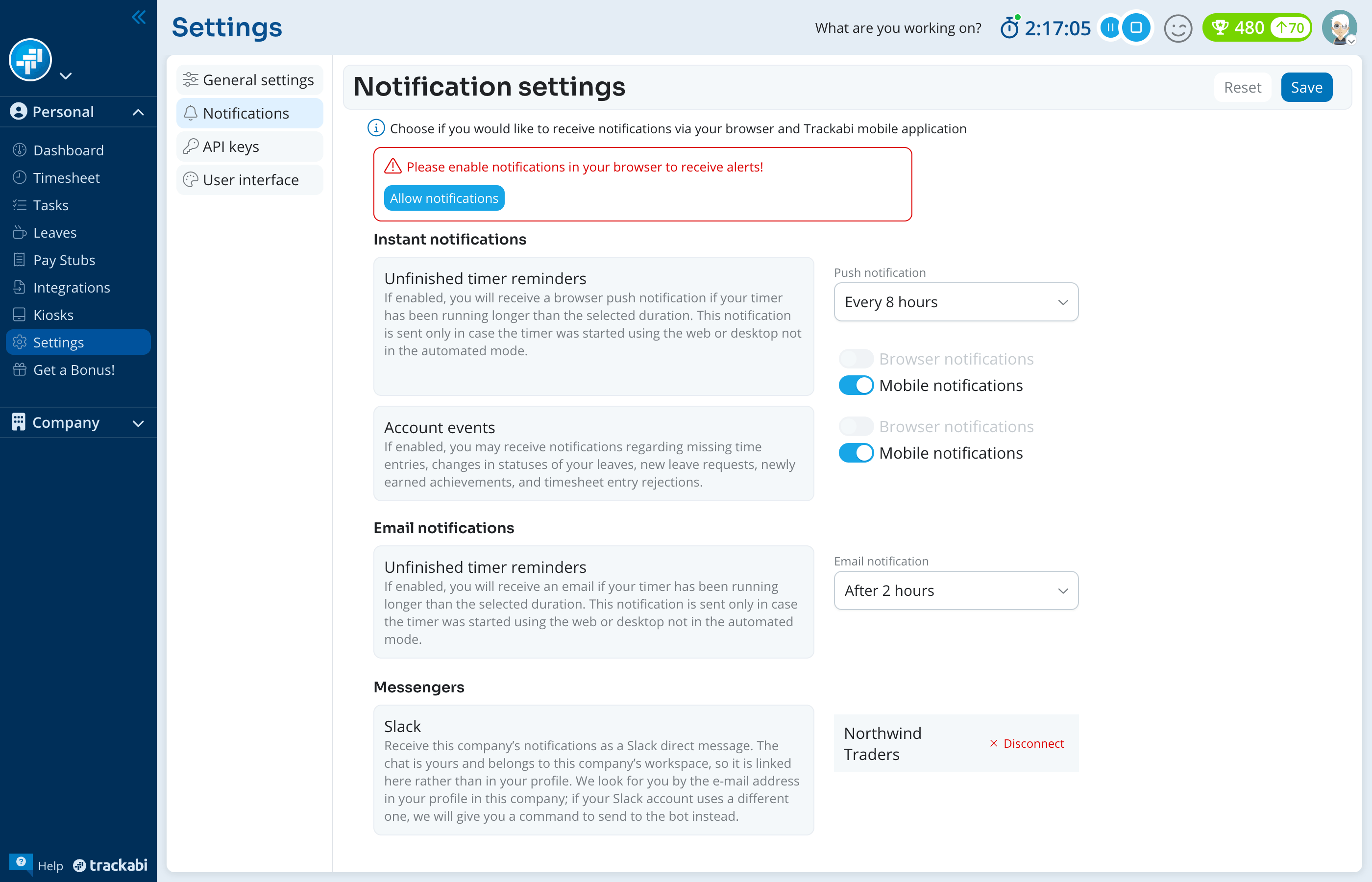
- Browser notifications need your permission, and mobile notifications need the Trackabi mobile app signed in on your phone. Until then the corresponding checkboxes are greyed out, and a banner at the top of the page tells you what is missing: Please enable notifications in your browser to receive alerts! with an Allow notifications button that asks the browser for permission, or a banner linking to the mobile app download page.
Instant notifications
Unfinished timer reminders
Sends a push notification when a timer of yours has been running longer than the period you choose.
- Push notification — how long a timer may run before you are reminded: Every 2 hours up to Every 12 hours, in steps of two. The default is every 2 hours.
- Browser notifications and Mobile notifications — where the reminder is delivered. Both are off by default.
The reminder repeats at the same interval for as long as the timer keeps running, and stops the moment you stop the timer. Tapping the notification opens your timesheet.
As the note under the setting says, it applies only to timers started from the web timer or from the desktop app in manual mode. A timer the desktop app started by itself in automated tracking mode never triggers it, because that timer follows your activity and is not something you forgot.
Browser notifications reach only the browser where you granted permission, and only for the company you were signed into at the time.
Account events
Sends a notification when something happens on your own account: a missing time entry, a change in the status of one of your leaves, a new leave request waiting for you, a newly earned achievement, or a time entry of yours being rejected or accepted.
- Browser notifications and Mobile notifications — both on by default.
Two of these events depend on company settings. Missing-time reminders are sent only if your company has turned on the incomplete timesheet reminder in Settings > Time tracking > Rules & limits, which also sets the time of day the check runs; see Time Tracking Settings. Rejected time entries are also announced by email to you and to the manager who rejected them, and that email cannot be switched off here; the setting controls only the push notification. See Timesheet Entry Rejection.
Email notifications
The group has one setting, a second Unfinished timer reminders entry for email.
Email notification — sends an email when a timer has run longer than the chosen period: Never, the default, or After 2 hours up to After 12 hours.
Unlike the push reminder, the email is sent once per timer and is not repeated. It covers timers started from the web timer or the desktop app in manual mode; a timer started in the mobile app does not send an email.