

- Getting Started
- Time Tracking
- Desktop Timer Application
- Work Management
- Time Off & Scheduling
- Reports & Finance
- Administration & Settings
- Integrations
- API
- FAQ
App & URL Tracking
Dernière mise à jour :
Trackabi Desktop Timer can log active window titles and browser active tab URLs.
Browser URL tracking is supported starting from version 1.3.0 of the Trackabi Desktop Timer app.
Compatibility With Operating Systems & Browsers
Logging of active window titles is supported on all operating systems without any additional configuration.
Logging of browser URLs is supported on macOS and Windows OS in all browsers except the FireFox browser. To enable this feature in Linux browsers and in FireFox on macOS or Windows OS installation of the Trackabi URL Tracker browser plugin is required.
- Chrome Extension (Required on Linux platforms)
- Edge Extension (Required on Linux platforms)
- FireFox Extension (Required on all platforms)
Opera users can install the Chrome extention listed above.
Enabling Active Window Title & Browser URL Tracking
Account Settings
To enable active window title and browser URL tracking for your organization, go to the company Settings section and open the “Time Tracking” page. In the “Employee activity monitoring” block, enable the “App activity & browser URL tracking” option.
macOS Privacy & Security Settings
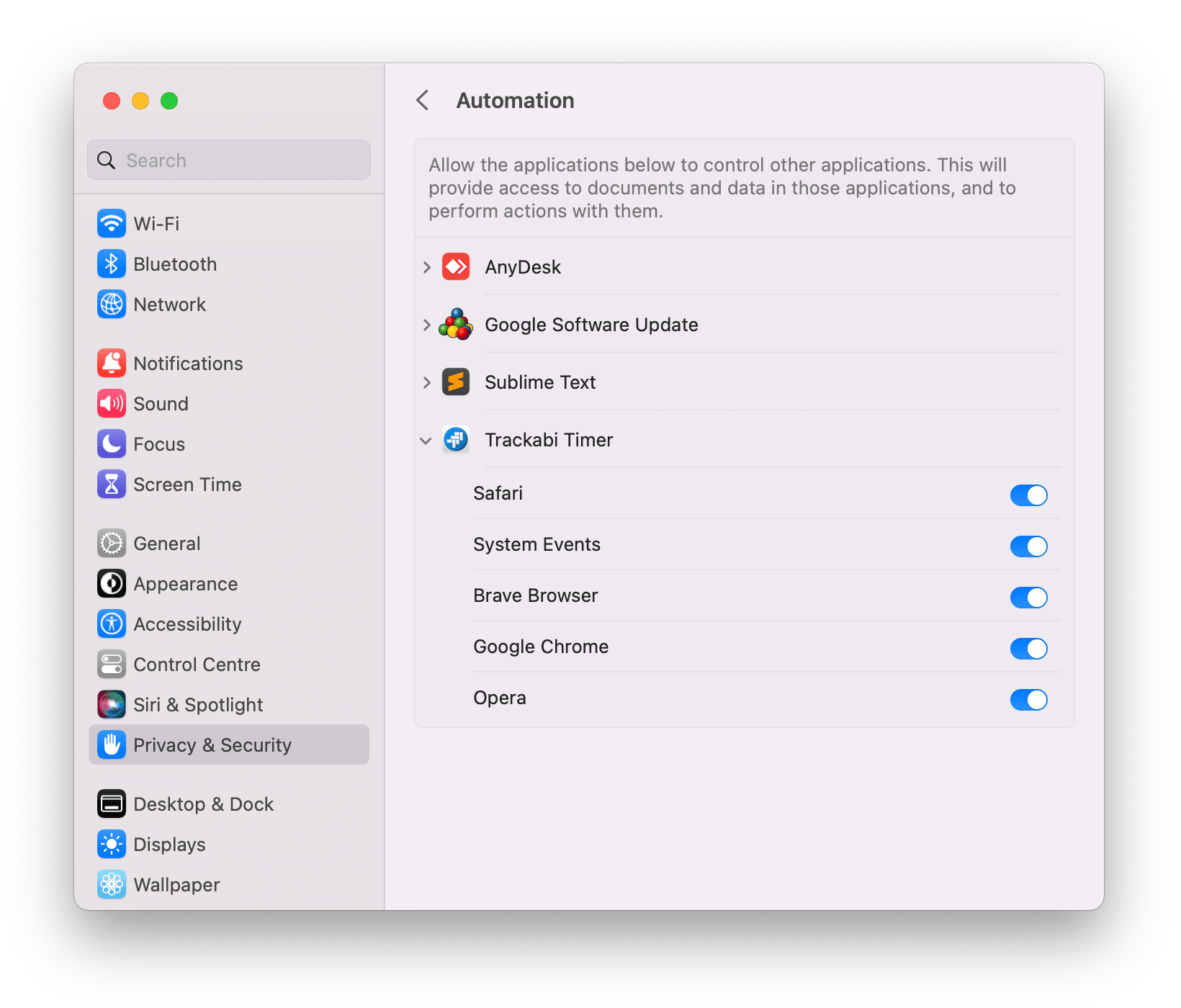
When first accessing a browser on macOS with Trackabi Desktop Timer running, a user is asked to give the app the permission to control the browser. Without this permission, Trackabi Desktop Timer will not be able to fetch browser URLs.
This permission can also be granted through the System Settings > Privacy & Security > Automation section.
Disabling Active Window Title & Browser URL Tracking For Certain Users
Active Window Title & Browser URL Tracking can be disabled for specific users via their roles. To do so, go to the Settings > Roles section and select the role you would like to edit. Uncheck the “Enable app activity and browser URL tracking” option.
Viewing Active Window Titles & Browser URLs Of All Users In The Web Control Panel
Employee log of active window titles and browser URLs can be examined in the company Insights section. Click on a user, scroll to the bottom, and press the button “App activity and browser URLs log”. Note that the log is available only in the daily view.
Besides applications and URLs, the log records what happened to the desktop app itself, so a gap in the data can be explained:
- The app was closed — by the user, to install an update, because the computer was shutting down, or because the user signed out of Windows.
- The app closed unexpectedly — reported the next time it starts, with the time it was last seen.
- The app window crashed — with the reason when known, and whether it reloaded automatically.
- Activity tracking stopped — for example because the macOS Input Monitoring permission is missing, a required system tool is not installed, or some app files are missing or damaged.
- On Linux — the screenshot permission being refused or granted, and the user having to log out and back in before the active application can be identified.
These events are included in the CSV export and found by the keyword search. Users can see their own log; another user's log needs access to Insights, or permission to manage or review timesheets or to manage reports, for that user.