

- Getting Started
- Time Tracking
- Monitoring & Productivity
- Desktop Timer Application
- Work Management
- Time Off & Scheduling
- Reports & Finance
- Integrations
- API
- FAQ
Usage & Apps
Dernière mise à jour :
Overview
Usage & apps, formerly Statistics, shows which versions of the Trackabi apps your members use and how much of your subscription the company is using: the number of user accounts against the seats you pay for, how many records of each kind exist, and how much disk space screenshots and file attachments occupy. Come here to find out whether you are close to the seat limit or the storage allowance before an upload or an invitation is refused.
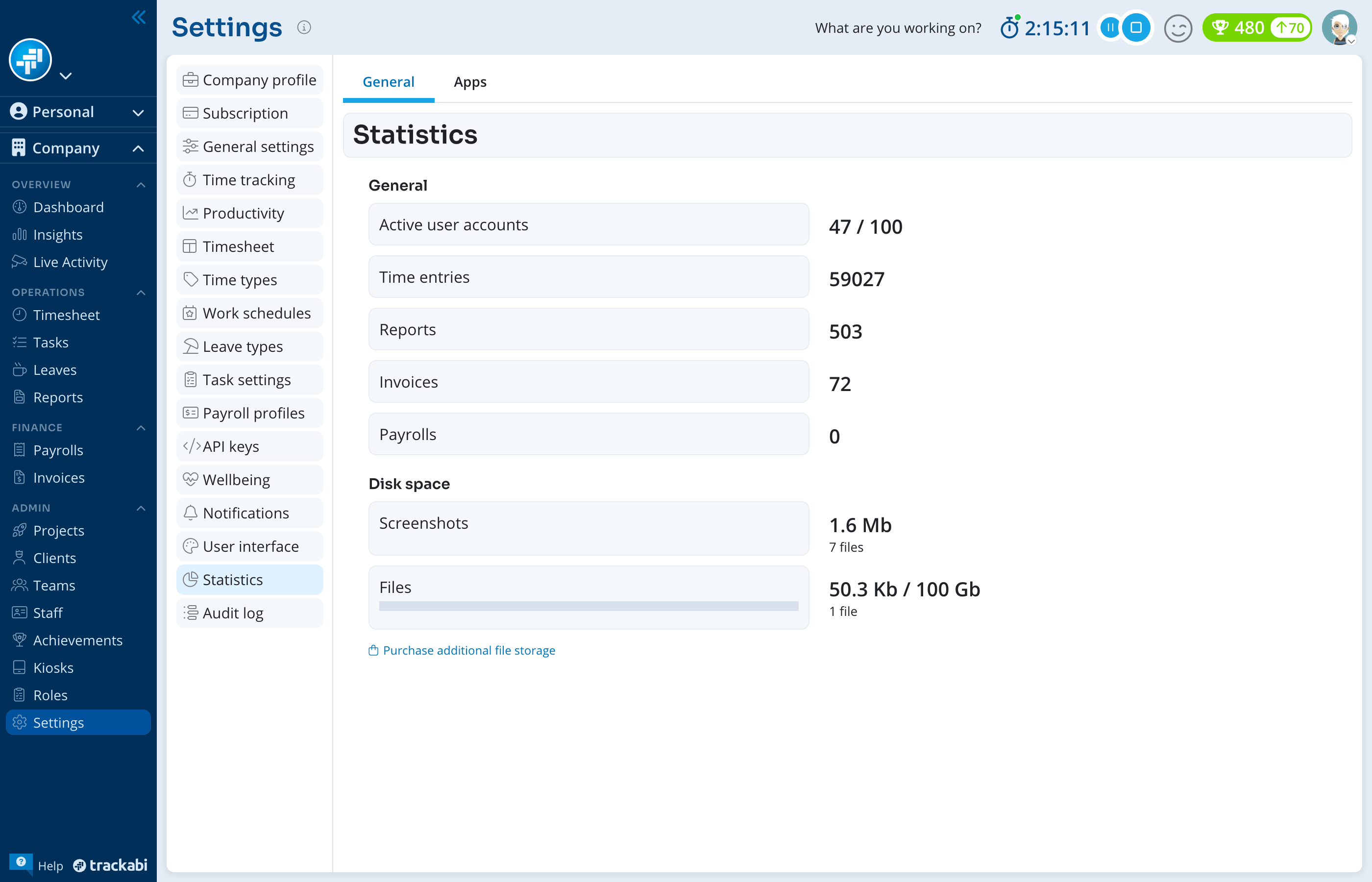
Open Settings > Usage & apps. The page has two tabs. Usage has two blocks, General and Disk space, and a Purchase additional file storage link at the bottom. Apps lists the apps your members use; see Apps below.
Availability
- The page is part of company Settings, so it needs the Manage organization permission. All plans have it.
- The figures are refreshed every 30 minutes, so a file uploaded or a user invited a moment ago may not be counted yet.
What the counters show
The General block lists Active user accounts, Time entries, Reports, Invoices, and Payrolls.
Active user accounts is the only counter with a limit: it is shown as count / limit, for example 2 / 50, where the limit is the number of seats in your subscription. The count includes every account listed in the Staff section. See Staff (Users) for what counts towards the seat limit and Subscription & Billing for changing the number of seats.
The other four counters are the total number of records ever created in the company. They are not limited by any plan and are not affected by a date range.
Disk space
Screenshots — the total size of every screenshot captured by the desktop app for any member of the company, including the thumbnails, with the number of files underneath. Screenshots have no size allowance; instead each one is deleted when it reaches the retention period of your plan, or your own shorter retention setting. See Screenshot Capturing.
Files — the total size and number of file attachments, shown against your allowance, for example 0 B / 50 Gb: files attached to time entries, leaves, projects, tasks, and user profiles, and photos taken by kiosks. Company logos and profile pictures are not counted. The bar under the figure shows what share of your allowance each kind of attachment takes, with the unused part marked as free.
Your file storage allowance is pooled for the whole company: the per-user amount of your plan multiplied by the number of paid seats, plus any fixed amount the plan includes. When the allowance is used up, new uploads are refused with a message stating the limit and the space left; nothing is deleted automatically to make room. A single file cannot be larger than 15 MB. See File Attachments for where files can be attached and how many per record.
On a plan without file storage, every upload is refused with a message saying that attachments are not included in the plan, and the Files figure stays at zero.
Buying more file storage
Purchase additional file storage takes you to Settings > Subscription, where storage is sold as an add-on to the current plan under Available add-ons. The add-on is Disk Storage, 100 Gb, billed monthly or yearly, and it raises the company's allowance for as long as it is active. As its description says, it is for file attachments only and does not affect screenshot storage. Buy Add-On is available only while a subscription is active; see Subscription & Billing.
Apps
The Apps tab lists every active member who used the Desktop or Mobile app in the last 30 days, once per app, with the version they used last: Member, Email, App, Device, App version, Last seen and, when there are versions to compare, Status (Unsupported, Outdated or Up to date). Unsupported and outdated apps come first. A line above the table names the recommended versions, and warns when some apps are unsupported and cannot connect.

Use Search by name or email and the app and version filters to narrow the list, and Export to download the rows shown as a CSV file (on plans that include data export).
Keeping Desktop apps up to date
Administrators can have the Desktop app update itself instead of waiting for members to do it:
- Always keep Desktop apps up to date — At the top of the tab: every member's Desktop app installs each new release.
- Update all apps now — Asks every member's Desktop app to install the latest version once; the time of the last request is shown next to it.
- The Updates column does the same for one member: the update icon updates their app now, and the switch keeps their app up to date. While the company switch is on, every member's switch is on and locked.
The app installs the update only at a moment when the member is not editing anything, after a 60-second notice, and restarts by itself; time tracking is not blocked. The tooltip next to the company switch says which Desktop app version is needed for this to work.
The Apps tab and the update controls need the Manage organization permission.