

- Getting Started
- Time Tracking
- Monitoring & Productivity
- Desktop Timer Application
- Time Off & Scheduling
- Reports & Finance
- Administration & Settings
- Integrations
- API
- FAQ
Staff (Users)
Dernière mise à jour :
In the Staff section, you can manage all current and former employees of your company. You can invite new users, view profiles, edit details (including pay rates and leave allowances), dismiss users, or delete them.
Adding Users
To add a new user, invite them by email and assign a role. The role defines which sections of the site they can access and what actions they are allowed to perform. For more information, see User Access Roles and Permissions .
The invited user must accept the invitation by clicking the link in the email. Once they accept, their account is created in the system.
Pending invitations are listed in the Pending Invitations tab of the Staff section.
Pending invitations count toward the user limit of your subscription plan.
Editing Users
User details can be edited by clicking Edit in the user block within either the Current Employees or Former Employees tabs. You can change:
- Basic user details
- Account-level role
- Pay rate
- Annual leave allowance
- Default project
The email address in user details may differ from the personal account email they use as their login username.
Default project
Default project, on the Employment tab of a user's details, is the project their time goes to when they do not pick one: a new time entry or a timer started without a project is put into it. The web timer shows it before it is started, and the Add time entry popup opens with it filled in. It is not applied to breaks, to entries with a task, or to entries of another client.
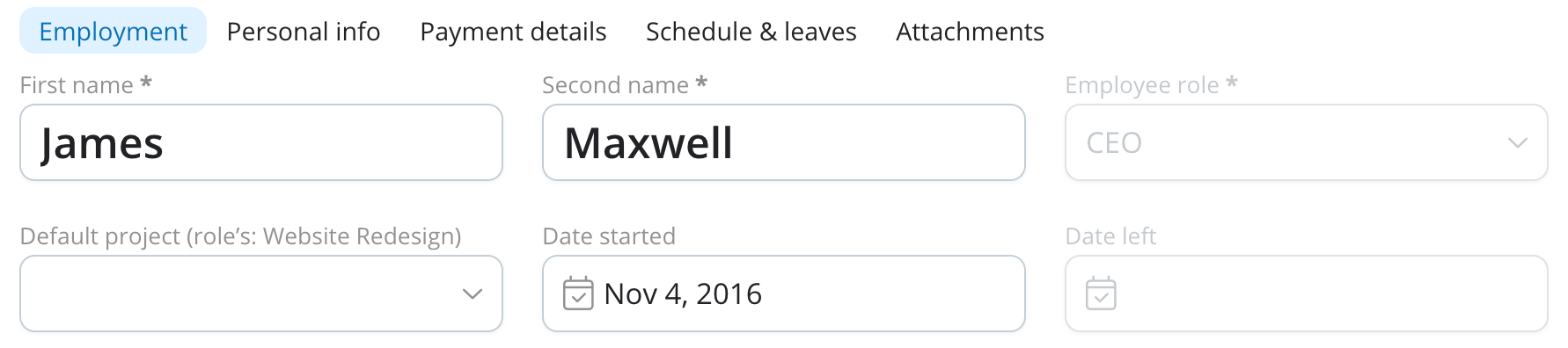
Any active project can be chosen. If the user cannot log time in it yet, saving assigns them to the project. A role can have a default project too (see User Access Roles & Permissions); the user's own one takes precedence, and the field shows the role's project while the user has none.
While a project is someone's default project, it cannot be archived or deleted, and the user cannot lose access to it. Trackabi names the users and asks you to choose another default project for them first. Dismissing a user clears their default project.
Removing Users
When removing a user, you have two options:
-
Dismiss a user
Use this if someone leaves the company but their data is still important. Dismissing a user terminates their access and moves them to the Former Employees tab. All their data—such as time entries, activity tracking, and leave records—remains intact for future reference.
-
Delete a user
Use this if you need to remove both the user and all their data. Deleting a user permanently removes all data, including time entries, activity tracking, and leave records. This action cannot be undone and may lead to inaccuracies in past timesheets and reports.