- Getting Started
- Time Tracking
- Monitoring & Productivity
- Desktop Timer Application
- Work Management
- Time Off & Scheduling
- Reports & Finance
- Integrations
- API
- FAQ
User Interface (Theme & Dark Mode)
Dernière mise à jour :
The look of the web app is set in two places. The company chooses the color theme, and each person chooses dark mode for themselves. The two do not compete: the theme decides the colors of the sidebar, links, and highlights for everyone in the company, and dark mode decides whether the pages behind them are light or dark for you alone.
Availability
- Settings > User interface is part of company Settings and needs the Manage organization permission. Every plan has it.
- Personal > Settings > User interface is open to every member whose role can edit its own settings.
- Both settings apply to the web app only. The desktop app, the mobile app, kiosks, and client share links are not affected.
Company theme
Under Theme, pick one of Classic Blue, Light Gray, Viva Magenta, Pastel Teal, Ocean Blue, Sunflower & Blue, or Burgundy & Orange and click Save. Each option shows its six palette colors underneath. Classic Blue is the default for a new company.
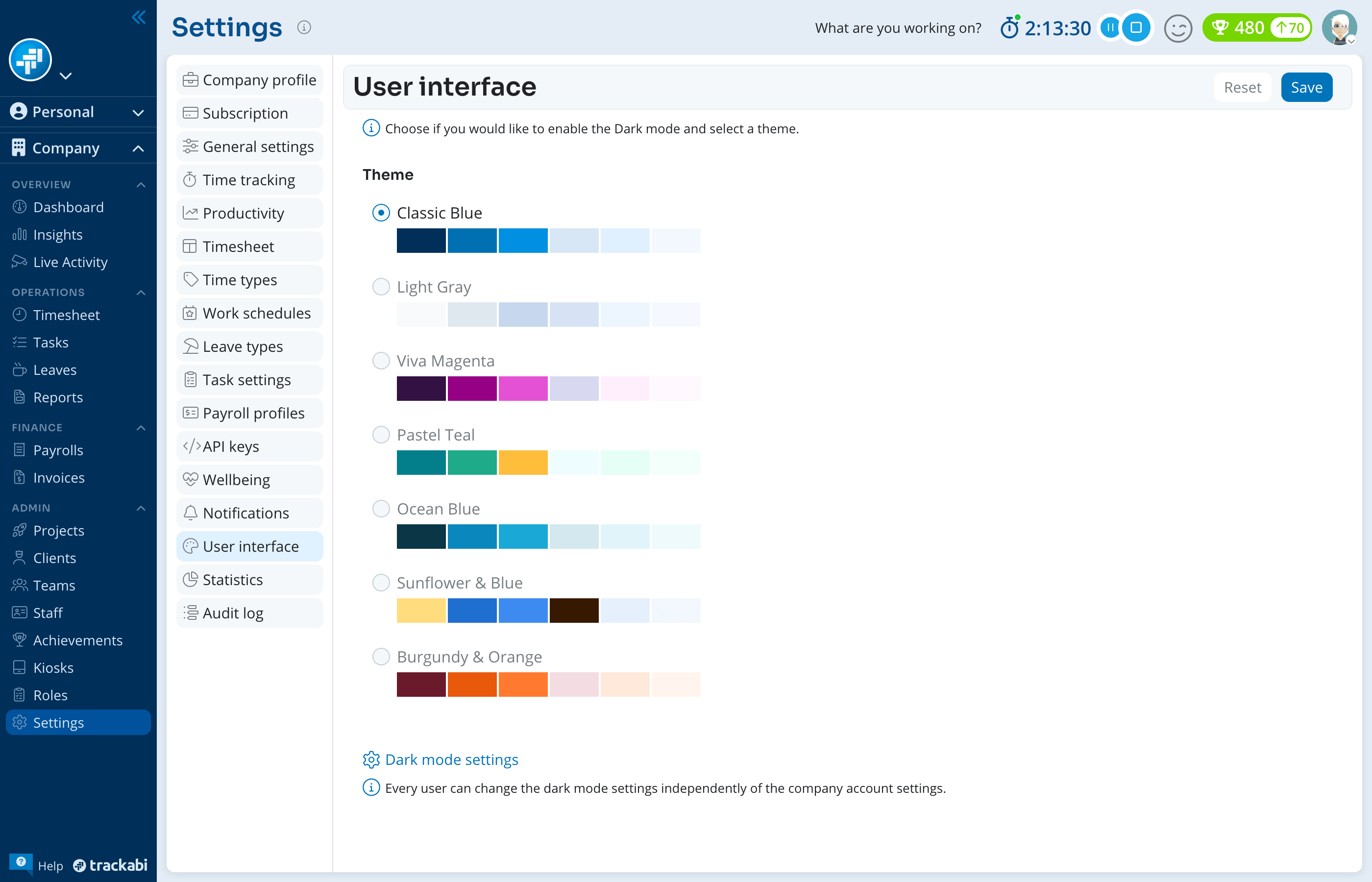
The theme applies to everyone in the company. There is no personal override, so a person cannot keep a different palette for themselves, and a manager cannot force light or dark mode on anyone. Colleagues who are already signed in see the new theme the next time a page is loaded.
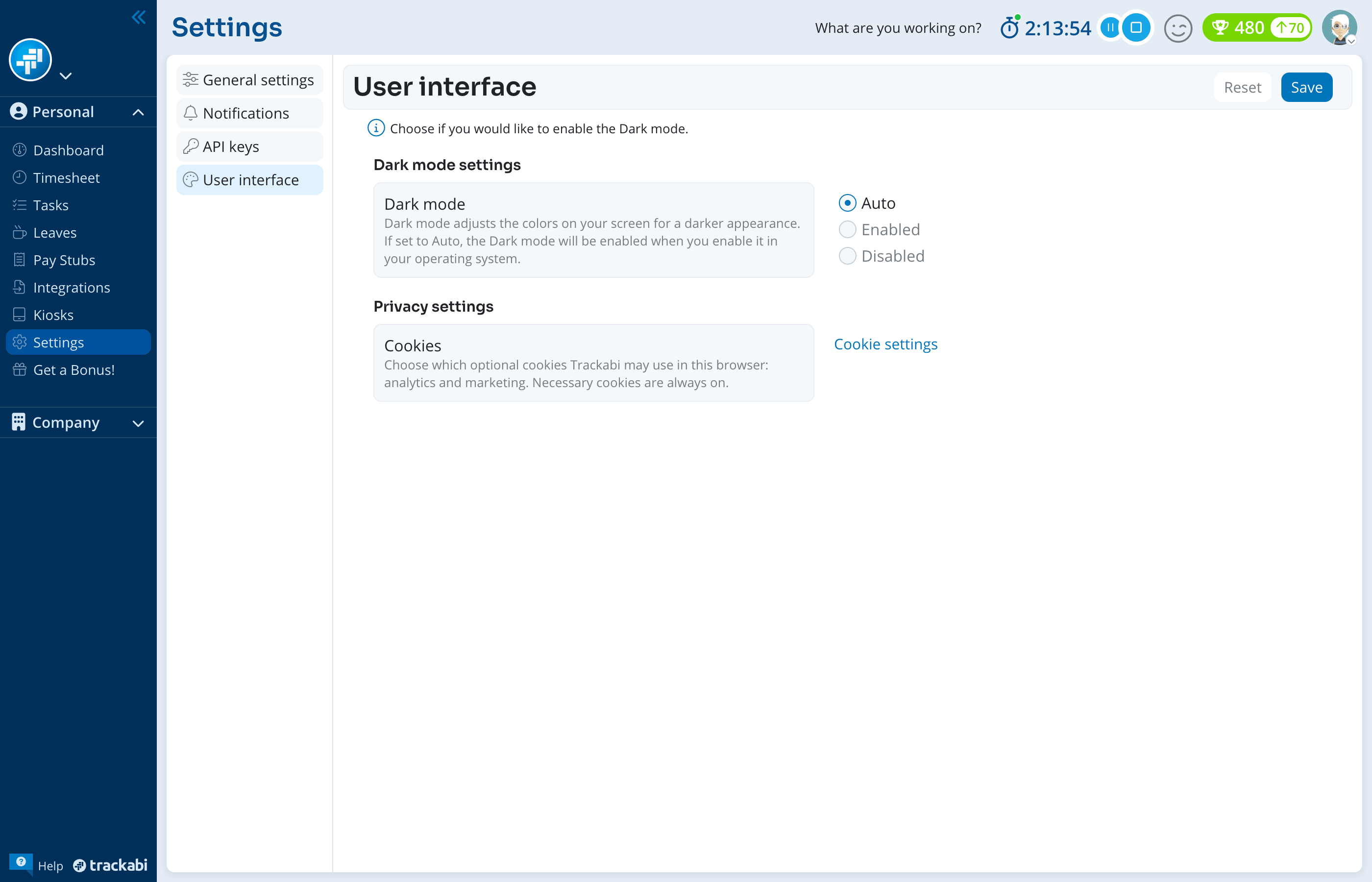
Dark mode settings on this page is a shortcut to your own personal page described below; it does not change anything for the company. The page says so itself: Every user can change the dark mode settings independently of the company account settings.
The themes other than Classic Blue define light colors only. When a person turns on dark mode, the standard dark colors take over, so the company theme is barely visible in dark mode.
Dark mode
On Personal > Settings > User interface, Dark mode has three options:
- Auto — follows the setting of your operating system, and switches as soon as the system switches. This is the default.
- Enabled — always dark.
- Disabled — always light.
The choice is saved for your membership in this company. If you belong to more than one company, set it in each.