

- Getting Started
- Time Tracking
- Monitoring & Productivity
- Desktop Timer Application
- Work Management
- Reports & Finance
- Administration & Settings
- Integrations
- API
- FAQ
Breaks
Dernière mise à jour :
Breaks let members pause work and log a rest break from the web timer or the desktop app. Break time is recorded as its own time entry, so it shows in the timesheet and in payrolls, but it never counts as billable work. You decide whether breaks are paid and how much break time each member gets per day.
Turn breaks on
Breaks are off until an administrator enables them in Settings > Time tracking > Rules & limits, in the Breaks block. Click Save at the top of the page to apply the change.
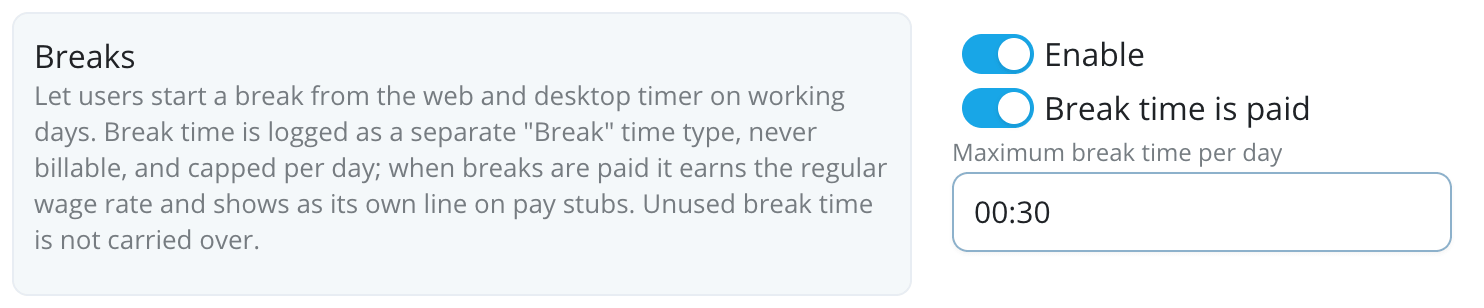
- Enable — Lets members start a break from the web and desktop timer on their working days.
- Break time is paid — Pays break time at the member's regular pay rate. When it is off, breaks are still logged but earn nothing.
- Maximum break time per day — Caps the total break time a member can take in one day. The default is 30 minutes.
Any member who can run their own timer can take a break; there is no separate permission. That ability comes with the Enable personal timesheet permission (see Role Permissions).
Different rules for a role
A role can override the company setting. Open the role in Roles, go to its Name and settings tab and find the Breaks block.
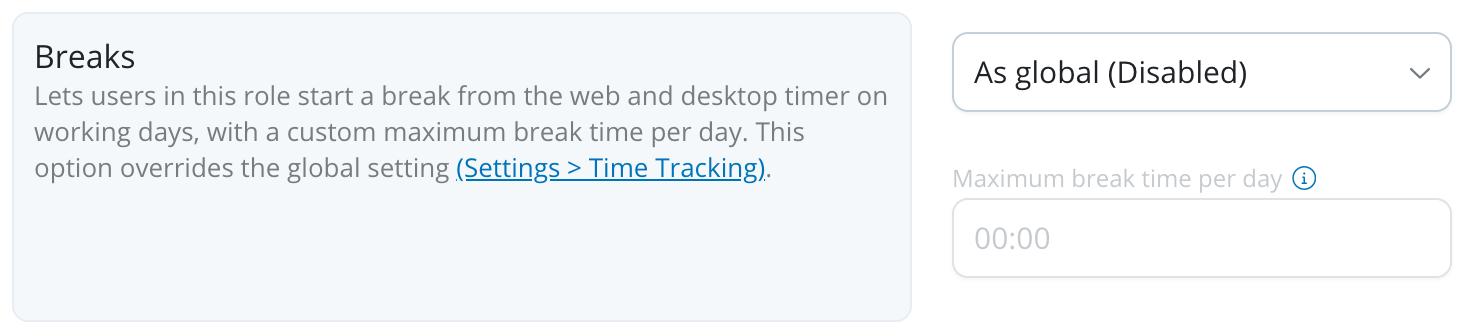
Choose Enabled or Disabled to turn breaks on or off for that role only, or leave As global to follow Settings > Time tracking > Rules & limits. The role's Maximum break time per day replaces the company limit for its members. Leave it empty to use the company limit, which the info icon next to the field shows. For more on role overrides, see User Access Roles & Permissions.
Take a break
When breaks are enabled, a mug button appears next to the timer in the header. Hover over it to see how much break time you have left today.
- Click the mug button. Your running timer is paused and the break starts.
- The header now shows the break with its own countdown. Pause, resume, or stop it with the usual timer buttons.
- When you are ready to work again, start your timer as usual.
Ending a break does not resume the timer that was running before it. Starting a timer while you are on a break ends the break.
When the countdown reaches zero, the break stops on its own, even if you have closed the browser. The mug button is then greyed out with the message No break time left for today. Unused break time is not carried over to the next day.
Breaks are available on working days only. On a day your work schedule does not count as a working day, the mug button is greyed out. See Working Days.
Breaks work the same in the web app and in the desktop app, and a break started on one device shows on the others. While a break runs, the desktop app records no activity and takes no screenshots. Starting, pausing, resuming and ending a break are recorded in the App & URL Tracking log.
Add a break you forgot to start
If you took a break without pressing the button, add it as a manual entry in the timesheet and choose Break as the time type. The same rules apply: it must be on a working day, and it must fit within the day's remaining break time.
A break entry can be linked to a client and a project, for example to allocate its cost, but never to a task. Once saved, its time type cannot be changed.
How break time is counted
The first time breaks are enabled, Trackabi adds a Break time type to Settings > Time tracking > Time types. It is managed by the Breaks settings and cannot be deleted. For how time types affect pay, see Time Types.
- Timesheet — Break entries appear in the timesheet and count toward the day's logged time.
- Billable time — Break time is never billable, whatever the project or client.
- Required and maximum hours — Break time does not count toward the Require Minimum Time Logged target, and it does not use up the Limit Maximum Time Logged allowance.
- Payrolls — Break time appears as its own Breaks line on each pay stub, separate from the hours of other time types. When breaks are paid, the amount is break time × the member's pay rate; when they are not, it is zero. See Payrolls.