

- Getting Started
- Monitoring & Productivity
- Desktop Timer Application
- Work Management
- Time Off & Scheduling
- Reports & Finance
- Administration & Settings
- Integrations
- API
- FAQ
CSV Import & Export
Last updated
The company timesheet can take time entries in bulk from a CSV file, for example when moving from a spreadsheet or another tracker, and can write the entries it shows out to a CSV file for use elsewhere. Both actions are on the toolbar of the company Timesheet. The Insights summary has its own one-click export.
The Import button on My Timesheet is a different feature. It pulls entries from a connected third-party source rather than from a file; see Integrations.
Availability
- Import from CSV is shown only to members whose role has the Manage timesheets permission, and only on the company timesheet. There is no plan requirement.
- Export to CSV on the timesheet is available to everyone who can open the company timesheet. The Insights export needs the View insights permission. Neither is plan-gated.
- Import matches people by name or email but never creates them. Invite everyone who appears in the file first; see Staff (Users).
Importing time entries
To import a file:
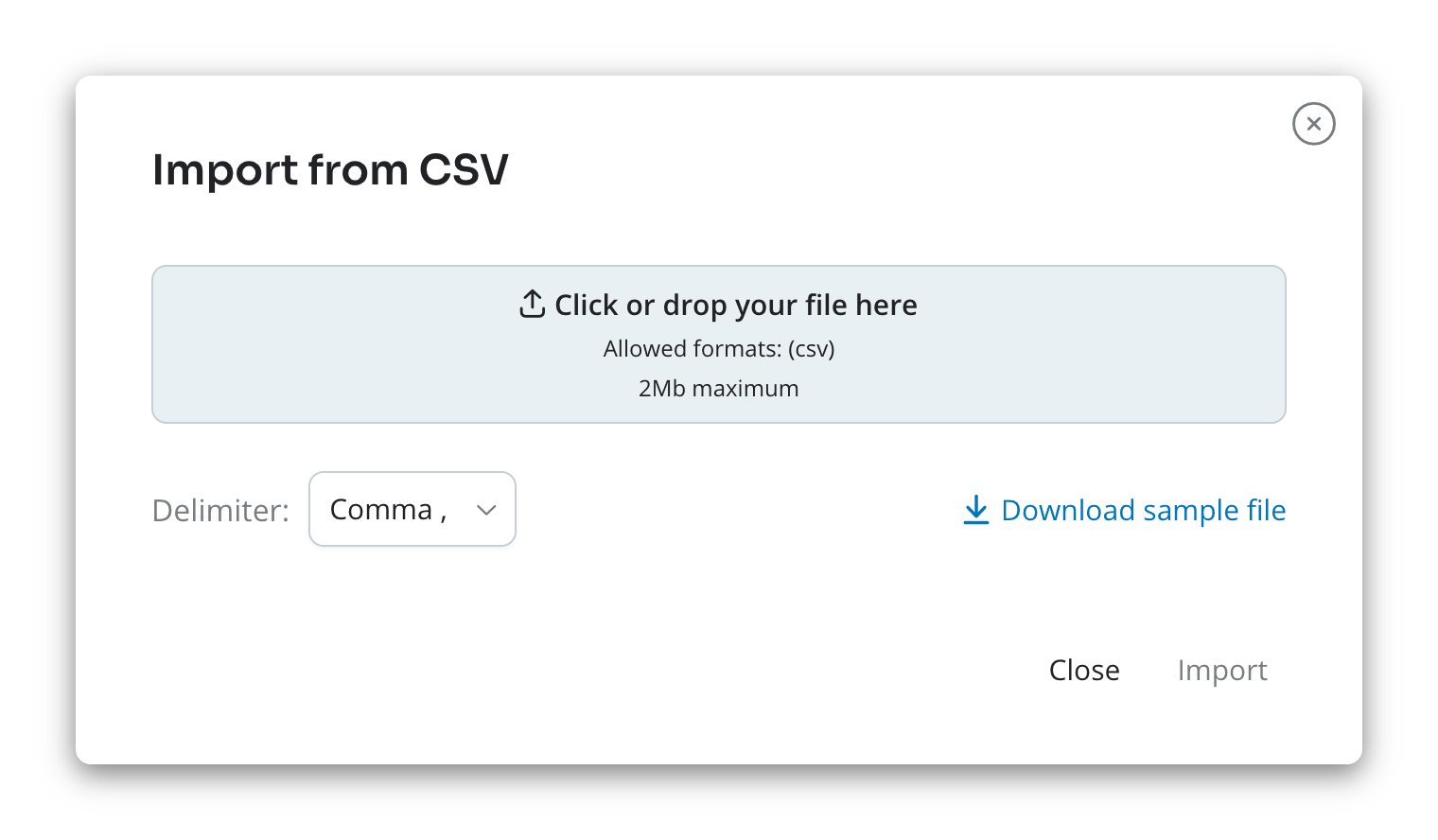
- On the company Timesheet, click Import from CSV.
- In the Import from CSV dialog, click the upload area or drop the file on it, pick the Delimiter that separates the values in your file (Comma, Semicolon, or Tab), and click Import. Download sample file gives you a short example in the exact layout Trackabi expects, built from your own timesheet columns.
- In Import preview, map each column of the file to a timesheet column, or set it to Disabled to skip it. Columns whose header matches a timesheet column name are mapped for you.
- Tick Add new clients, Add new projects, or Add new tasks if the file names clients, projects, or tasks that do not exist yet and you want them created.
- Click Import.
The first line of the file is always read as the header row. A file may be at most 2 MB and 5,000 data rows; larger files are refused before anything is read.
What the file must contain
Every row needs a member and a date. The member is matched by email address if the cell contains one, otherwise by the exact full name as shown in Trackabi. Dates are written as YYYY-MM-DD and times as H:MM or H:MM:SS. Times are taken exactly as written, with no time zone conversion.
Clients, projects, tasks, and time types are matched by exact name. A project is looked up under the client on the same row, and a task under that project. Time types must already exist. With the Add new boxes unticked, a row naming something unknown fails; with them ticked, the missing record is created, provided your role may create that kind of record. A member named on a row is assigned to the project automatically if they were not already.
You may map any timesheet column your company has enabled, including custom fields; see Timesheet Settings (Time Log Fields).
When something is wrong
An import is all or nothing. If any row fails, nothing from the file is saved, and the dialog lists up to ten errors as Line N: message so you can fix the file and try again. Rows that would push a person over the company's maximum logged time per day fail with Maximum logged time limit reached for this period.
Trackabi does not detect duplicates. Importing the same file twice creates every entry twice.
Imported entries are not checked against the timesheet lock date, so a manager can import entries into a locked period. See Timesheet Locking.
Following the progress
Small files finish while the dialog is open. Larger ones continue in the background: a floating button appears on the timesheet with each import and its status, In progress, Completed, or Failed, and updates on its own. The list stays there after a page reload until you remove an item. No email is sent when an import finishes.
Exporting the timesheet
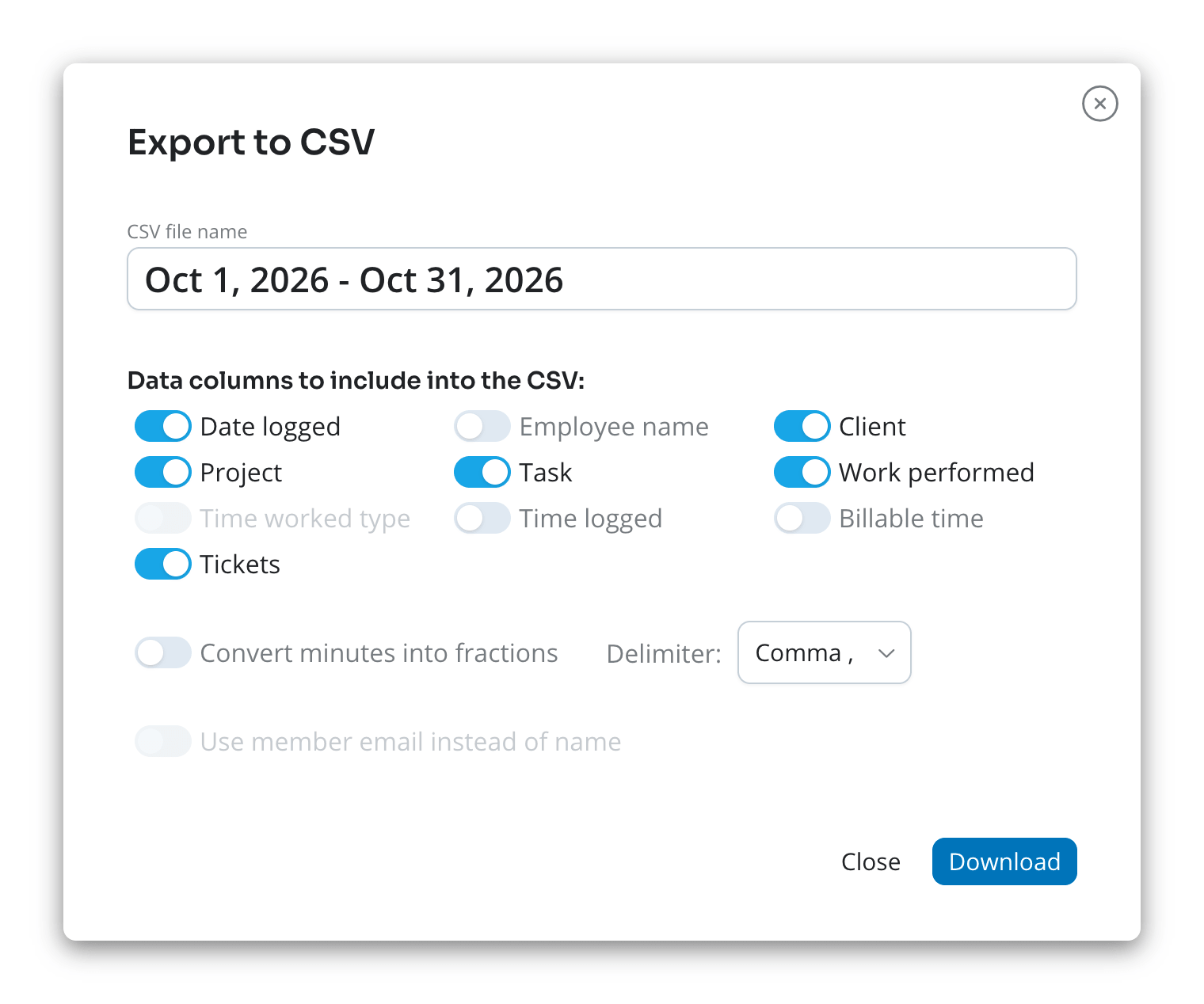
Click Export to CSV on the company Timesheet. The file contains the entries the timesheet currently shows: the selected date range and any client, project, task, or member filter are applied, and rejected entries are left out.
In the dialog, set the options and click Download:
- CSV file name — pre-filled from the date range and the active filters, for example Sep 1, 2026 - Sep 30, 2026.
- Data columns to include into the CSV — the enabled timesheet columns. Your choice is remembered in this browser.
- Convert minutes into fractions — writes durations as decimal hours with two decimals, for example
1.50, instead of1:30. - Delimiter — the value separator, remembered in this browser.
- Use member email instead of name — available once the Member column is ticked.
Wage and billable amounts are included only for readers whose role may view them, and billable time is blank for entries that are not billable. The Attachments column is never exported. There is no limit on the number of rows. Every export is recorded in the Audit Log.
Exporting the Insights summary
On Insights > Staff > Summary, Export to CSV downloads the summary for the selected period straight away, with no options. The file has one row per person with Member Name, Total logged, Total billable, Productive activity time, and Unproductive activity time, comma-separated, times as hours and minutes. The button is disabled when the period has no data. See Activity Tracking & Insights.