

- Getting Started
- Time Tracking
- Desktop Timer Application
- Work Management
- Time Off & Scheduling
- Reports & Finance
- Administration & Settings
- Integrations
- API
- FAQ
Productive vs Unproductive Time
Last updated
Trackabi can distinguish between productive and unproductive time spent by users at their computers based on the apps they use. A productive vs. unproductive time summary is available in user desktop apps and in the Insights section of the web interface. Along with that, it’s possible to show notifications to users who use unproductive apps, or even have their timers pause automatically (see below).

Users must use the Trackabi desktop application in order to track productive and unproductive time.
Availability
- Included on every plan, unlike screenshots, the user activity score, and the URLs and opened apps log.
- Reaching Settings > Productivity requires the Manage organization permission. Role-level rules live in the Roles section and additionally require Manage roles. For details, see User Access Roles & Permissions.
- Time logged with the web or mobile timer is not classified.
Productive And Unproductive Time Definitions
Productive time is the time spent working with applications classified as productive, while unproductive time is the time spent engaging with applications classified as unproductive. The classification is based on three sets of rules. First, there is a default set of rules for all accounts that is maintained by Trackabi. It covers the most popular applications, including some web-based applications. Additionally, users can create their own rules at the account or user role levels.
Untracked Apps
In addition to productive and unproductive apps, some apps can be marked as ‘untracked’. Such apps are ignored by Trackabi desktop, and they don’t have any influence on the productive/unproductive time statistics. Normally, the ‘untracked’ type should be used for various system processes that are in use for a very short time.
Productivity Rules
A productivity rule classifies applications based on how employees spend their time. Each rule is defined by three properties:
- Application type — the productivity classification (see types below)
- Match type — how the rule is applied: exact match (targets a specific application by its full name) or contains (targets any application whose name includes the specified keyword)
- Value — the keyword used to match one or more applications, between 3 and 255 characters. Note that URLs are not currently supported as values. To target web applications such as Facebook or YouTube, use a keyword from the application name instead (e.g.
facebook,youtube).
Application Types
- Productive — An application used for work. Time spent in this application counts toward productive hours.
- Productive (ignore inactivity) — An application used for work, with one additional behavior: in automated mode, the timer will not pause when the user is inactive. Use this type for applications where inactivity is expected — for example, when a task involves watching videos or waiting for a process to complete.
- Unproductive — An application used for leisure or personal activity, unrelated to work. Time spent in this application does not count toward productive hours.
- Untracked — An application that is excluded from tracking entirely. Time spent in this application is not recorded or reported.
Example
A single rule can apply to multiple applications. For example, setting the value to adobe with a contains match type will automatically classify all Adobe family applications — such as Adobe Photoshop, Adobe Illustrator, and Adobe XD — as productive, as long as the word "adobe" appears in their names.

The values are case-insensitive (“Adobe” and “adobe” are treated equally) and may include masks. A mask is the “*” symbol that represents a number of symbols (can be zero). For instance, a rule with the “ms*teams” value is applicable to “MS Teams”, “ms.teams”, and “msteams”.
Within one set of rules, each value has to be unique, and the check ignores the mask symbol. That makes ms*teams and msteams the same value, and a set cannot contain both. The same value can still be used once at the account level and once in each role.
Managing Productivity Rules
There are three sets of productivity rules: system default rules, account level rules, and user role level rules. They are checked role first, then account, then the default set, and the first match decides. That is how a default rule is overridden — Facebook is unproductive by default, but a social media marketing company can add an account-level rule with the value facebook and classify it as productive instead. For the full order, and for what happens to time that has already been recorded, see How Productivity Rules Are Applied.
Both rule tables list their rules alphabetically by value.
Adding an account-level rule
Account-level rules apply to every user of the account. To add one:
- Open Settings > Productivity and select the Productivity rules tab.
- Click Add new. A row appears with Application type already set to Productive.
- Click the Application type cell and choose the classification.
- Click the Match type cell and choose Contains or Exact match.
- Click the Value cell and type the keyword.
- Click Save.
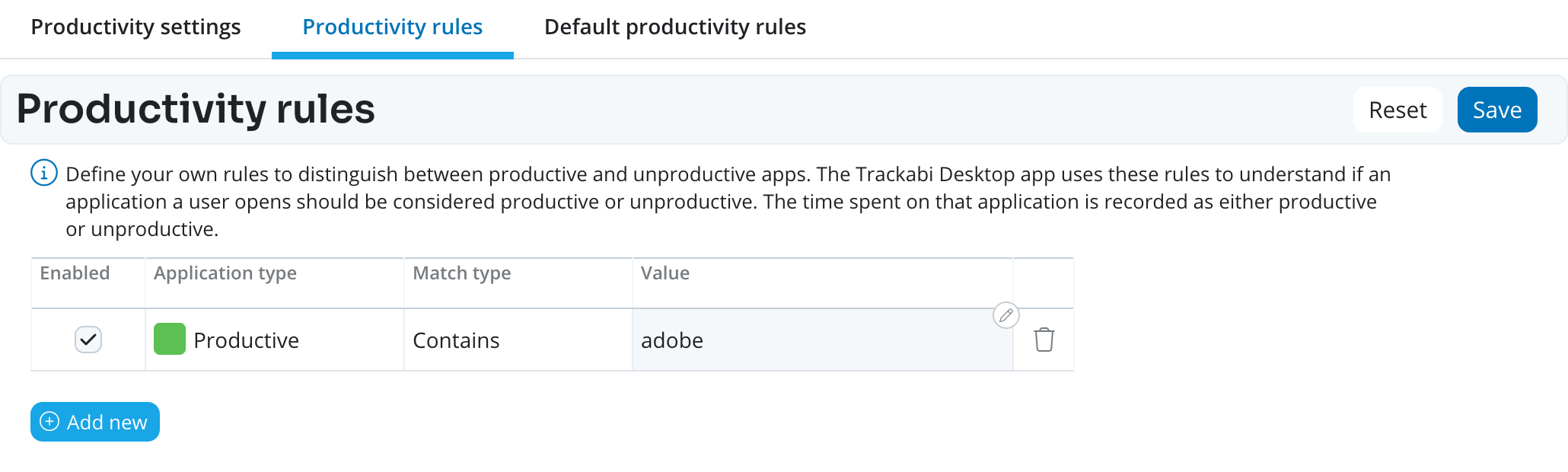
Match type is the one field with no default value, and a rule cannot be saved without it. If Save reports an error, that is the first cell to check.
The table is saved as a whole rather than row by row. Add new appends a row and the trash icon removes one, but neither takes effect until you click Save. Reset discards every unsaved change in the table at once.
Turning a rule off instead of deleting it
Enabled — Keeps a rule in the list but stops Trackabi from applying it. Clearing the checkbox also makes the row’s three fields read-only, so select it again before editing the rule. The trash icon removes a rule for good.
Default productivity rules
The Default productivity rules tab lists the rules Trackabi maintains. They are often updated based on how Trackabi users work, and they are shown for reference — the rows cannot be edited, and individual default rules cannot be switched off. The only control over them is Use default system rules on the Productivity settings tab, which turns the whole set on or off. To change how one default rule classifies an application, add a rule with the same value under Productivity rules — see How Productivity Rules Are Applied.
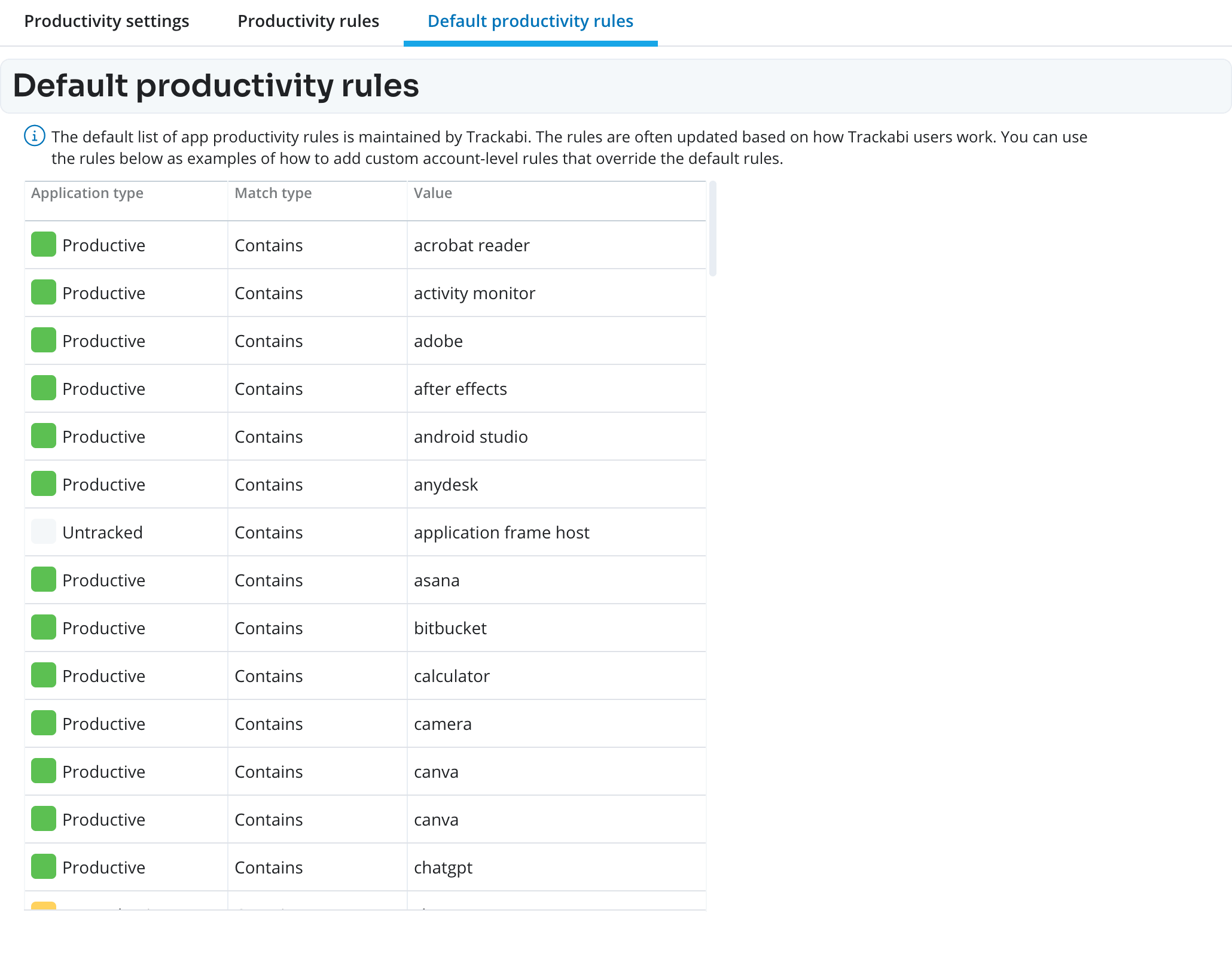
Some rows carry a small phone icon in the type marker. It flags applications Trackabi recognizes as meeting or communication tools, such as Google Meet or Microsoft Teams. The row’s Application type is still what determines how the time is counted.
Role-level rules
In case it’s needed to have separate rules for certain users, you can create additional productivity rules at the user role level (Roles > a user role > Productivity rules). The tab works exactly like the account-level one, and its rules are checked before the account-level ones for everyone holding that role.
Productivity Settings
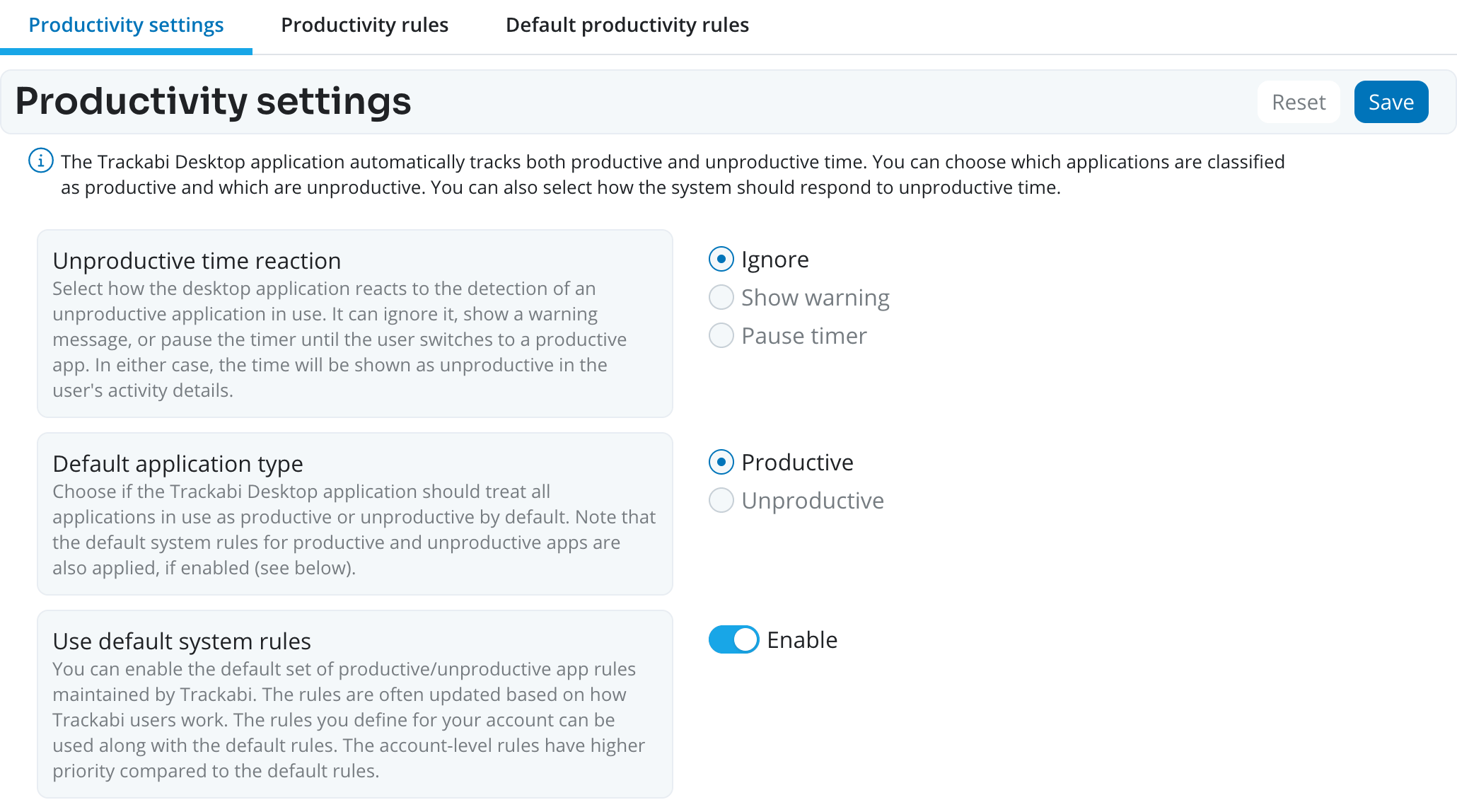
The productivity settings are available in the Settings > Productivity > Productivity settings section of the web interface.
Unproductive Time Reaction
Selects how Trackabi Desktop reacts when it detects that an unproductive application is in use. By default it records the unproductive time and does nothing else (the Ignore option). To reduce the amount of unproductive time, you can choose Show warning, or Pause timer to stop the timer shortly after a user starts using an application classified as unproductive.
Whichever option is selected, the time is still shown as unproductive in the user’s activity details.
The Unproductive Time Reaction option is applicable only when the timer is running. If the Pause Timer option is enabled, the timer can pause only if it is in the automated mode (based on user activity); otherwise, the Pause Timer option has no effect.
Default Application Type
Classifies the applications that do not match any productivity rule. For example, you can have all applications identified as unproductive and only a few particular applications considered productive.
Use default system rules
Enables the default set of productive/unproductive app rules maintained by Trackabi. Clearing it leaves only your own account-level and role-level rules in effect, and every application they do not match falls through to Default application type.