

- Getting Started
- Time Tracking
- Monitoring & Productivity
- Work Management
- Time Off & Scheduling
- Reports & Finance
- Administration & Settings
- Integrations
- API
- FAQ
Desktop App Settings
Last updated
The desktop application's settings are opened from the menu under your avatar. They are arranged in three tabs: General, Time Tracking, and Productive/unproductive apps.
Everything except the download folder is stored on your account rather than on the computer, so it follows you to your other computers and, where the setting exists in both, to the web app. The download folder is the one exception and is set per computer.
A setting your company has fixed shows This setting is locked by your account manager and cannot be changed in the application. The company-level versions of these settings are described in Time Tracking Settings.
General
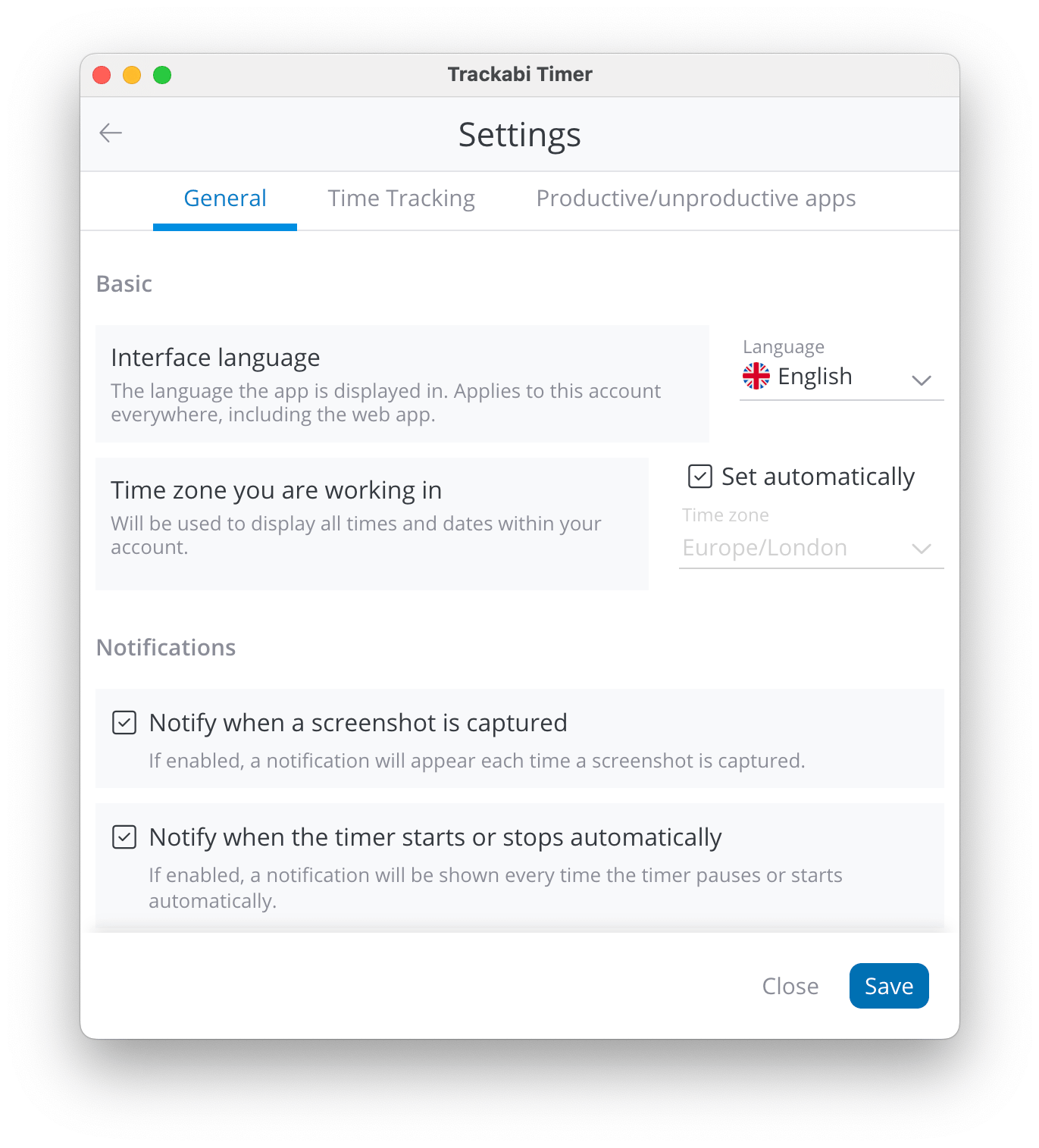
- Interface language — the language the application is displayed in. It applies to your account everywhere, including the web app. The field is hidden where your company has only one language enabled.
- Time zone you are working in — used for every time and date in your account. Set automatically follows the computer's own time zone.
- Notify when a screenshot is captured — shows a notification on each capture. Present only where your plan includes screenshots.
- Notify when the timer starts or stops automatically — shows a notification each time automated time tracking starts or pauses the timer.
- Public holidays — reminds you when you are working on a public holiday.
- Open Trackabi on system startup — starts the application when you turn the computer on.
- Launch the timer after Trackabi opens — starts the timer as soon as the application opens.
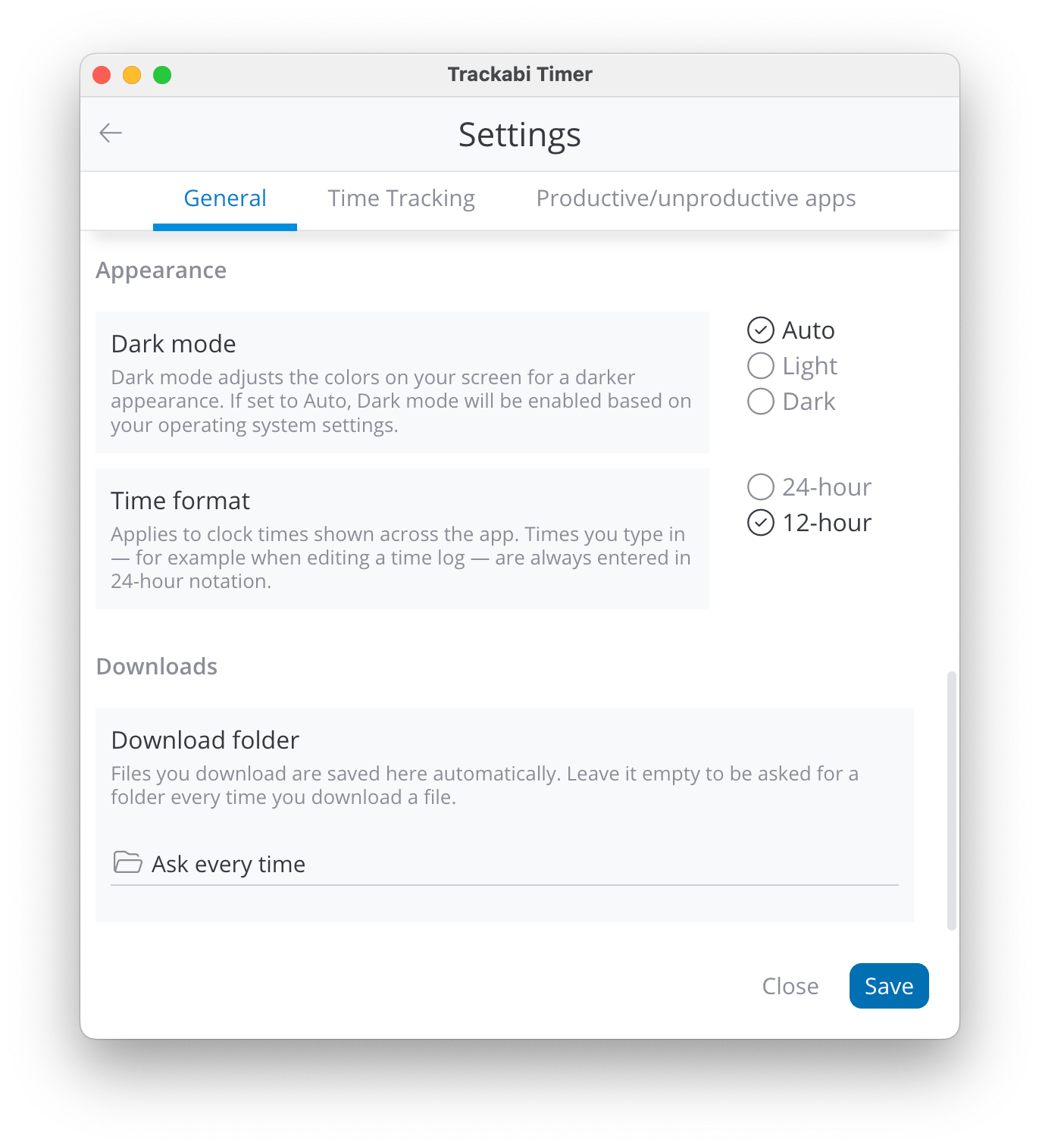
- Dark mode — Auto, Light, or Dark. Auto follows your operating system.
- Time format — 24-hour or 12-hour, applied to clock times shown across the application. Times you type in, for example when editing an entry, are always entered in 24-hour notation whichever you choose.
- Download folder — where files you download are saved. Leave it empty to be asked for a folder every time.
On Windows, an Installed copies section appears here when the application finds other copies of itself on the computer. See Installing & Signing In.
Time Tracking
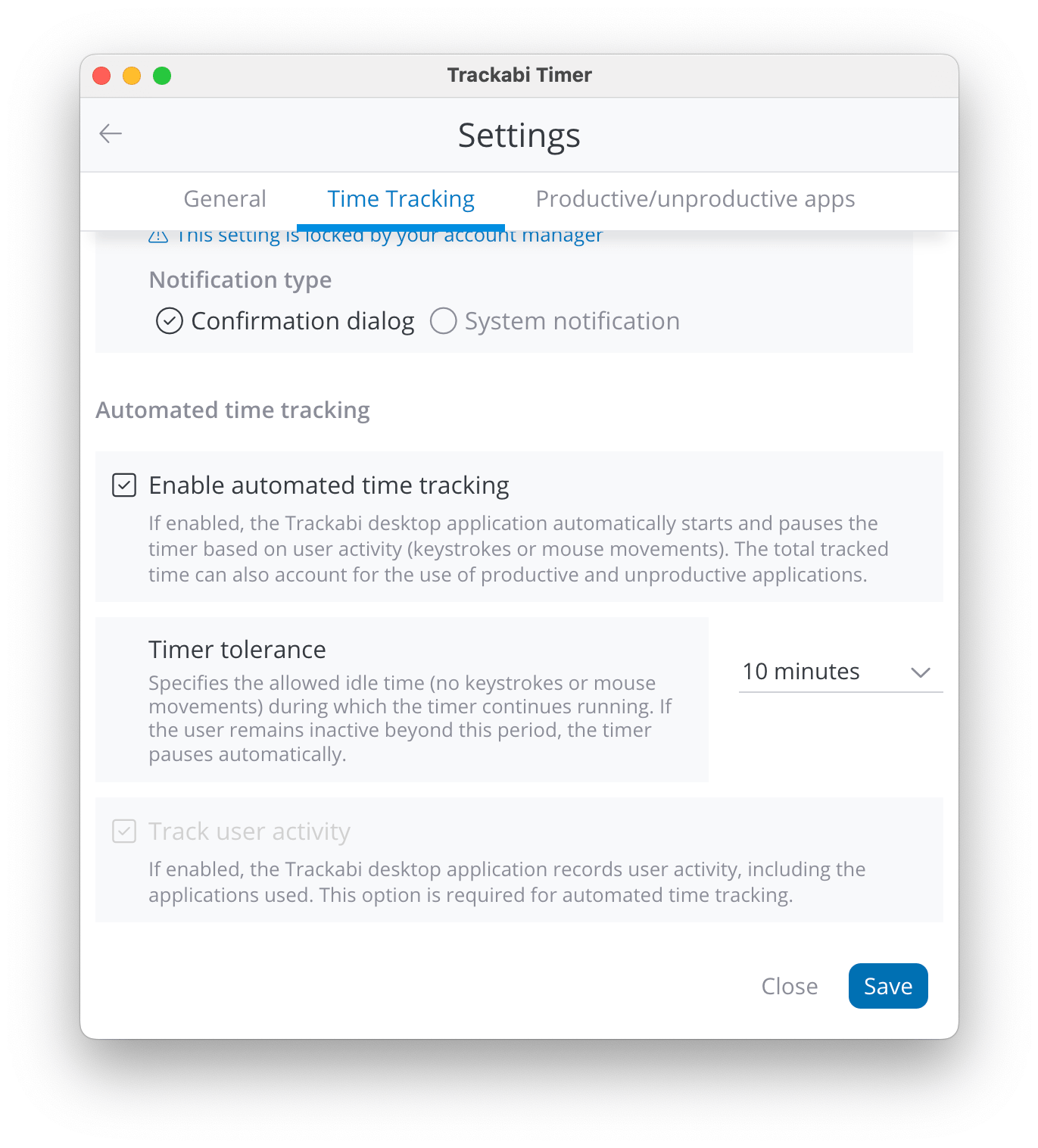
- Remind to start and stop the timer — prompts you to start the timer when activity is detected with it stopped, or to stop it when activity ends with it running. Notification type chooses between a Confirmation dialog near the tray and a System notification.
- Enable automated time tracking — lets the application start and pause the timer by itself, following your keyboard and mouse activity.
- Timer tolerance — the idle period the timer is allowed to keep running through before it pauses: 1, 2, 3, 4, 5, 10, 15, or 30 minutes. Available only while automated time tracking is on.
- Track user activity — records the applications you use even while the timer is off, which is what fills the daily timeline and the Summary charts. Automated time tracking requires it, so switching that on switches this on too and holds it there.
How the application decides when to start and pause the timer, and what it does about unproductive applications and remote meetings, is described in Automated Time Tracking.
On macOS these options stay disabled until the Accessibility and Screen Recording permissions are granted. The tab carries the prompt and a button that opens the relevant system settings pane.
On a Linux Wayland session, a Linux (Wayland) section appears below these options. See Trackabi Desktop on Linux (Wayland).
Productive/unproductive apps
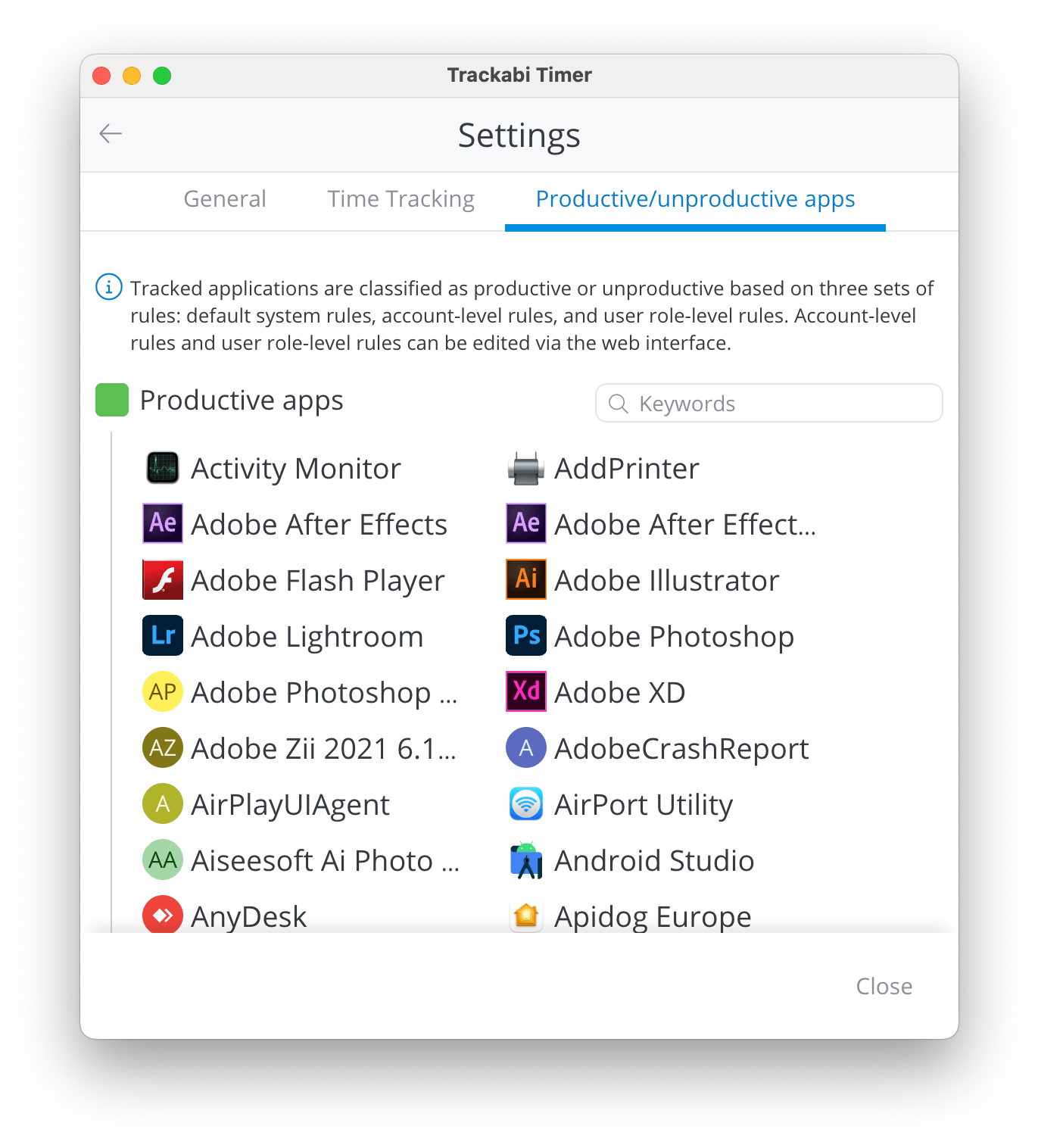
This tab lists the applications the timer has recorded on this computer and how each one is currently classified, grouped into Productive apps, Productive (ignore user inactivity), Unproductive apps, and Untracked apps. A keyword box filters the list, and a phone icon marks applications recognised as meeting applications.
The tab is read-only. Classification comes from three sets of rules applied in order — Trackabi's default rules, your company's rules, and rules attached to your role — and the company and role rules are edited in the web interface. See How Productivity Rules Are Applied and Productive vs Unproductive Time.
Only applications that have actually been recorded appear here, so the list grows as you work.