- Getting Started
- Time Tracking
- Monitoring & Productivity
- Desktop Timer Application
- Work Management
- Time Off & Scheduling
- Administration & Settings
- Integrations
- API
- FAQ
Pay & Billable Rates
Last updated
In Trackabi, you can specify employee pay rates and billable rates, allowing the system to calculate employee wages and amounts to be billed to customers.
Pay rates refer to the rates at which an organization pays its employees for their work, while billable rates are what the organization charges its clients.
How To Enable Pay & Billable Rates
The ability to view and manage rates can be enabled in the Roles section in the Wages & Billable Amounts block of the Permissions tab of each user role.
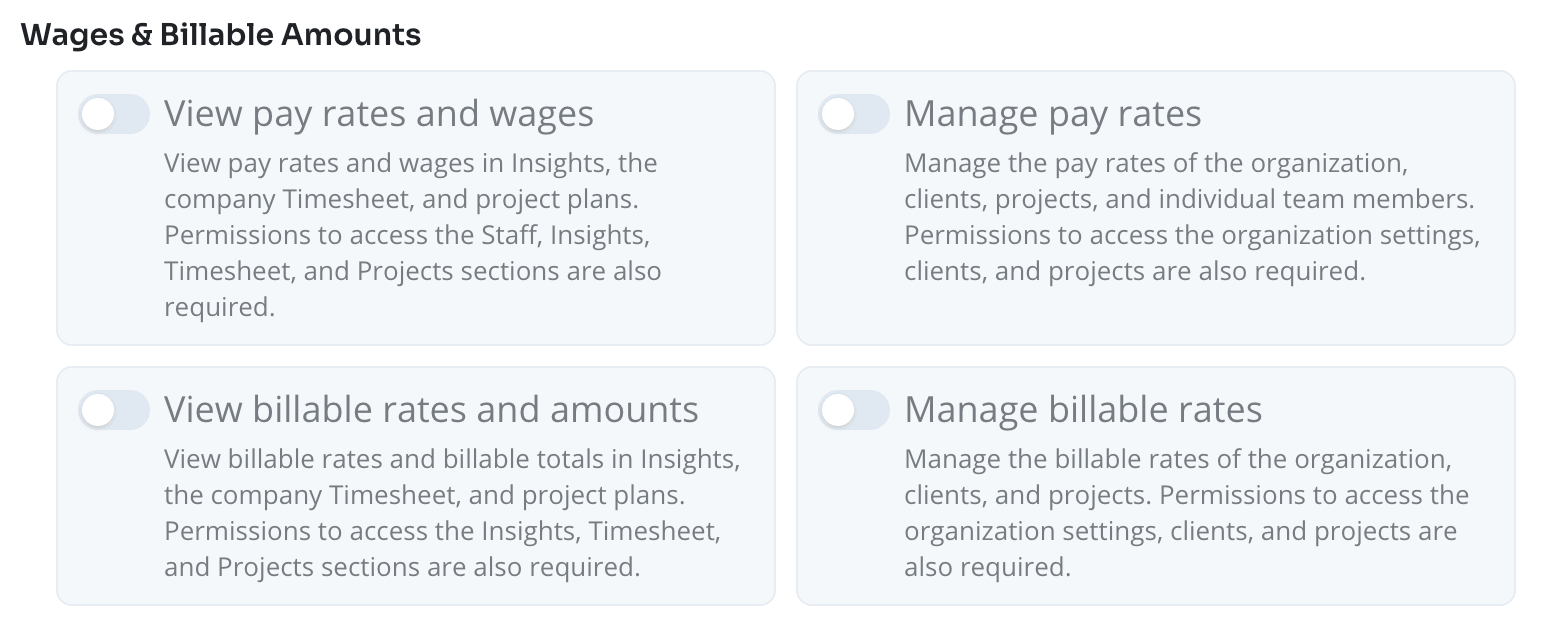
It is possible to grant only the view permission, or both manage and view permissions for a specific role separately for pay rates and billable rates. Thus, some users may be able to only view the pay or billable amounts data, while others may be able to view and edit it.
Setting Pay & Billable Rates
You can set pay and billable rates at different levels: the organization, a client, a project, and an individual team member. Rates set at a particular level are used by default at lower levels, unless other rates are specified there. A rate set for a team member takes precedence over the project, client, and organization rates.
For example, if there is a pay rate of $50 per hour set for an organization, it is used in all timesheets by default to calculate wages. However, if the pay rate for one of the projects is set at $70 per hour, the wages based on the time logged for that project are calculated at the $70 per hour rate. Plus, if a senior employee who is paid $100 per hour works on that project, their wage is calculated based on the $100 per hour rate.
Organization, client, and project rates are always hourly. Only an individual team member's pay rate can also be a daily, weekly, or monthly salary.
Default Organization Rates
You can set the default currency, pay hourly rate, and billable hourly rate in the settings of your account (Settings > General Settings).
Client Rates
The currency, pay hourly rate, and billable hourly rate for a client can be set in the client's details edit form.
Project Rates
You can set the currency, pay hourly rate, and billable hourly rate in the project's details edit form.
Individual Rates
To set a team member's rates, go to Staff, click Edit next to the member, and open the Payment details tab. The Rates block holds the member's Pay rate and Billable rate.
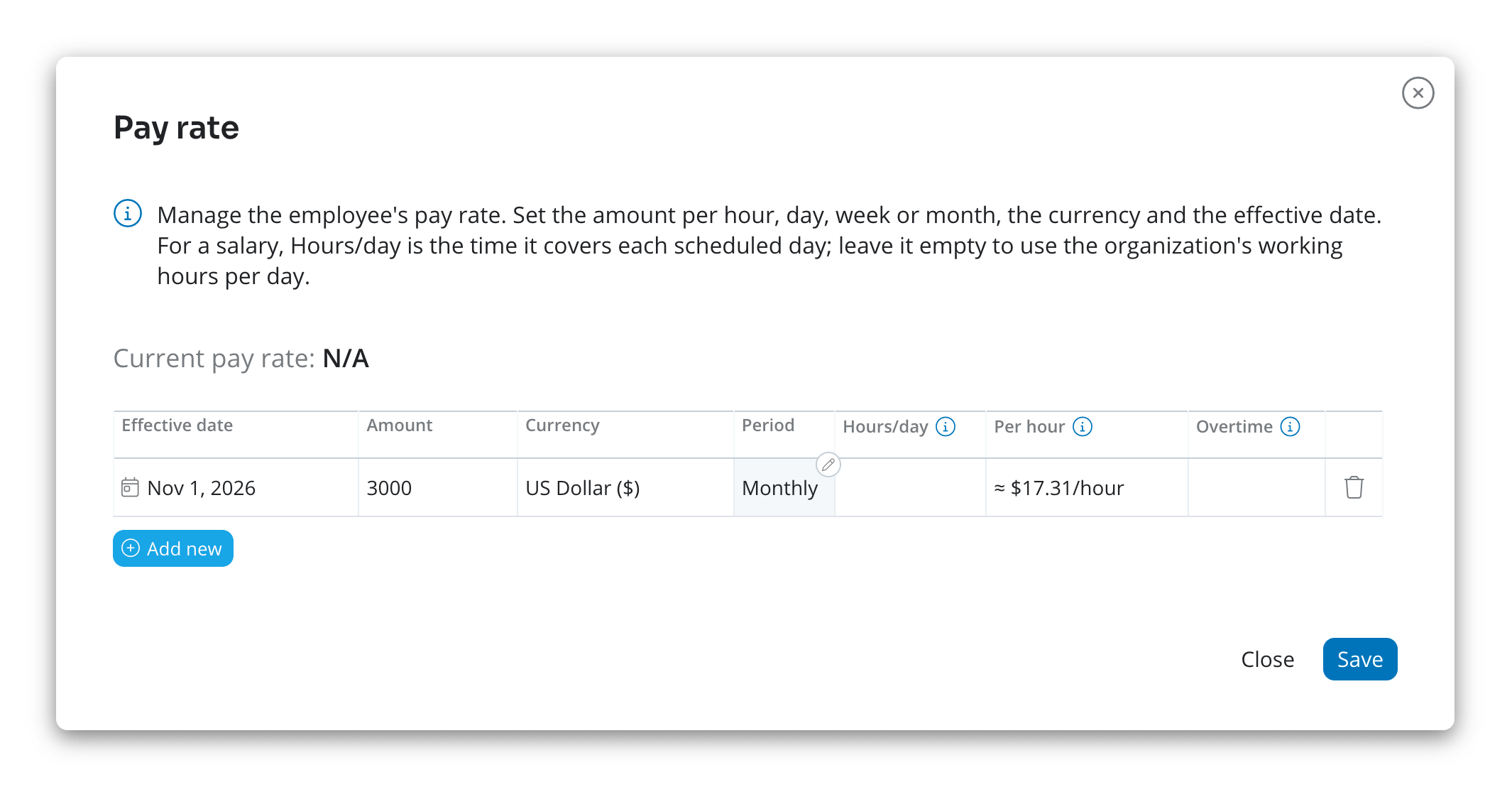
Click the Pay rate field to open the Pay rate window. It contains a table with the member's pay rates over different periods. Each row has:
- Effective date: the date the rate starts to apply. The first effective date is the same as the member's registration date in the system. You can add rates with different effective dates, including dates in the future.
- Amount and Currency: it is possible to select different currencies for the same member for different periods.
- Period: what the amount pays for: Hourly, Daily, Weekly, or Monthly.
- Hours/day: for a salary, the hours it pays for on each scheduled working day. Leave it empty to use the organization's working hours per day (Settings > General Settings).
- Per hour: the hourly rate the row works out to. It is calculated, not editable.
- Overtime: whether hours above the member's standard earn the overtime premium while this rate is in force. It is on by default for hourly rates and off for salaries, and changing the period resets it. It applies only when the member's payroll profile pays overtime (see Payrolls).
When calculating wages, the system takes the rate effective on the date each time entry was logged.
How the Hourly Rate of a Salary Is Calculated
Timesheet wages, reports, paid leave, and overtime are always priced at an hourly rate. For a salary, Trackabi derives it from the amount, the hours per day, and the number of working days a week in the member's work schedule (see Working Days) in force on the rate's effective date:
- Daily: salary ÷ Hours/day
- Weekly: salary ÷ (Hours/day × working days a week)
- Monthly: salary × 12 ÷ 52 ÷ (Hours/day × working days a week)
For example, a monthly salary of $3,000 with 8 hours a day and a five-day week works out to $3,000 × 12 ÷ 52 ÷ 40 ≈ $17.31 per hour. The Per hour column marks a salary's hourly rate with “≈” and updates as you edit the row.
In a payroll, a salaried member is paid the salary itself, not the hours they logged. How salaries, overtime, and unpaid leave are paid is described in Payrolls.
Time Type Coefficients
For special time types, it is possible to set rate coefficients that increase or decrease total amounts. For instance, if employees should be paid a double rate for night shifts, the Wage coefficient of the Night shift time type should be set to two. This will double all amounts logged with that time type. The same coefficient is available for billable time as well.
For a salaried member, the salary already pays for their hours, so a time type with a wage coefficient adds only the part above the regular rate: hours × hourly rate × (coefficient − 1). A coefficient below one does not reduce a salary.
Viewing Wages & Billable Amount Totals
Calculated wages and billable amounts can be seen in company Insights, the company Timesheet, and the Plan & budget tab of a project.
Insights
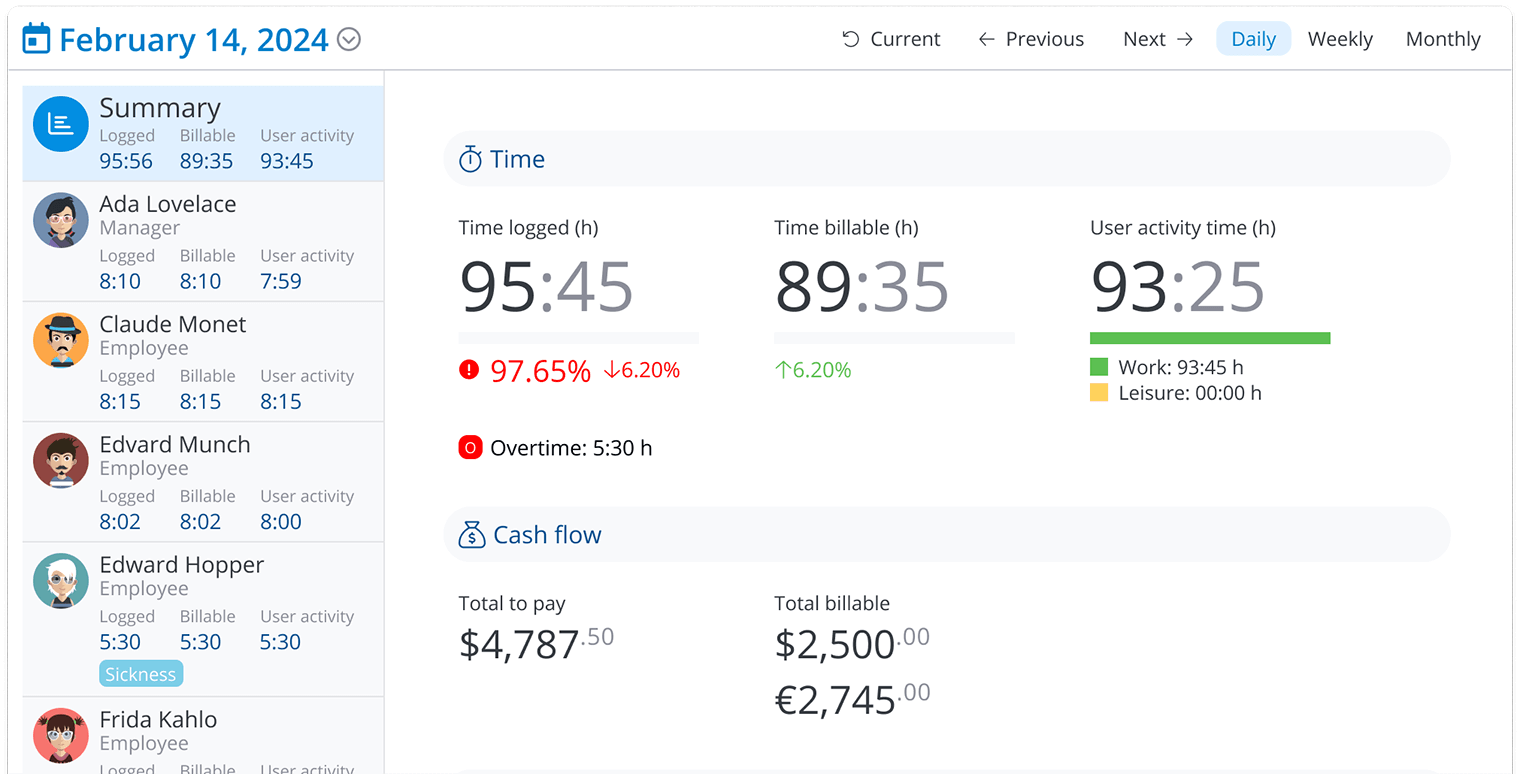
The Insights section provides a convenient interface to view wages and billable amounts for the entire team and each employee for every day, week, or month.
Company Timesheet
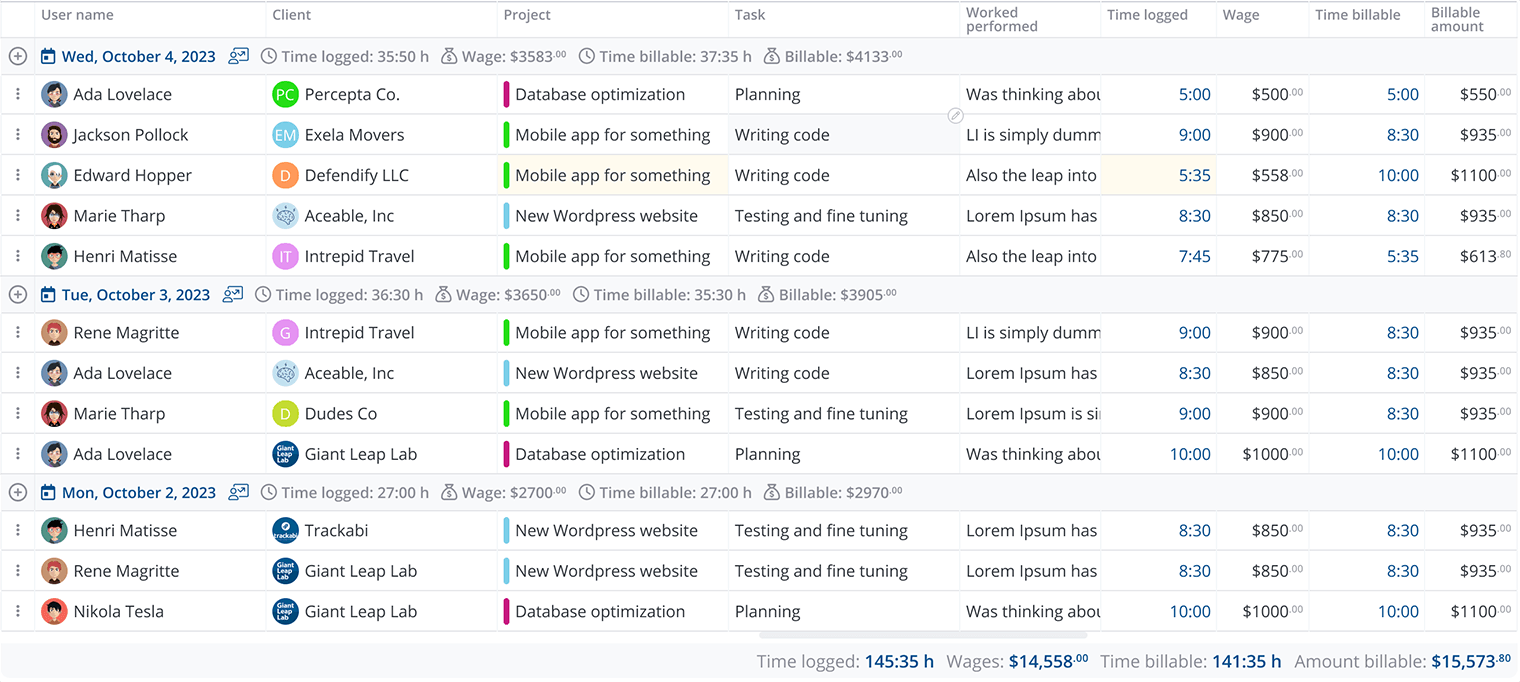
In the timesheet section, you can find wages and billable amounts for every time entry and every day. The Wage and Billable amount columns are time log fields: turn them on in the timesheet settings (see Timesheet Settings).
Project Plan & Budget
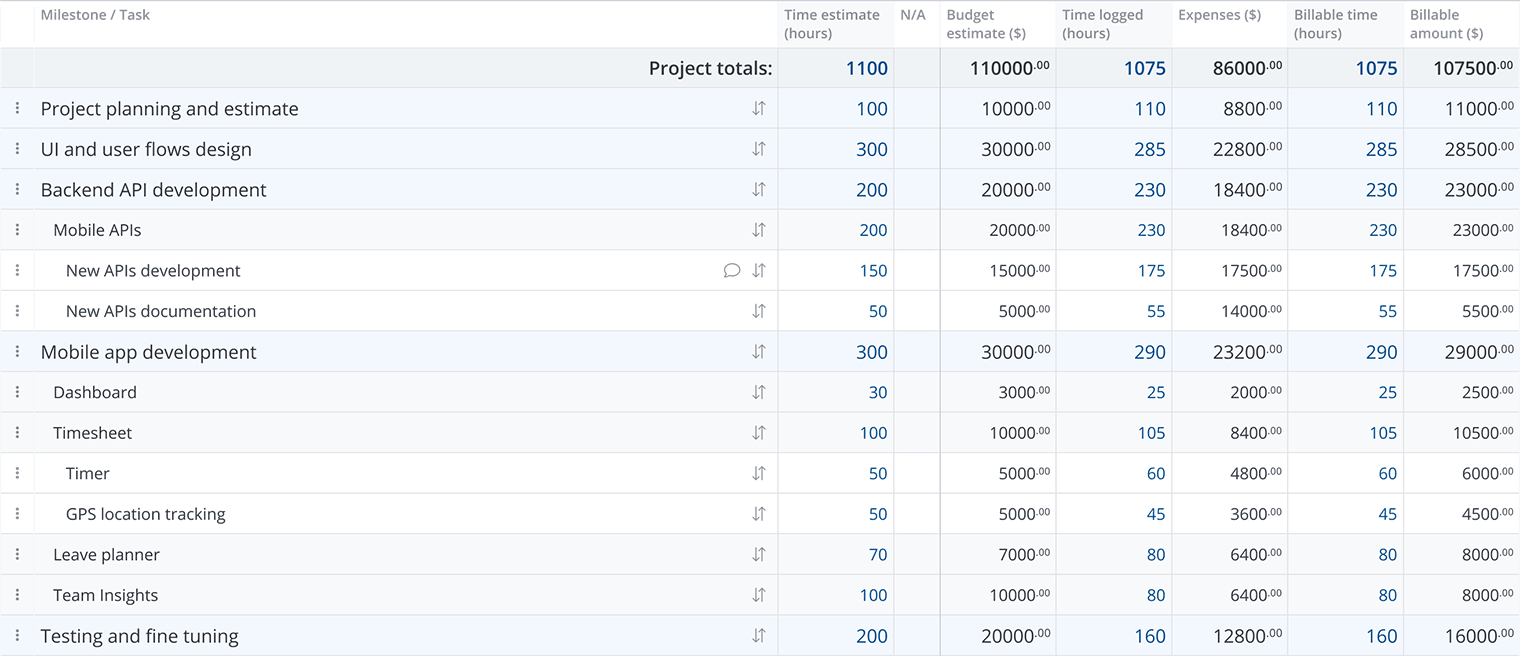
In the Plan & budget tab of every project, you can compare the initially estimated time and budget with the actually spent time, wages paid, and the related billable amounts.