

- Getting Started
- Time Tracking
- Desktop Timer Application
- Work Management
- Time Off & Scheduling
- Reports & Finance
- Administration & Settings
- Integrations
- API
- FAQ
Live Activity
Last updated
Live Activity gives you a real-time view of all users currently working. For each active user, you can see a timeline with their running timer, apps in use, productive and unproductive periods, and activity scores, along with their most recent screenshots.
Live Activity displays only recent data. The timeline cannot be scrolled back, and only the five most recent screenshots are shown. For a full history of a user's session, open their related user insights page.
Overview
When team members start a timer, they appear automatically on the Live Activity page. The page updates in real time as people start and stop sessions, so the information you see always reflects the current state of your team.
What you can see
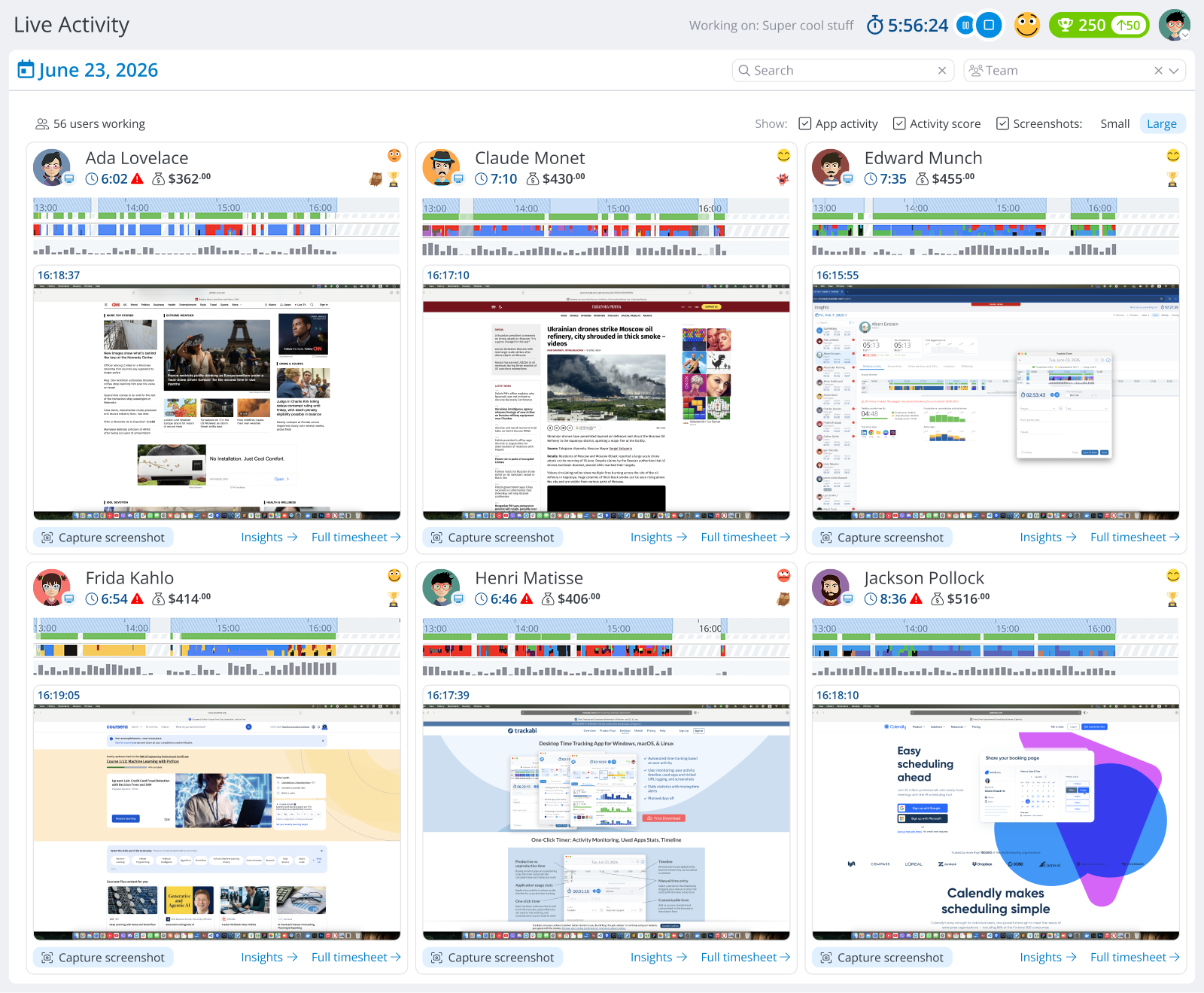
For each active user, Live Activity displays:
- Name — who is working, their current mood, and any achievements
- Running timer — the elapsed time for their current session, updated live. Hover over the timeline to see a tooltip with the associated client, project, and task
- Screenshots — the five most recent captures taken automatically throughout the session
- User timeline — a detailed breakdown of the current session showing:
- Running timer progress
- Apps used during the session
- Productive and unproductive intervals, so you can see at a glance how time is being spent
- Activity score chart showing how the user's activity score has evolved throughout the session
Client access
Live Activity can also be opened by client users, for the users working on that client’s own projects. It is granted per client on the Client Users tab of the client’s page and is off by default.
Enabling it means people outside your company watch your employees work in real time, screenshots included, and a newly added employee appears to them as soon as they are added. See Clients.
Capturing screenshots on demand
In addition to automatic screenshots, you can trigger a manual screenshot for any active user directly from the Live Activity page. This gives you an up-to-date view of what a team member is working on at any given moment.
To capture a screenshot manually:
- Open the Live Activity page from your dashboard.
- Locate the team member you want to capture a screenshot for.
- Click the Capture Screenshot button next to their name.
The screenshot will appear alongside their existing captures immediately.
The frequency of manual screenshots is limited by the maximum screenshot frequency allowed on the user's subscription plan.