

- Getting Started
- Time Tracking
- Monitoring & Productivity
- Desktop Timer Application
- Work Management
- Reports & Finance
- Administration & Settings
- Integrations
- API
- FAQ
Working Days
Last updated
In Trackabi, the days of the week that count as working days are defined by a work schedule. A schedule carries a working week together with its own public holiday list, and an organization can keep several of them — one for each group of people who work a different week or observe a different calendar.
Each member follows one schedule at a time. Assignments are dated, so a member who moves between offices follows one schedule up to the effective date and another from that date onward, and past months keep the schedule that was in force at the time. Anyone with no assignment follows the schedule marked Default.
The working week itself is a weekly pattern: mark the days the schedule works. A Monday to Friday week and a Sunday to Thursday week are expressed the same way.
This configuration is used when calculating whether a user has reported the required amount of working time on a given day. It also decides how many working days a leave request consumes, which days are counted as business days in reports and payrolls, and which cells are shaded as non-working in timesheets and leave calendars. Public holidays belonging to the same schedule are excluded on top of the weekly pattern. For details, see Public Holidays.
Company-level limits expressed per working week — the maximum logged time, role time settings — are read from the default schedule rather than from the schedule of whoever is looking at the page.
The schedules list
Schedules are managed in Settings > Schedules > Work schedules. The list shows each schedule's name, how many days a week it works, and how many public holidays it holds. If a schedule has a description, an info icon next to its name shows it on hover.
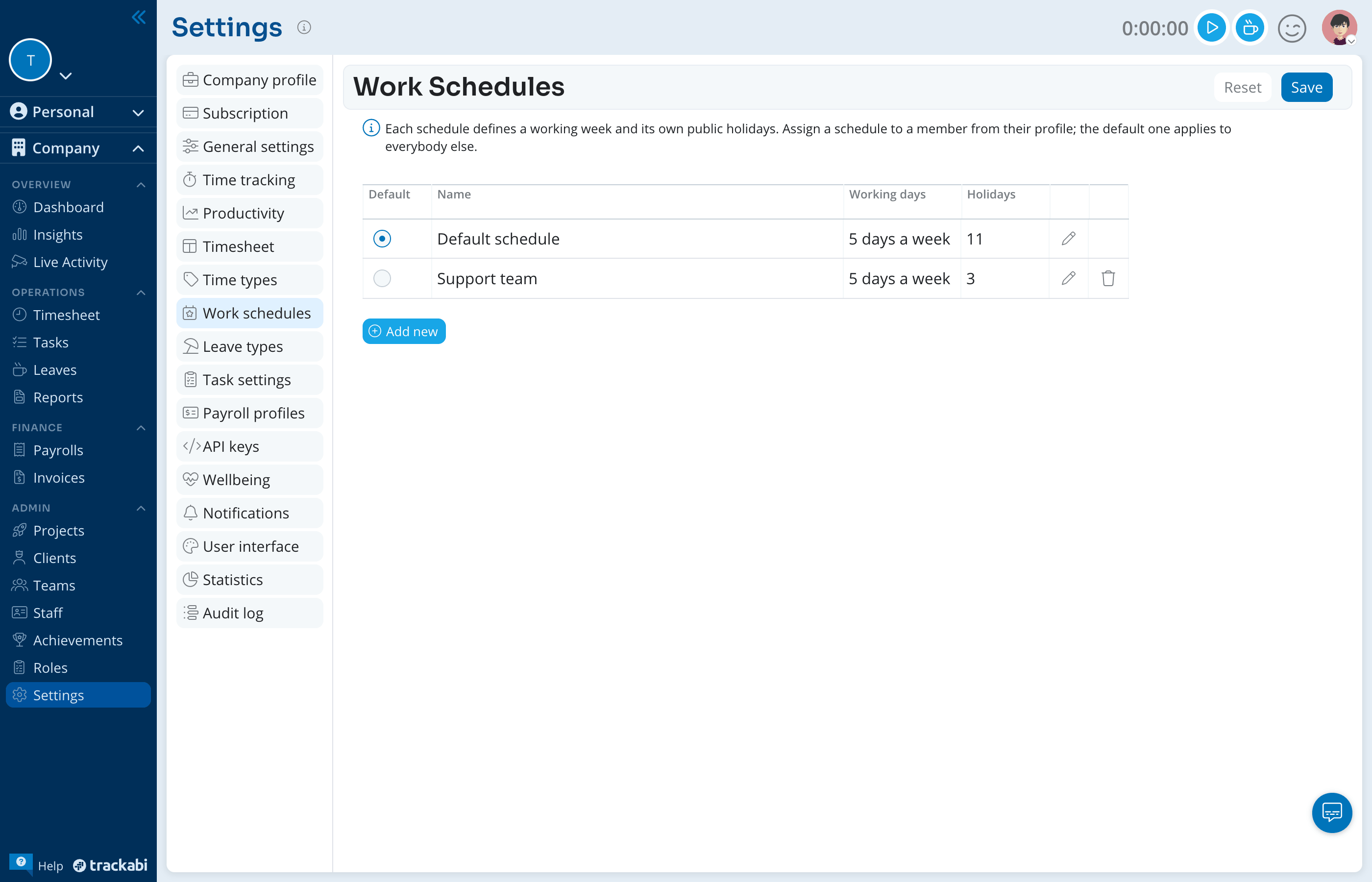
To make a different schedule the default, select its radio button in the Default column and click Save at the bottom of the page. Nothing changes until you save, and Reset discards the selection.
Every organization has exactly one default schedule, and it cannot be deleted. The first schedule you create is always the default. Any other schedule can be deleted once no member assignment points to it; until then the delete icon is greyed out, and hovering over it shows how many assignments still use the schedule.
Add or edit a schedule
To create a schedule:
- Open Settings > Schedules > Work schedules.
- Click Add new.
- Enter a Name. Names must be unique within the organization.
- On the Working days tab, switch on the days the schedule works. A new schedule starts with Monday to Friday.
- Optionally add a Description, add holidays on the Public holidays tab, and choose how weekend holidays are handled.
- Click Save.
To change an existing schedule, click the edit icon at the end of its row. The same popup opens with the schedule's current settings. Nothing is stored until you click Save in the popup; Cancel discards your changes.
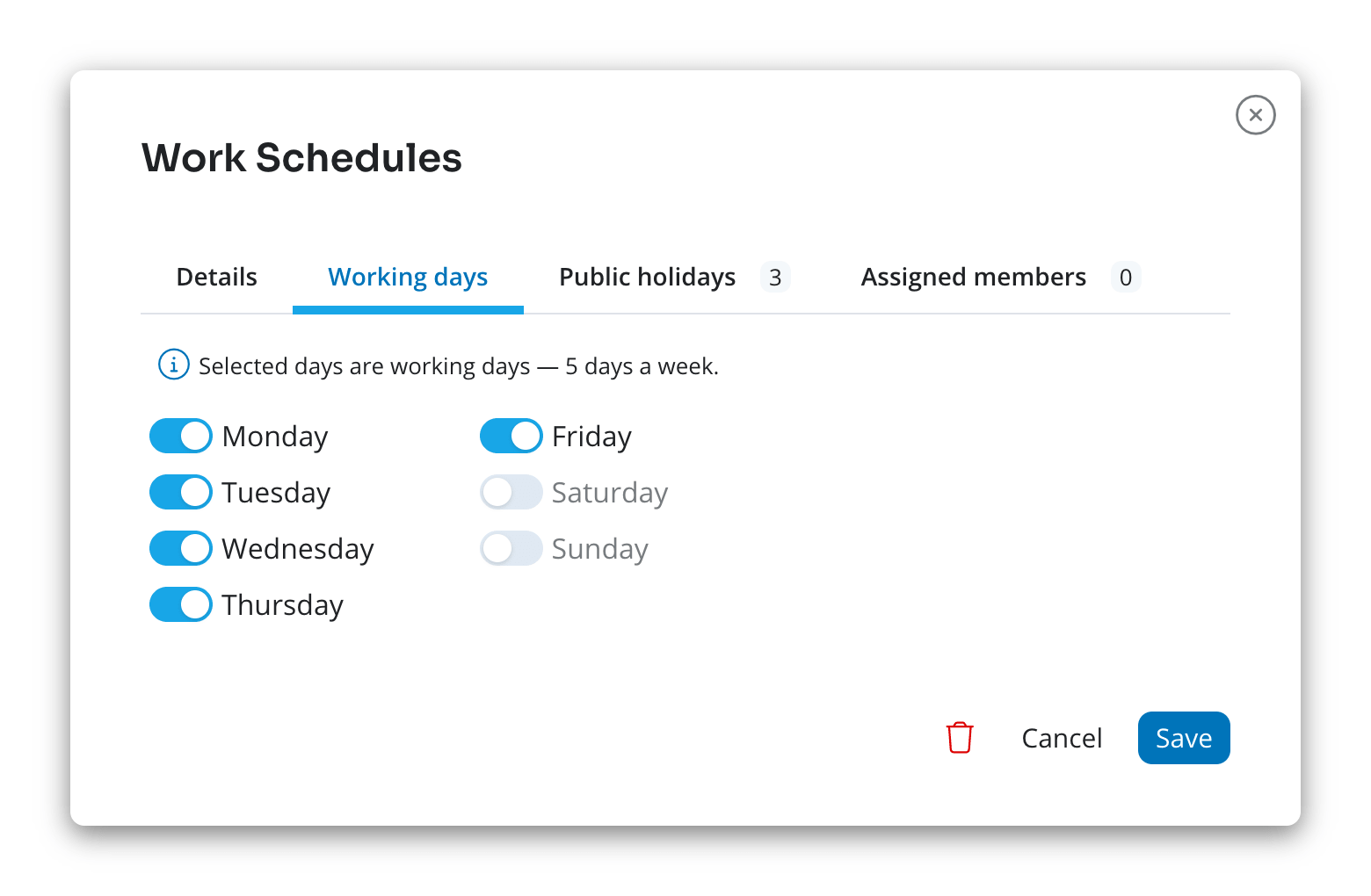
On a browser window about 950 pixels high or less, Name, Default and Description sit on a Details tab. On a taller window they stay above the tabs.
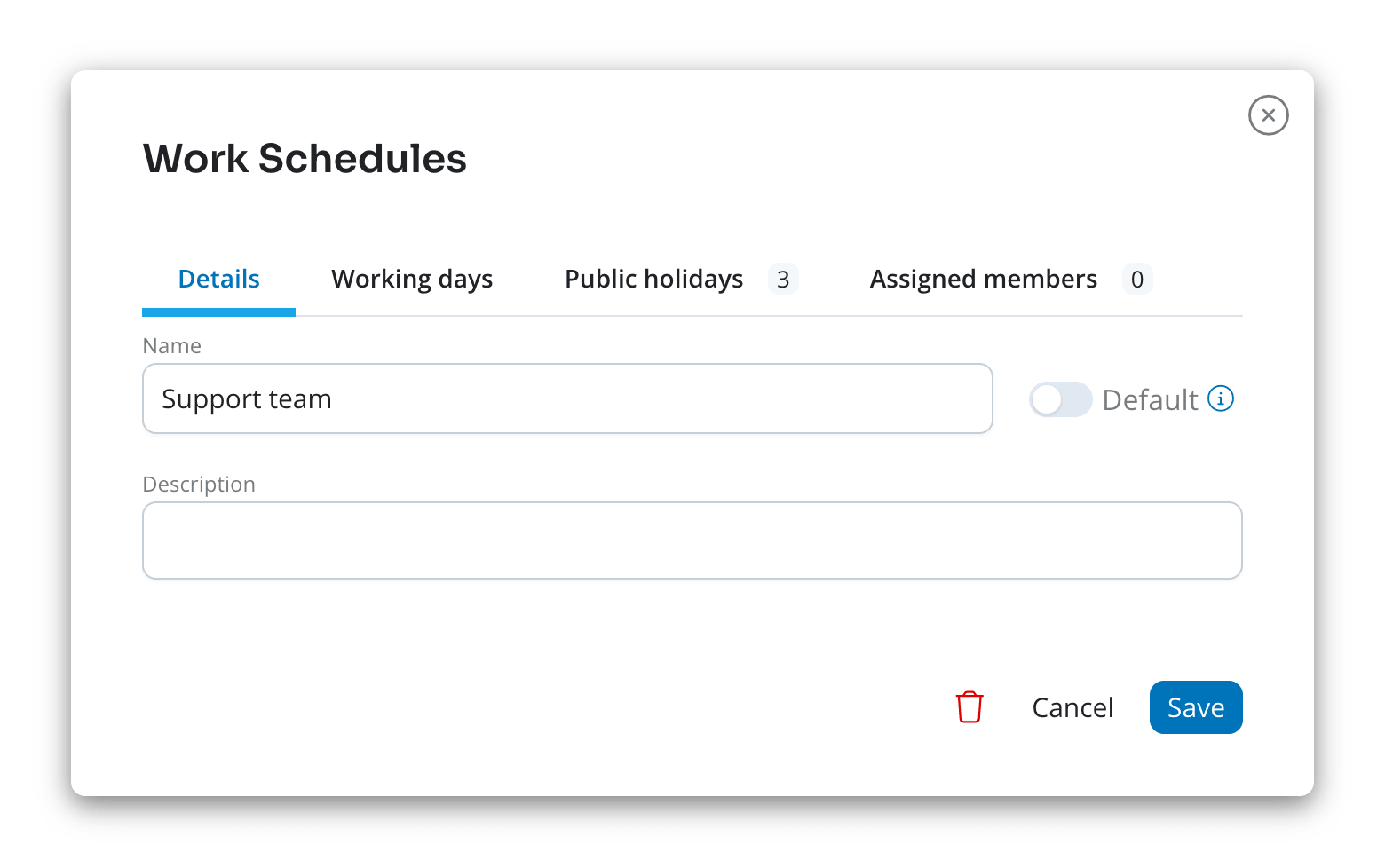
Default
The Default switch in the popup makes the schedule the one that applies to members without an assignment. Switching it on for another schedule moves the default there, and the previous default is switched off in the same save. The switch is locked on the current default and on the organization's first schedule, because an organization cannot be left without one. To move the default, open the schedule that should become the default and switch it on there.
Working days
One switch per weekday. The note above the switches counts the selected days. At least one day must stay selected.
Public holidays
The holidays this schedule observes, entered one year at a time, and the Weekend holiday handling rule for holidays that fall on a non-working day. The number on the tab label counts the holidays of every year, not only the year on screen. See Public Holidays for the columns, copying a year forward, and the handling options.
Assigned members
A read-only list of the members who follow the schedule and the date each assignment takes effect: From a date, Until a date, a range, or No start date — always applies for someone who has followed it since they joined. Members with no assignment appear on the default schedule. The tab appears only for schedules that already exist.
The list is not editable here. A member's own schedule is assigned from their profile, on the Schedule & leaves tab, where each assignment carries the date it takes effect.