

- Getting Started
- Time Tracking
- Desktop Timer Application
- Work Management
- Time Off & Scheduling
- Reports & Finance
- Administration & Settings
- Integrations
- API
- FAQ
Activity Simulators and Suspicious Activity Detection
Last updated
It happens that users may try to cheat the system using activity simulator software, jamming keyboard keys, etc. Trackabi can detect such cases based on various parameters.
Activity Simulators Detection
It is fairly common for remote workers to keep a keyboard or mouse simulator running continuously so that, when they step away, it continues generating user activity. Trackabi’s time-tracking desktop application can detect many keyboard simulators and mouse jigglers.
Information about detected simulators is displayed in the Insights section for each user. If suspicious activity is found in the selected period, the system also shows a red warning icon next to that user in the left-hand user list.
Since Trackabi monitors only currently active applications and not background processes, the statistics do not show the periods during which a simulator was running. Instead, they only display the moments when the simulator’s window was opened by the user to start or stop the simulation or to adjust its settings.
Since Trackabi monitors only currently active applications and not background processes, the statistics do not show the periods during which a simulator was running. Instead, they only display the moments when the simulator’s window was opened by the user to start or stop the simulation or to adjust its settings.

Identifying "Fake" Activity
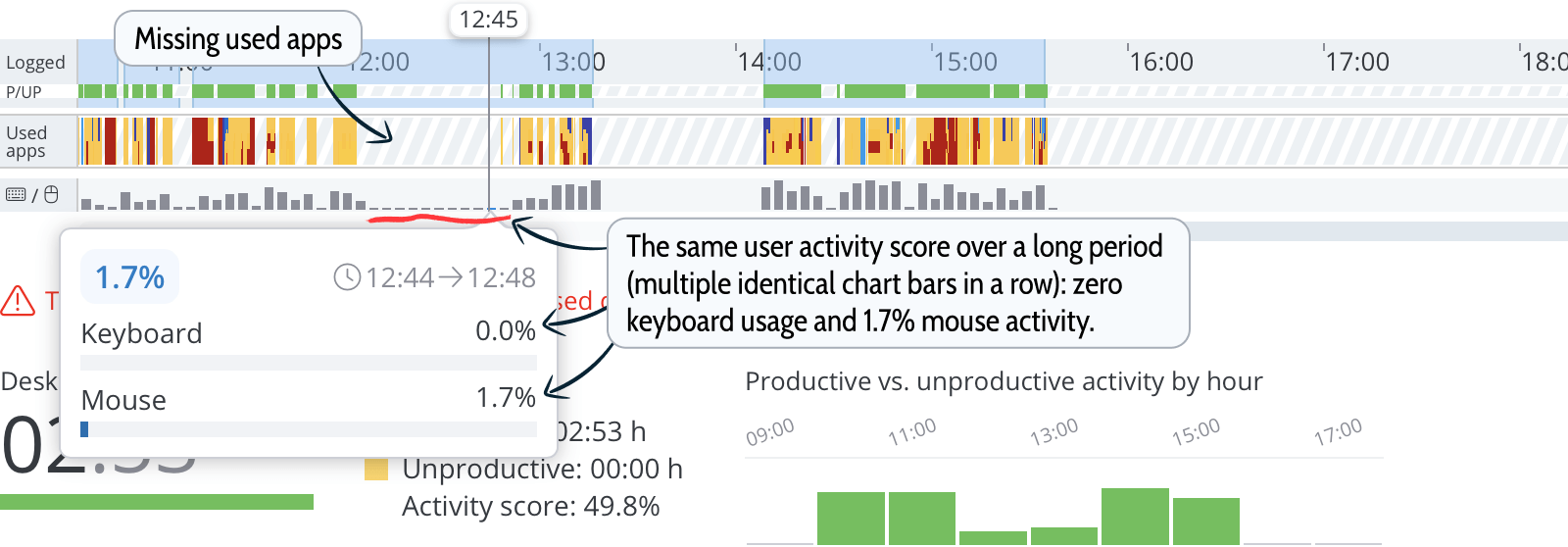
To determine whether a user was genuinely working or attempting to fake activity, you can review their activity score chart and screenshots. If the activity chart contains many identical columns (hover over a column to view the exact values) during specific periods, it is very likely that the user was inactive at those times. Screenshots can also help confirm this.
Not all simulators produce low activity, as in the previous example. In some cases, you may see a high activity score, but it typically reflects only mouse activity while keyboard usage remains at zero.
When the activity level is very low, the system also doesn't show applications in the timeline because periods of their activity (mouse/keystrokes in those apps) are too short.
Note that there are also legitimate reasons to use activity simulators—for example, to prevent the computer from sleeping during long backups or rendering tasks, or to avoid VPN disconnections during extended sessions.
Detecting Suspicious Activity Based on User Data
Aside from detecting software for activity simulation, Trackabi can analyze user activity data to see if something is not right. The system may flag periods where user activity stays exactly the same for a long period of time, especially when one activity type (keyboard or mouse) is absent and the other activity type is very high. This may be a sign of using activity simulating software not known to Trackabi, jamming keyboard keys, etc.
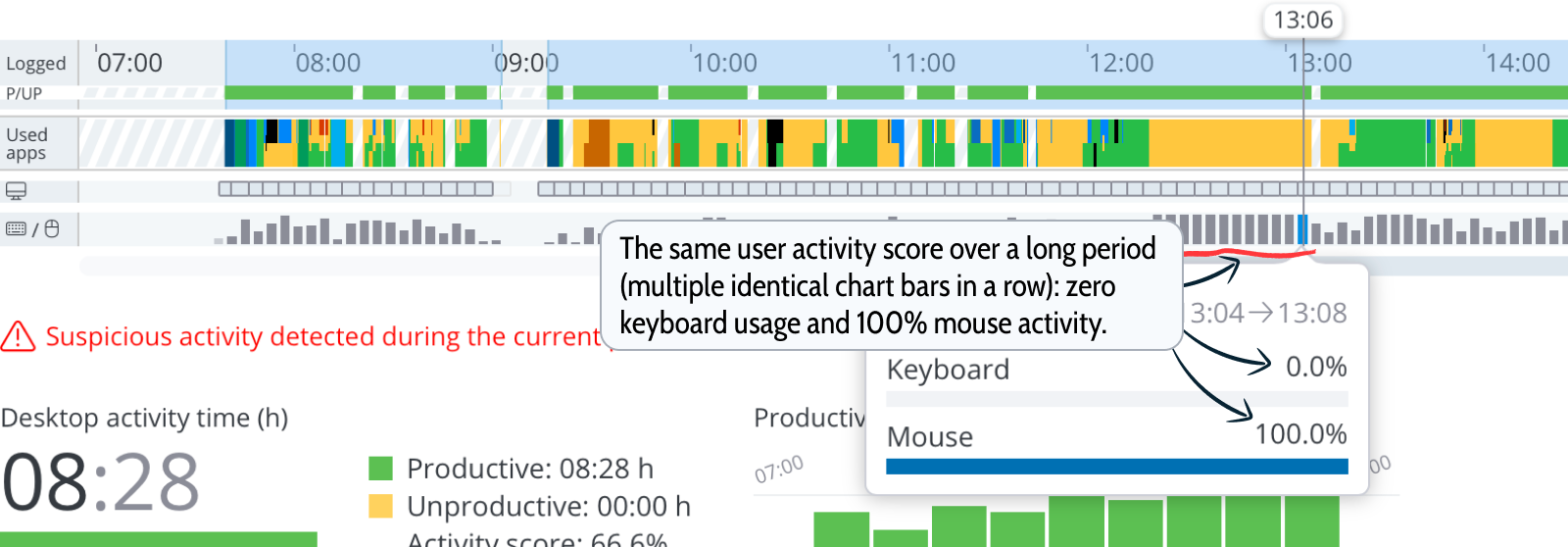
When high fake activity is present, there will also be no gaps in the “Used Applications” section of the timeline.