

- Getting Started
- Time Tracking
- Monitoring & Productivity
- Desktop Timer Application
- Work Management
- Reports & Finance
- Administration & Settings
- Integrations
- API
- FAQ
Public Holidays
Last updated
In the Public holidays tab of a work schedule, you can manage official non-working days for the people who follow that schedule. These are the dates when employees are expected to be off work.
Holidays belong to a schedule rather than to the company as a whole, so an organization with staff in several countries keeps one schedule per calendar and each member observes the dates that apply to them. Members with no schedule assignment follow the schedule marked Default. For how schedules are set up and assigned, see Working Days.
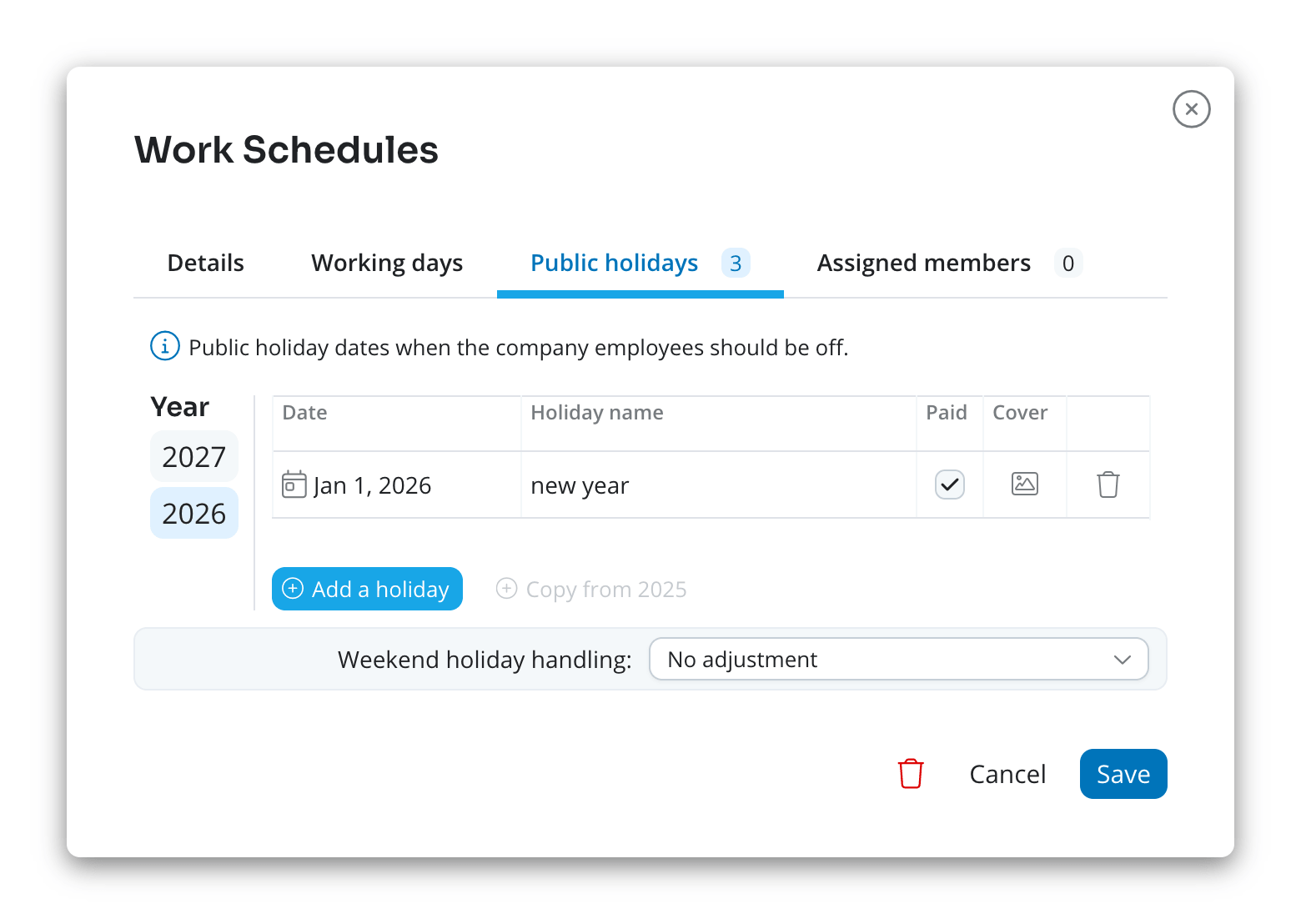
Holidays are entered one year at a time: pick the year in the list on the left of the tab, then click Add a holiday. Each entry has a date and a name, and can carry a cover image — either uploaded or picked from Unsplash — which is shown on the holiday card. The Copy from link fills the selected year from the previous one, carrying each holiday's settings and its Unsplash cover across, and skipping any date and name the year already has. The link is greyed out until the previous year has holidays.
Public holiday entries are displayed across both personal and company leave schedules, making them visible to all users when planning time off. They are also taken into account by the system when verifying whether an employee has reported the required number of working hours for a given day: a holiday is excluded from standard working hour expectations, and a leave request that spans one does not spend a leave day on it.
When a holiday falls on a non-working day
Each schedule decides what happens to a holiday landing on a day it does not work. Choose the rule in Weekend holiday handling, below the holidays table:
- No adjustment — the holiday stays there, so nobody gets an extra day off for it. This is the default.
- Move to the next working day — the day off moves forward to the first working day that is still free.
- Saturday back, other days forward — a Saturday holiday moves back to the working day before it, and any other one moves forward. This is the rule used in the United States.
- Move only from Sunday — only a Sunday holiday moves, to the next working day. A holiday on any other non-working day is not compensated.
Holidays are processed in date order and each substitute date is taken only once, so a Saturday and Sunday pair becomes two separate days off rather than both landing on the Monday. A holiday that already falls on a working day is never moved, and the Move if off checkbox on an individual holiday exempts it from the schedule's rule. The column appears only while a rule other than No adjustment is selected. If no free working day is found within 30 days, the holiday stays on its own date.
A substitute day is derived, not stored. The calendar keeps the holiday on its real date and shows the day off on the substitute date; only the day off counts against required hours, leave calculations, and business days. The table in this tab lists the dates you entered, not the substitutes.
Paid public holidays
Each holiday has a Paid checkbox, ticked by default. It matters only in payrolls, and only when the payroll profile also has Pay for public holidays enabled — that setting is off by default, so existing payrolls do not change amount.
With both enabled, every observed holiday that falls on a member's scheduled working day inside the payroll period is paid at their rate for one scheduled day, and appears as its own line in the pay stub. A date carrying more than one holiday name is one paid day. A holiday on a day the member does not work, or outside their employment dates, pays nothing.
Public holidays can be managed in Settings > Schedules > Work schedules: open a schedule with the edit icon and go to its Public holidays tab. Click Save in the popup to store your changes.