

- Getting Started
- Time Tracking
- Monitoring & Productivity
- Desktop Timer Application
- Work Management
- Time Off & Scheduling
- Reports & Finance
- Integrations
- API
- FAQ
Subscription & Billing
Last updated
The Subscription page shows which plan your company account is on, what it includes, and what it costs. It is also where you change plans, resize your team, reach your invoices, and cancel.
If a feature tells you it "isn’t included in your current plan", this is the page that explains what would.
Availability
- Company-level setting, requiring the Manage organization permission — normally owners and administrators only.
- Every new company account starts on a 30-day free trial, running on a plan you choose.
- Enterprise pricing is arranged with the sales team rather than selected here.
Plans and what limits them
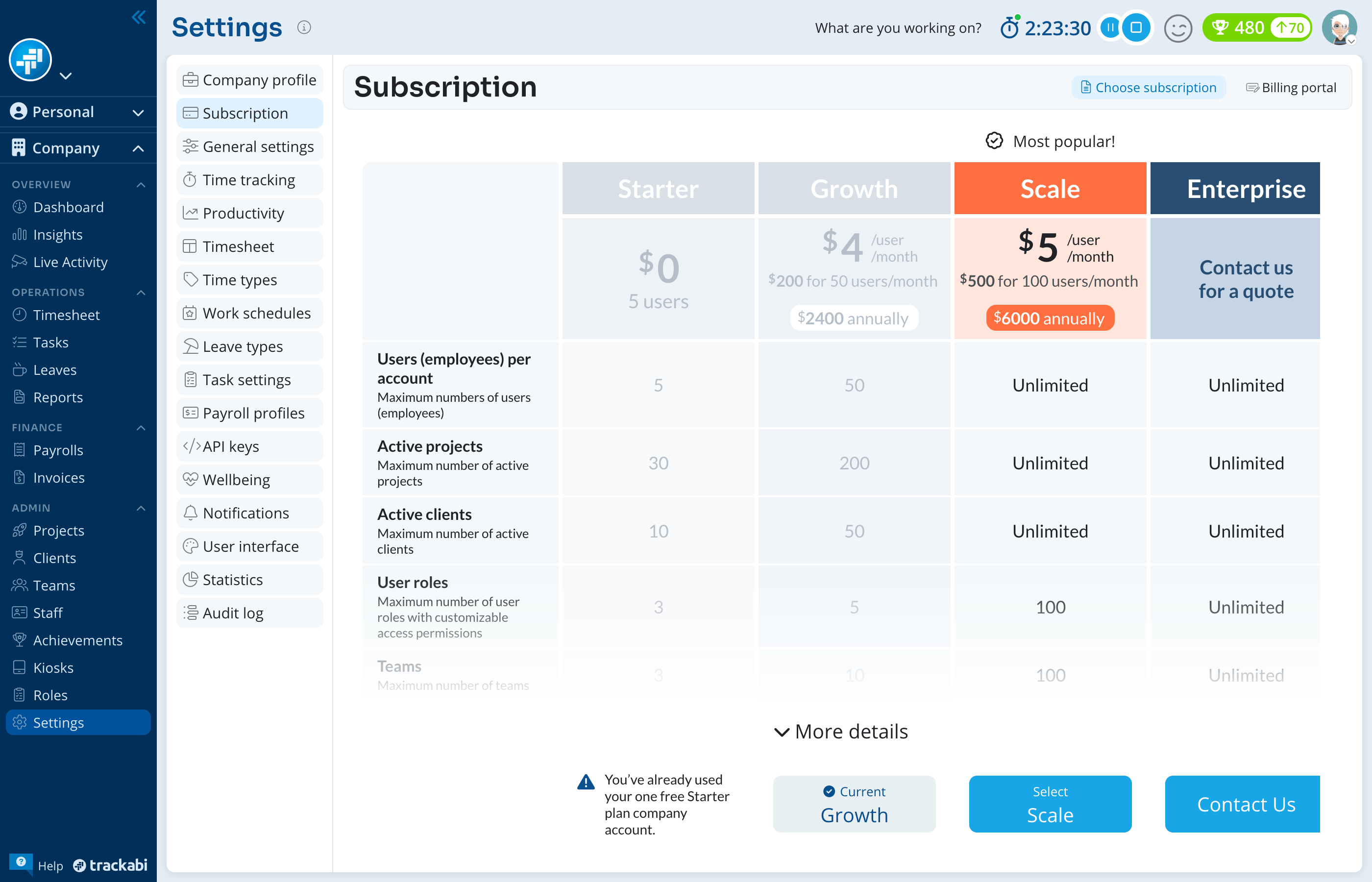
There are four plans: Starter, Growth, Scale, and Enterprise. The comparison table lists what each includes; it opens showing only the first few rows, and More details expands the full feature list.
Five caps differ per plan and are the ones you are most likely to hit:
- Users (employees) per account — counts active users plus pending invitations. An invitation nobody has accepted still occupies a seat.
- Active projects and Active clients — deactivated ones do not count, so archiving old work frees room without deleting anything.
- User roles and Teams — the number of custom roles and active teams you can keep.
Plans also differ in which features exist at all and in how long data is kept: screenshots, the activity log, and the audit log each have a retention period that shortens on lower plans, and screenshot capture frequency is limited on Growth. The comparison table states the retention for each.
When you reach one of these caps, Trackabi interrupts the action with Upgrade your subscription and names the plan whose limit you hit. Members without the Manage organization permission see the same message worded differently: it tells them the account owner has to upgrade.
Starter is free, and each user account may run one free Starter company account. Once you have used it, the Starter column is greyed out and cannot be selected for another company.
Changing your plan or team size
To change the plan or the number of seats:
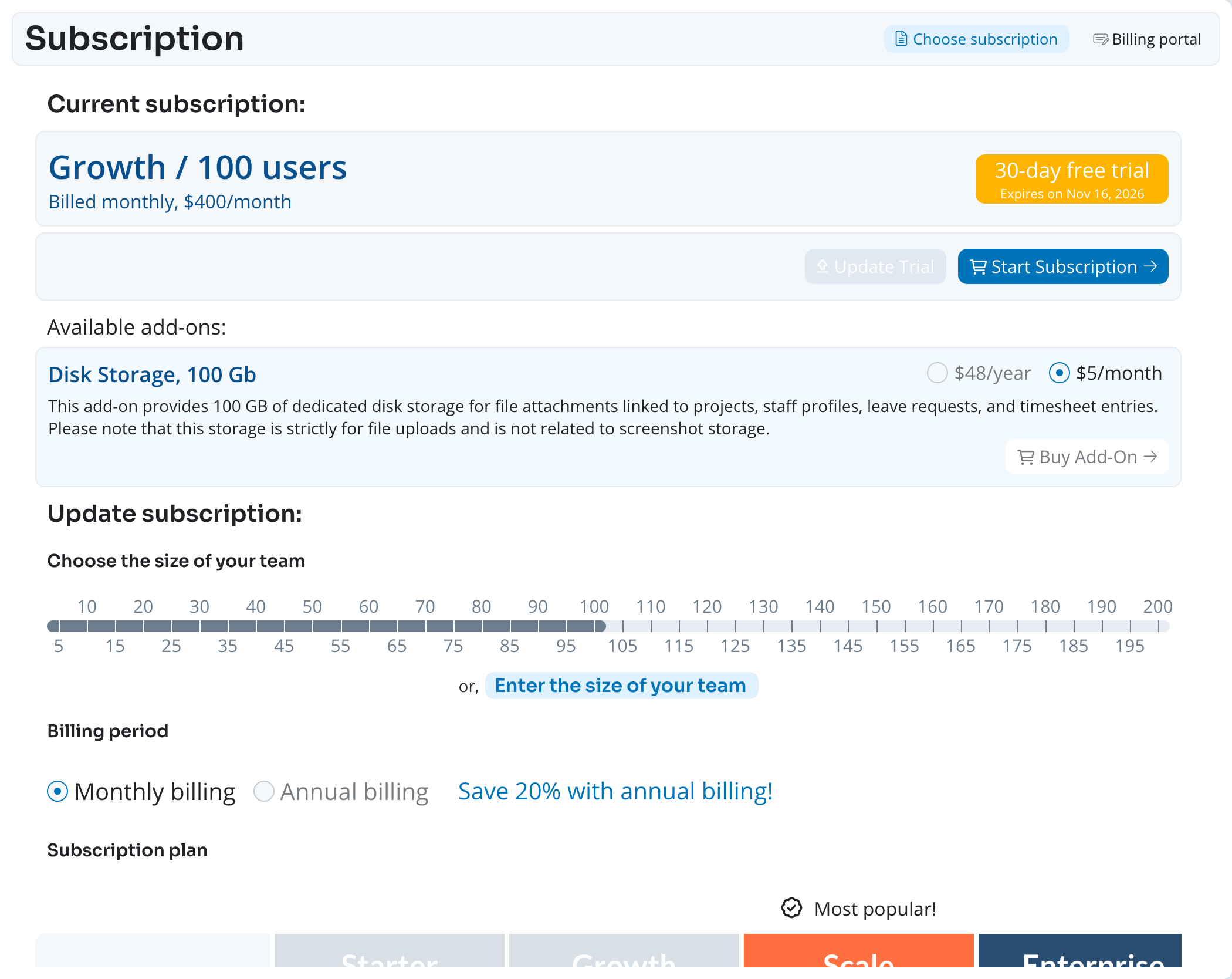
- Open Settings > Subscription and select the Choose subscription tab (it reads Change subscription once your trial has ended).
- Set Size of your team with the slider, which moves in steps of five. For an exact number, click Enter the size of the team and type it. The minimum order is 5 seats.
- Under Billing period, choose Monthly billing or Annual billing. Annual billing saves 20%.
- Pick a plan and click Select.
Each plan shows a per-user monthly price and the total for the team size you chose. A plan whose user cap is below that size is disabled — reduce the team size to select it. Taxes are not included in the prices shown; they are determined by local tax rules and calculated at checkout.
Downgrading when you are over the new plan’s limits
If your account already holds more than the plan you are moving to allows, Trackabi opens Reduce resources used to downgrade your account before letting the change through. It has a tab per limit — Users, Clients, Projects, Teams, Roles, Achievements — and each tells you how many items to release, for example Deactivate at least 3 projects to be able to downgrade.
Most of it is reversible:
- Clients, projects, teams, and achievements are deactivated, not deleted. Their history stays intact and you can reactivate them after upgrading again.
- Users are dismissed rather than deleted, so their logged time is preserved. The account owner and your own account cannot be released this way.
- Pending invitations are deleted outright.
- Roles are deleted. Because members must hold a role, you choose a replacement role first, and everyone on a deleted role moves to it.
You can only release item types you have permission to manage; a tab you lack permission for says so, and someone else has to clear it.
Trials
During the trial, the plan panel shows the days remaining and the expiry date.
Update Trial moves the trial onto a different plan or team size without charging you. It stays disabled until you change the plan or team size below it, so a greyed-out button means nothing has been changed yet rather than that the action is unavailable.
Start Subscription ends the trial and begins paid billing on the plan and team size currently selected.
Payments and invoices
Billing portal, at the top right, opens your payment provider’s portal, where the payment method, billing details, and issued invoices live.
A Payment history tab appears next to the plan chooser once the account has payments to show; it is absent on a trial account that has never been charged.
Cancelling a subscription
Cancelling stops the automatic renewal — it does not cut access off immediately. The confirmation dialog names the plan and the date your access runs to, and you keep the plan until then. Auto-renewal can be resumed from the same panel.
If a payment fails, the plan name is prefixed with Past due:, and Pay your last invoice replaces Start Subscription to take you to the billing portal. If the subscription lapses altogether, it is prefixed with Expired:.
An expired subscription blocks the whole company workspace. Every page shows "Your subscription has expired" and only the Subscription settings remain reachable. Members without the Manage organization permission see the same block and must wait for an administrator.
Deleting a company account
Delete this company account, at the bottom of the page, removes the company and all of its data permanently. It cannot be undone.
You enter your password, Trackabi emails you a confirmation link, and nothing is removed until you follow it. Until then the page shows The account is pending cancellation and offers Revoke account cancellation request. Deleting one company does not touch any other company you own, and it does not delete your personal user account.