

- Getting Started
- Time Tracking
- Monitoring & Productivity
- Desktop Timer Application
- Time Off & Scheduling
- Reports & Finance
- Administration & Settings
- Integrations
- API
- FAQ
Timesheet Entry Rejection
Last updated
Rejection is how a manager marks a time entry as not accepted — the hours look wrong, the work was logged against the wrong project, or the entry duplicates another one. The entry is not deleted: it stays on the timesheet, struck through, with the manager's written justification attached, and its time and money stop counting anywhere in Trackabi until the entry is accepted.
Rejection is done from the company Timesheet.
Availability
- Requires the Manage timesheets permission, enabled by default for the Manager and Owner roles. Where a role limits a manager to their own teams or projects, they can reject only entries belonging to those. See User Access Roles & Permissions.
- Available on the company Timesheet. The action is not offered on My Timesheet.
Reject a time entry
To reject one entry:
- Open Timesheet in the Company section.
- Click the vertical ellipsis at the start of the entry's row and choose Reject.
- Type the reason in Rejection justification and click Save.
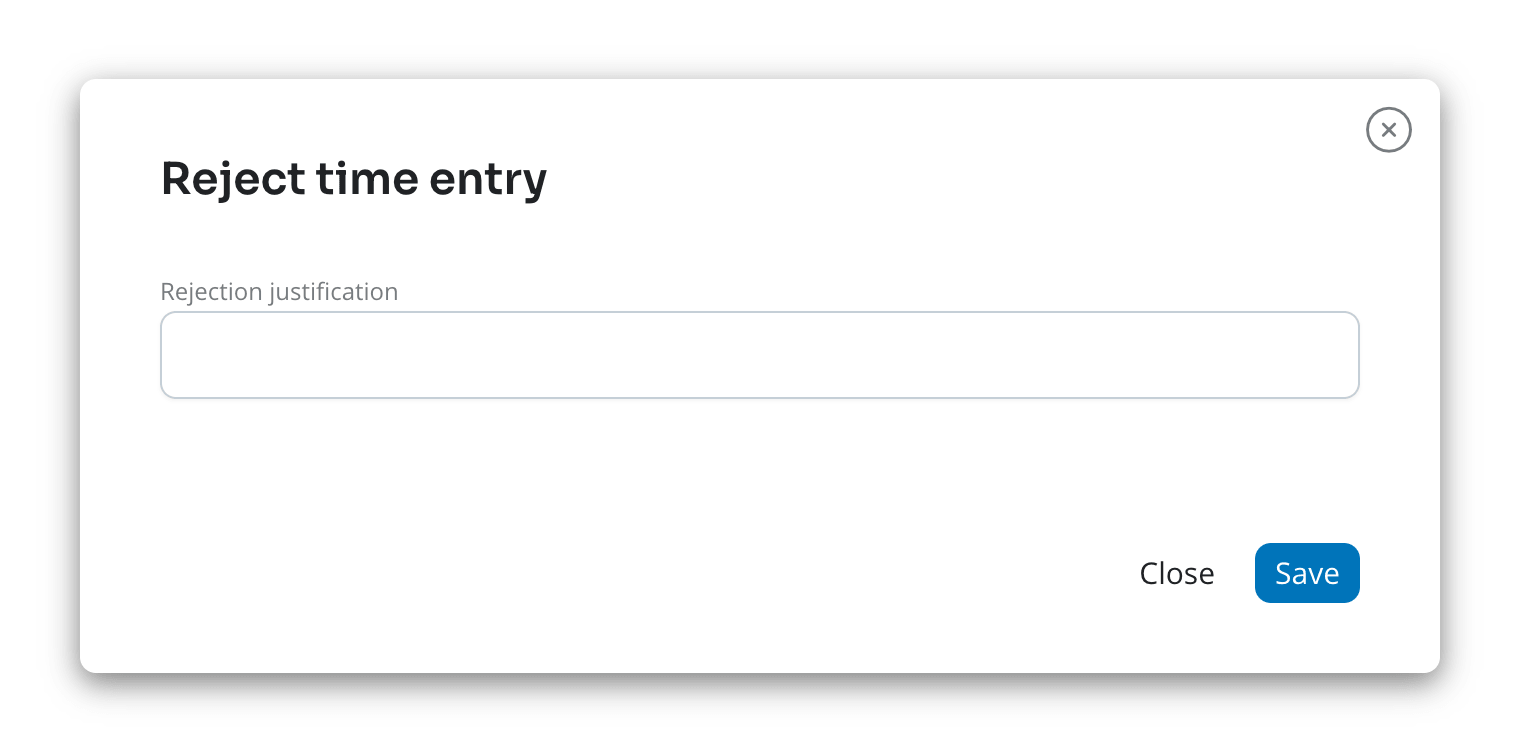
A justification is required. Saving an empty one returns Please provide a justification for rejecting this time entry.
To reject several entries at once, select their checkboxes, open the menu in the selection bar above the table and choose Reject. You are asked for the justification once and it is applied to every selected entry.
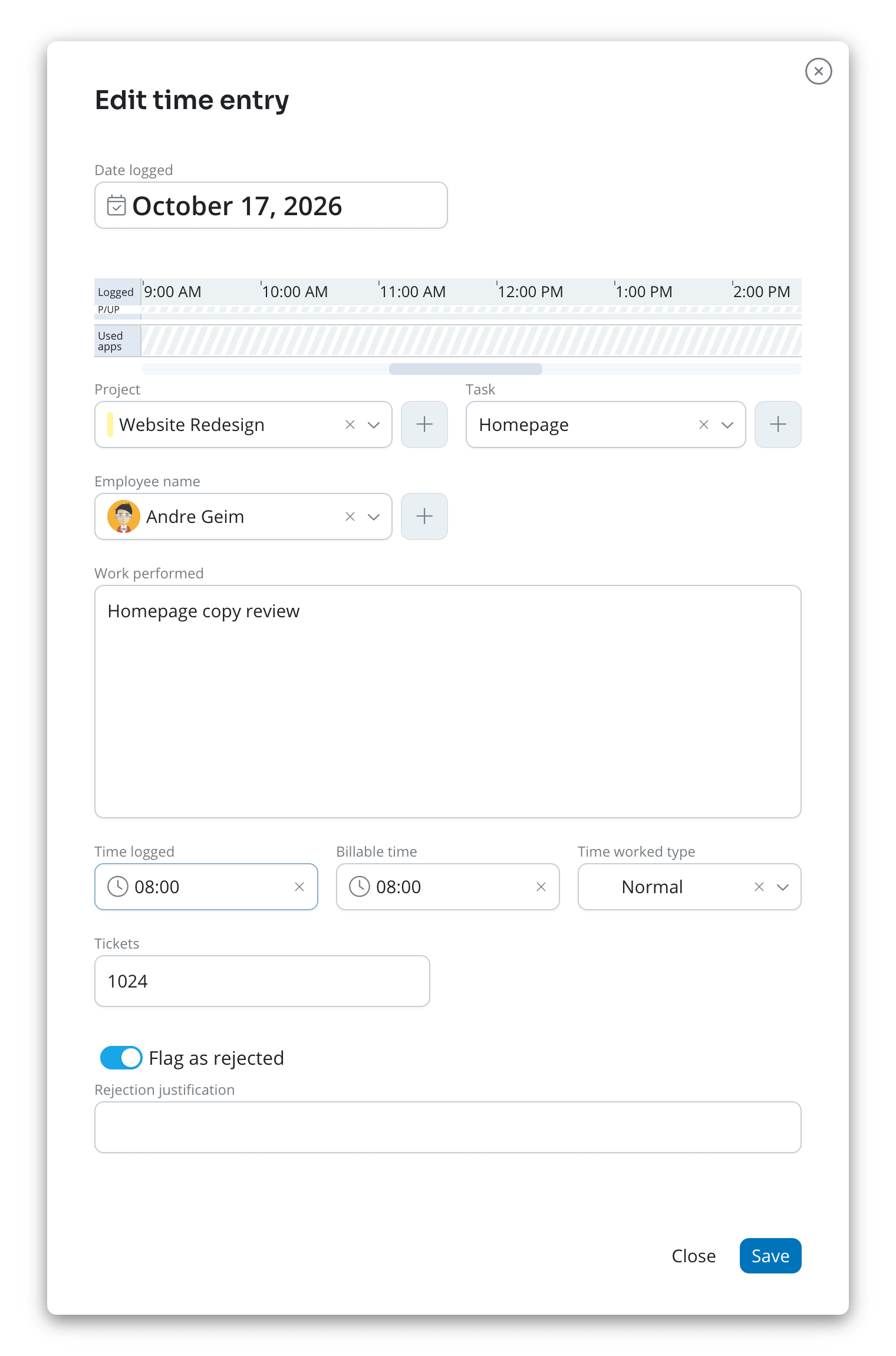
You can also reject an entry while editing it: select Flag as rejected at the bottom of the Edit time entry form, and the Rejection justification field appears beneath it.
What rejection changes
A rejected row is struck through and shown in red, and a warning icon beside its logged time shows the justification on hover. Its time and money are then left out of:
- Timesheet totals — the hours are listed separately as Rejected below the table instead of counting toward Time logged.
- Wage and Billable amount — both become zero for that entry, whatever rates apply.
- Reports, invoices, payrolls, dashboards, Insights, and CSV exports — rejected entries are excluded from all of them.
- The minimum daily hours check — an employee whose entry is rejected can drop below the required hours for that day and be reminded about missing time.
- Gamification goals measured in hours logged.
What the employee sees
Rejecting someone else's entry notifies them straight away:
- an email naming the manager and listing the entry together with the justification;
- a browser and mobile push notification, if Account events is enabled under Personal > Settings > Notifications;
- a Slack message, where the Slack integration is set up.
On their own timesheet the entry appears struck through, and opening it with View shows a Rejected by manager block containing the justification. The employee can still edit the entry.
Nothing is sent when a manager rejects an entry that they logged themselves.
Correcting and accepting an entry
Correcting a rejected entry does not clear the rejection. When the employee edits it, the manager who rejected it is notified that the entry has been changed, and the entry stays rejected until that manager acts on it.
To accept an entry, open its row menu and choose Accept, which replaces Reject on a rejected row. The time and amounts return to the totals immediately and the employee is notified that the entry was accepted. Several rows can be accepted together from the selection bar; Trackabi confirms first, because accepting discards the justifications.