

- Getting Started
- Time Tracking
- Desktop Timer Application
- Work Management
- Time Off & Scheduling
- Reports & Finance
- Administration & Settings
- Integrations
- API
- FAQ
Company Leaderboard
Dernière mise à jour :
The company leaderboard ranks every member of your organization over a period you choose: Daily, Weekly, Biweekly, or Monthly. It answers the question "who is leading right now, and why?" Each member gets one overall score built from four criteria: karma, logged time, productive time, and activity score. You decide how much each criterion counts.
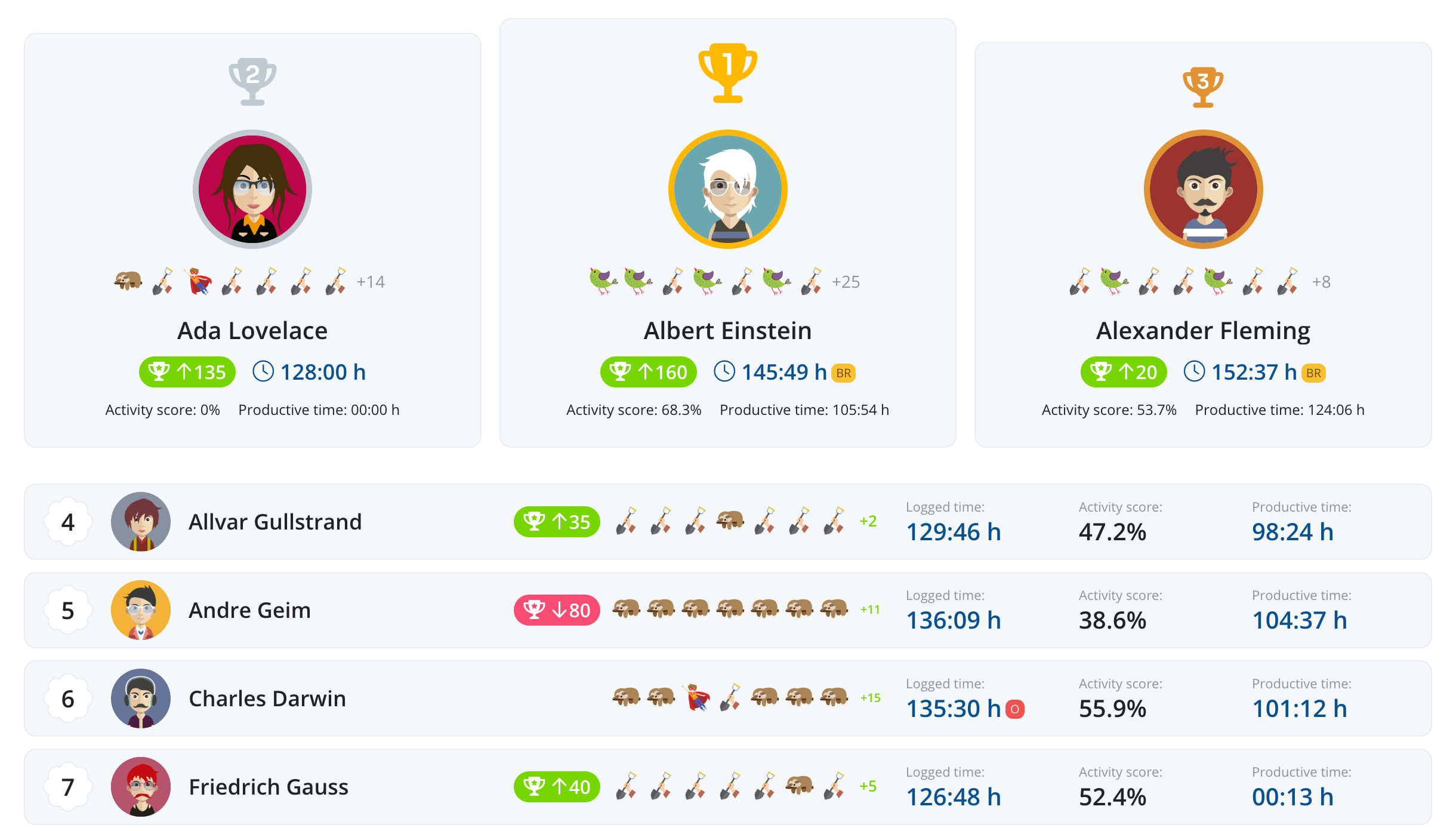
Open it from Company > Leaderboard in the sidebar. The top three members stand on a podium, and everyone else follows in one row per place. Each member is shown with the karma and achievements earned in the period, their logged time, activity score, and productive time.
Availability
- The leaderboard is shown to roles with the View company leaderboard permission. Owner roles have it from the start; grant it to other roles on the Roles page. See User Access Roles & Permissions.
- A member with this permission sees every member on the leaderboard, including people outside their own teams.
- Changing the criteria requires the permission to manage the organization.
- Activity score and productive time come from the Trackabi Desktop app. Members who do not use it are still ranked; see Members without the Desktop app below.
Set up the leaderboard
Three settings decide who appears on the leaderboard, who can open it, and what it measures.
- Open Settings > Roles, select a role, and grant View company leaderboard to every role that should see the ranking.
- In the same role's settings, under Achievements, leave Show in company leaderboard on for roles that should be ranked. Turn it off for roles that should not compete, such as owners or external contractors. Their achievements and karma stay as they are.
- Open Settings > Engagement > Leaderboard and put the criteria in the order that matches what your company values. See Change how much each criterion counts below.
Karma comes from achievements, so the karma criterion ranks nobody until your organization has active achievements. See Gamification of Time Tracking.
How the leader is found
For every member, each criterion is turned into a part between 0 and 100. The overall score is the weighted average of the four parts, and the member with the highest score takes first place.
- Karma — The karma points of the achievements the member earned in the period, divided by the highest karma on the leaderboard, times 100. The member with the most karma gets 100. A negative total counts as 0. This is the karma of the chosen period only, not the 180-day karma shown elsewhere.
- Logged time — The member's logged time divided by their expected hours for the period, times 100, and never more than 100. Expected hours follow the member's work schedule and daily hours, leave out their leave days, and stop at today when the period is still running. Working overtime does not push this part above 100, and rejected time is not counted.
- Productive time — The share of the member's logged time that was productive, divided by the best share on the leaderboard, times 100. Comparing shares means a part-time member is not ranked below a full-time one for working fewer hours. See Productive vs Unproductive Time.
- Activity score — The member's average daily activity score over the days that have one, divided by the best average on the leaderboard, times 100. See User Activity Score.
Karma, productive time, and activity score are relative: the best member in the period sets the 100, so the same result can score differently in another period. Logged time is measured against the member's own schedule.
An example
With all four criteria enabled in the default order, the weights are 4, 3, 2, and 1. Take a member who, over one week:
- earned 30 karma points when the best member earned 60: karma part 50
- logged 36 hours against 40 expected: logged time part 90
- was productive for 60% of their time when the best share was 80%: productive time part 75
- averaged an activity score of 45 when the best average was 60: activity score part 75
Their overall score is (4 × 50 + 3 × 90 + 2 × 75 + 1 × 75) ÷ 10 = 69.5.
The overall score decides the order but is not shown on the page. The page shows the figures it was built from.
Members without the Desktop app
A member with no activity score in the period has no productive time or activity score to compare. They are given the middle value of the Desktop app users on the leaderboard for both parts, so they are neither ahead of nor behind the team for not using the app. Their place is then decided by karma and logged time.
Equal scores
Every member has a place of their own; two members never share one. When two scores are equal, the member with the better value in the first enabled criterion goes first, then the second, and so on. If they are still equal, they are ordered by name.
Change how much each criterion counts
The order of the criteria is their weight. To change it:
- Open Settings > Engagement > Leaderboard.
- Drag the rows into the order you want. The higher a criterion is in the list, the more it counts.
- Clear Enabled for a criterion that should not count at all. At least one criterion stays enabled.
- Save the changes.
With four criteria, the first weighs 4, the second 3, the third 2, and the last 1. In the default order that makes karma worth 40% of the score, logged time 30%, productive time 20%, and activity score 10%.
A disabled criterion weighs 0 and keeps its position, so the others keep their weights. If you disable the second criterion, the weights become 4, 0, 2, and 1, and the first criterion is then worth 4 of 7, or about 57% of the score. A disabled criterion is still shown on the leaderboard; it only stops affecting the order.
The order applies to every period, including past ones: the leaderboard is calculated when you open it, so a change reorders earlier periods too.